EasyManua.ls Logo

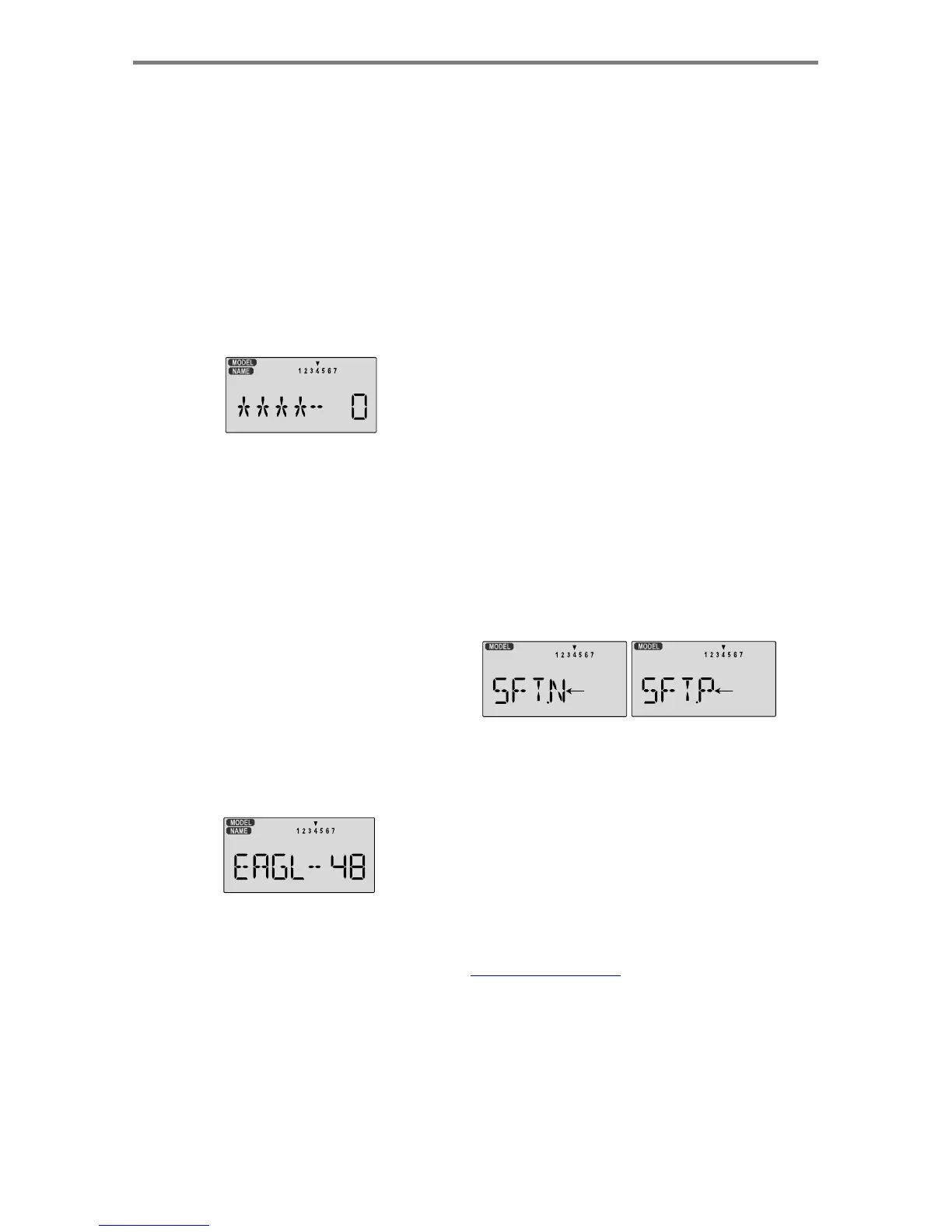
HITEC OPTIC 6 - Model Name; Transmit Shift - SFT.N, SFT.P

HITEC OPTIC 6
60 pages
Print Icon
To Next Page IconTo Next Page
To Previous Page IconTo Previous Page
Loading...
For more information - www.modelflight.com.au
Model
Setu
p
Functions
Mode
l
Name
The
Model
Name
function
is
used
to
create
an
alpha-numeric
name
which
is
stored
in
the
model
memory
along
with
the
rest
of
the
model
settings.
You
will
find
it
useful
to
help
keep
track
of
multiple
models
that
are
stored
in
your
Optic
system.
The
model
name
can
be
four
alphabetic
characters,
along
with
up
to
three
numbers,
0-199.
The
letters
may
be
used
to
abbreviate
the
model's
name,
and
the
numbers
may
be
used
for
the
memory
number,
or
you
may
wish
to
store
that
model's
channel
number
so
you
can
remember
it
easier.
Inputting
a
Model
Name
10.
Switch
power
back
on.
You
may
now
set
up
the
details
of
your
model
in
the
Edit
mode.
Transmit
Shift
-
SFT.N,
SFT.P
The
Transmit
Shift
function
is
used
to
change
the
shift
direction
of
the
Optic
system.
Hitec
receivers
use
a
negative
shift
direction
for
their
transmissions.
However,
some
other
brands
of
RC
gear
use
positive
shifting.
With
this
menu,
you
can
change
the
way
your
transmitter
broadcasts,
so
that
it
can
address
all
types
of
PPM
receivers.
(PPM
receivers
are
also
referred
to
as
"FM"
receivers.)
As
shown
later,
the
Optic
FM
is
TM
1.
With
the
transmitte
r
switched
off, turn
on
y
ou
r
transmitte
r
also compatible with Hitec QPCM
receivers.
Hitec/RCD
TM
and
TM
while
p
ressin
g
both
of
the
two
Edit
ke
y
s
(
the
two
ke
y
s on the
Futaba
TM
receivers use negative
shift
(
N
),
where Multiplex
TM
,
fa
r
left
)
.
The
model
select
(
M.SEL
)
menu
will
be
dis
p
la
y
ed,
JR and Airtronics use
p
ositive
shift
(
P
)
with
"the
model
type"
to
represent
letters
to
be
chosen.
2.
Press
the
Up
or
Down
arrow
key
until
you
get
into
the
model
name
menu.
You'll
see
the
display
as
shown
to
the
right,
with
the
MODEL
and
NAME
indicators
in
the
upper
left
on.
The
first
character
of
the
name
will
be
flashing
on
and
off.
(If
you're
already
in
the
setup
menus,
you
can
just
press
the
Up
or
Down
arrow
key
to
get
here.)
3.
To
change
the
first
character,
press
the
+Increase
and
-Decrease
Data
keys
until
you
see
the
character
you
desire.
You
may
select
from
the
upper
case
letters
A
-
Z,
*,
+,
-,
/,
and
the
numbers
0
-
9.
4.
Press
the
Right
Cursor
key
to
move
to
the
next
character.
5.
Press
the
+Increase
and
-Decrease
Data
keys
until
you
see
the
character
you
desire.
6.
Repeat
the
previous
two
steps
to
input
the
third
and
fourth
characters
of
the
display.
7.
Press
the
Right
Cursor
key
to
move
to
the
number
displays
on
the
right.
8.
Press
the
+Increase
and
-Decrease
Data
keys
until
you
get
to
a
number
that
you
like.
This
can
be
any
number
from
0
to
199.
If
you
have
lots
of
models
with
different
frequencies,
you
may
wish
to
input
your
channel
number
here.
If
you
choose
the
wrong
shift
direction
for
your
receiver,
the
servos
may
move
erratically
and
will
not
respond
to
the
transmitter
,
even
if
it
is
on
the
correct
frequency.
Turn
off
your
receiver
at
once
and
change
the
shift
direction
to
preclude
damage
to
your
servos.
If
you
use
a
mixture
of
receiver
brands,
sure
that
each
model
is
correctly
set
for
the
model
of
receiver
you
are
using
in
the
corresponding
model
memory.
Changing
the
Frequency
Shift
1.
With
the
transmitter
switched
off,
turn
on
your
transmitter
while
pressing
both
of
the
two
Edit
keys
(the
two
keys
on
the
far
left).
The
model
select
(
M.SEL
)
menu
will
be
displayed.
2.
Press
the
Up
or
Down
Edit
key
until
you
get
into
the
shift
menu.
You'll
see
either
the
word
SFT.N
or
SFT.P
,
with
the
last
character,
N
or
P
,
flashing
on
and
off.
(If
you're
already
in
the
setup
menus,
you
can
just
press
the
Up
or
Down
arrow
key
to
get
here.)
Flashing
Flashing
TM
3.
N
represents
negative
shift
and
will
work
with
Hitec
and
TM
Futaba
.
P
represents
positive
shift
and
will
work
with
TM
TM
TM
Multiplex
,JR
and
Airtronics
brands.
4.
To
change
the
shift
direction
from
what
is
shown,
press
either
the
Left
or
Right
Cursor
key
one
time.
This
will
change
the
display
from
P
to
N
or
N
to
P
.
5.
Press
the
Up
or
Down
arrow
keys
to
get
to
another
setup
menu,
or
switch
power
off.
9.
Press
the
Up
or
Down
arrow
keys
to
get
to
another
setup
menu,
or
switch
power
off.
Mode
l
Setup
Function
s
-
Pa
g
e
13

Table of Contents

Other manuals for HITEC OPTIC 6

Related product manuals