EasyManua.ls Logo

HITEC OPTIC 6 - Setting Up Differential; CAMB - Camber Control

HITEC OPTIC 6
60 pages
Print Icon
To Next Page IconTo Next Page
To Previous Page IconTo Previous Page
Loading...
For more information - www.modelflight.com.au
A
ir
p
lane
Model
Function Descri
p
tions
Setting
Up
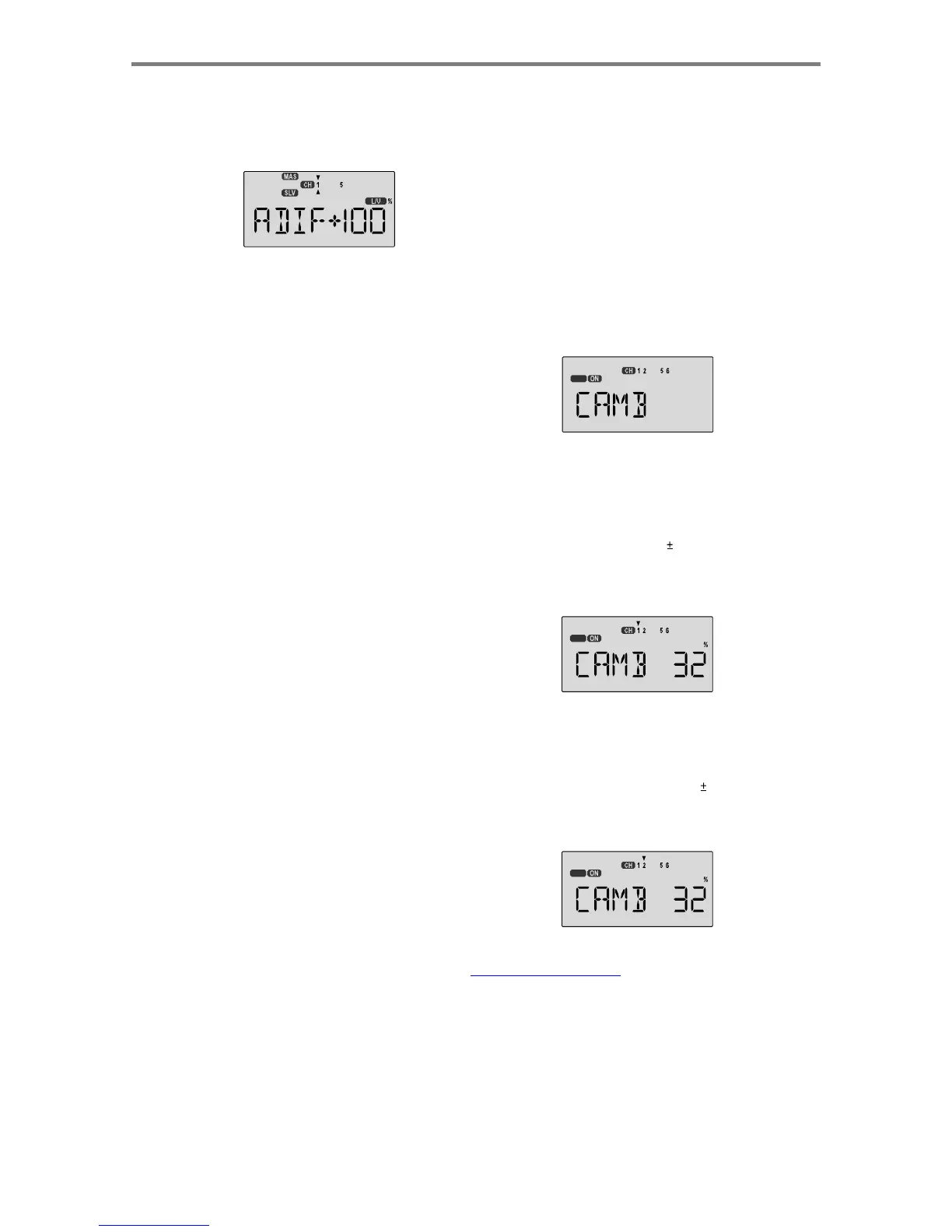
Differential
1.
Press
one
of
the
Up
Down
Edit
buttons
repeatedly
to
select
the
ADIF
window.
To
begin
with,
the
function
is
already
activated,
but
it's
set
to
100%
on
both
sides
so
there
is
no
differential.
CAMB
-
Camber Contro
l
Your
Optic
system
contains
a
special
mixing
function
called
"Camber."
You
may
use
the
Camber
function
to
select
a
group
of
preset
positions
for
channels
1,
2,
and
6
(1,
2,
5,
and
6
if
ADIF
is
activated).
This
is
used
for
models
requiring
these
presets
for
certain
flying
conditions.
For
example,
many
sailplanes
use
drooped
ailerons
and
flaps
to
maximize
their
climb
during
launch.
Scale
models
might
drop
ailerons
and
flaps
for
slower,
more
realistic
flight.
2.
A
small
arrow
is
displayed
under
the
numeral
1
,
showing
that
CH1
is
the
affected
channel.
To
set
the
differential
for
the
right
aileron
(
CH1
)
down
travel,
hold
the
aileron
stick
to
the
left
side
(display
shows
L/U
),
and
press
the
Data
Decrease
key
(the
right
aileron
moves
down
when
left
aileron
stick
is
commanded).
Continue
reducing
the
percentage
until
you
reach
about
60
%to
70
%.
3.
Make
sure
that
the
up
travel
for
the
first
aileron
(CH1)
stay
s
at
100%
by
holding
the
aileron
stick
to
the
right
side
(displa
y
shows
R/D
)
and
verifying
that
the
display
shows
100
%.
4.
Press
the
Cursor
Right
key
once,
to
get
to
the
left
aileron
(
CH5
)
setting
menu.
A
small
arrow
is
displayed
under
the
numeral
5
,
showing
that
CH5
is
the
affected
channel.
5.
Move
the
aileron
stick
to
the
right
(display
shows
R/D
),
and
press
the
Data
Decrease
key
reducing
the
percentage
until
you
reach
about
60
%to
70
%.
6.
Make
sure
that
the
up
travel
for
the
second
aileron
(CH5)
stays
at
100%
by
holding
the
aileron
stick
to
the
left
side
(display
shows
L/U
)
and
verifying
that
the
display
shows
100
%.
7.
If
for
some
reason
you
want
a
0%
setting,
press
the
Active
/Inhibit
(Clear)
key.
This
is
the
maximum
amount
of
differential
you
can
get,
but
will
reduce
the
roll
rate
if
selected.
Setting up Camber function
1.
Use
the
Edit
Up
Down
arrow
keys
to
select
the
CAMB
window.
Depending
on
the
position
of
the
FLT
MODE
(SW-3)
switch,
the
display
will
show
a
flashing
OFF
or
ON.
The
FLT
MODE
(SW-4)
switch
turns
CAMB
on
when
all
the
way
forward.
OFF
2.
First
the
amount
of
Right
or
first
aileron
offset
is
programmed.
Press
the
Cursor
Right
key
to
get
a
small
arrow
displayed
over
the
numeral
1
(representing
first
aileron).
You
may
adjust
the
amount
of
travel
with
the
Data
+Increase
and
-Decrease
keys.
You
may
use
anywhere
between
-100%
and
+100%,
but
a
small
value
of
10%
or
less
is
the
recommended
starting
value.
Be
careful
as
this
may
have
a
significant
effect
on
the
model's
trim.
Press
the
Active/
Inhibit
(Clear)
key
if
you
wish
to
reset
to
0%.
OFF
3.
Next,
the
amount
of
elevator
offset
is
programmed.
A
small
arrow
is
displayed
over
the
numeral
2
(representing
elevator).
You
may
adjust
the
amount
of
travel
with
the
Data
+Increase
and
-Decrease
keys.
You
may
use
anywhere
between
-100%
and
+100%,
but
a
small
value
of
10%
or
less
is
the
recommended
starting
value.
Be
careful
as
this
has
a
very
powerful
effect
on
the
model's
trim.
Press
the
Active/Inhibit
(Clear)
key
if
you
wish
to
reset
to
0%.
OFF
A
ir
p
lane
Mode
l
Function
Descri
p
tion
s
-
Pa
g
e
3
2

Table of Contents

Other manuals for HITEC OPTIC 6

Related product manuals