Context
NOTICE
The device does not support privacy mask areas during PTZ rotation or lens zooming.
Exercise caution when rotating the PTZ and zooming in or out on the lens because the privacy
mask area may be exposed.
Procedure
Step 1 Choose Settings > Channel Configuration > Privacy Mask Parameters.
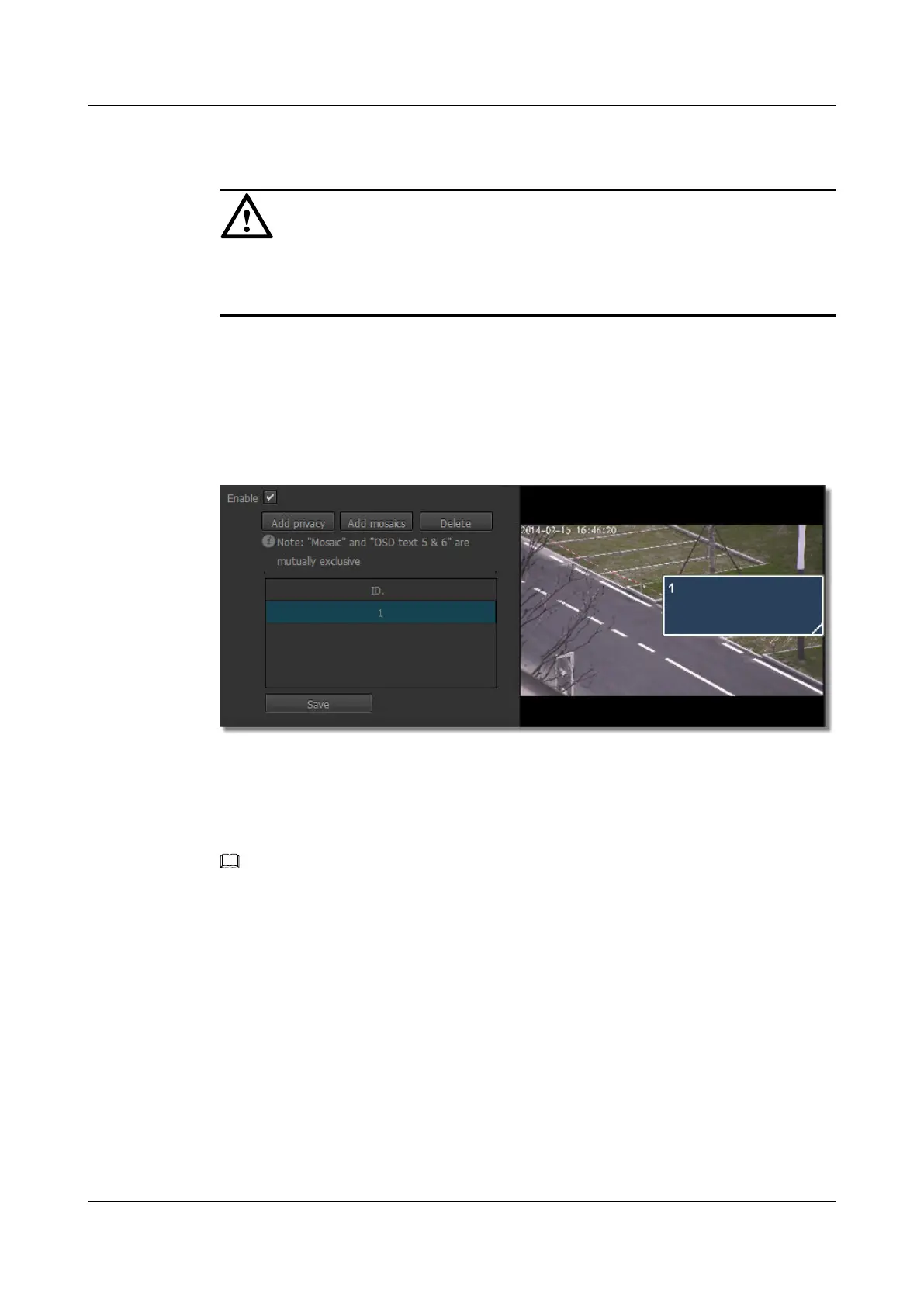
The page for Privacy Mask Parameters is displayed, as shown in Figure 6-9.
Figure 6-9 Privacy Mask Parameters tab page
Step 2 To enable the privacy mask function, select Enable.
Step 3 Click Add privacy or Add mosaics.
A privacy mask area is displayed on the video image.
NOTE
l You can add only one privacy mask area at a time. After the add operation is complete, save data for the
settings to take effect.
l The privacy mask areas on live video images are displayed in color or mosaics effect.
The maximum number of color areas is four, you can select an existing color (the default is black) or
enter an RGB value in hexadecimal format to customize the color. The maximum number of mosaics
areas is two and you cannot set the color for mosaics area.
Step 4 Select Area color based on the site requirements.
Step 5 Use the mouse to adjust the location and size of the privacy mask area.
Step 6 Click Save.
Step 7 Go to the Preview page and check whether the location and size of the privacy mask area
meet the requirements.
l If yes, the configuration is complete.
IPC6221-VRZ-SP
Configuration Guide
6 Setting Video Parameters
Issue 02 (2016-04-06) Huawei Proprietary and Confidential
Copyright © Huawei Technologies Co., Ltd.
49


 To Next Page