Method 2: Using the web-based management page
Step 1 Connect your computer/phone to the router's Wi-Fi , or connect the computer to
the router's LAN port using an Ethernet cable. Enter the default IP address in your
browser address bar and log in to the web-based management page(check the
nameplate at the bottom of the router for the default IP address).
● For routers that feature self-adaptive ports, you do not need to distinguish between
WAN and LAN ports.
● If you are connecting your phone to the router's Wi-Fi network, switch your phone's
webpage to the PC-based UI before performing the following operations.
Step 2 Go to More Functions > Wi-Fi Settings > Wi-Fi Access Control, and toggle on
Wi-Fi Access Control. Set the router to Blocklist(block access from devices in the
list) or Trustlist(allow access from only devices in the list) according to your needs.
Step 3 Click the icon in the upper right corner of the Device List, and add the devices
that you want to blocklist or trustlist. Click OK.
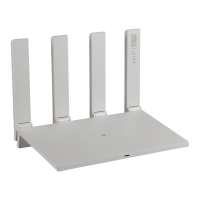
HUAWEI_WIFI_AX2
HUAWEI_WIFI_AX2
54 How do I set up a blocklist or trustlist on my
HUAWEI router
Issue 01 (2022-02-18) Copyright © Huawei Technologies Co., Ltd. 182


 To Next Page
 Loading...