76
fi g. 5.5
fi g. 5.6
5 - C P
Control Panel
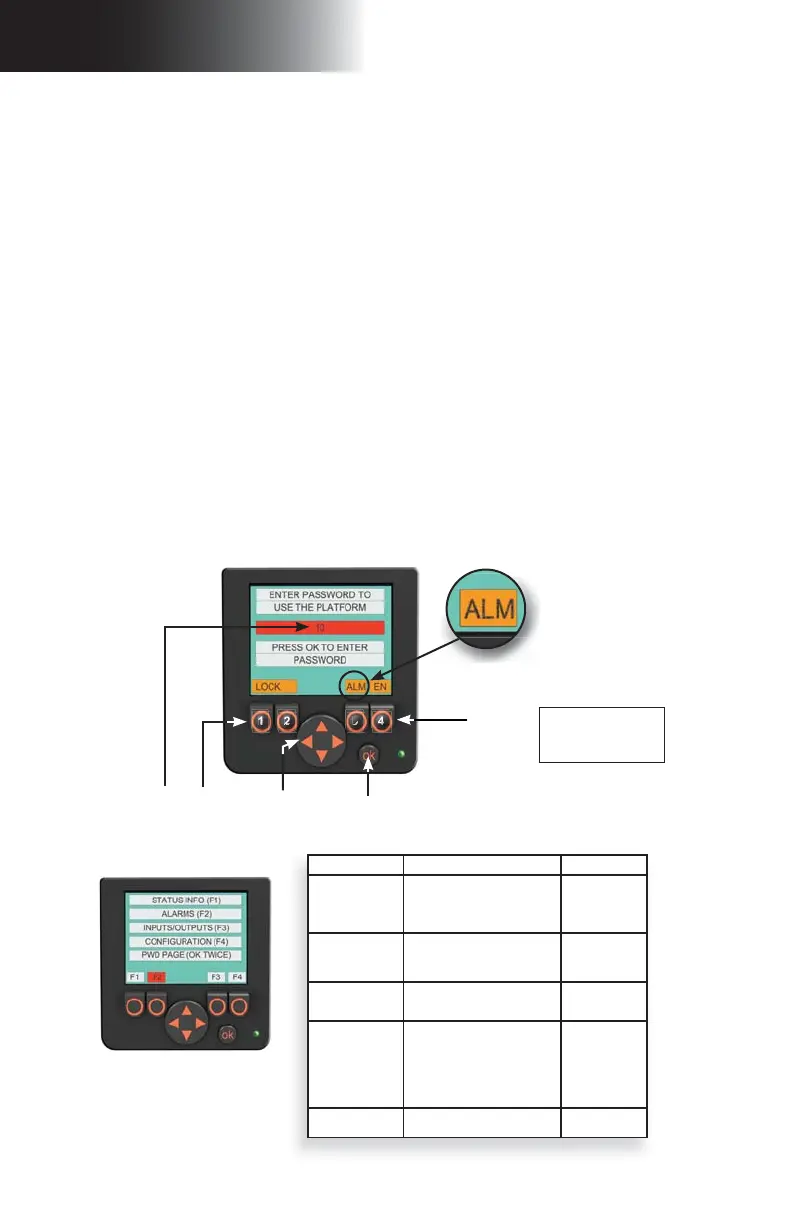
Screen alerts and instructions
Unlocking the display screen
1- Pull out the emergency stop button.
2- On a gas-powered motorized unit, if the display screen does not turn on after a short
period of time, make sure that the battery is plugged in.
On an electrical unit, if the display screen does not turn on after a short period of time,
make sure that the power cable is properly connected to both the power source and to
the motorized unit. If the cable is connected, verify the phase selector and make sure
the appropriate phase has been selected. The phase selector should be at the left (1)
or right (2) position. The middle (0) position is neutral and will prevent the unit and
panel from powering on. If the display screen still does not turn on, turn off the main
disconnect switch and contact a certifi ed electrician or qualifi ed technician.
3- Once the panel is powered on, press on any key under the display screen to activate it.
4- Once on the access code entry page, it is possible to change the display language by
pressing the rightmost button (button 4 on the illustration below).
5- If an event is detected by the panel, the
ALM rectangle will blink (above button 3 in
fi g. 5.5) to indicate it. The display screen must be unlocked to display the alert info
screen.
6- To enter the operating access code (default “10”), press on the
OK button. Once the
input box is blinking, use the
UP and DOWN arrows (on the navigation button) to change
the value, then press
OK to unlock the display screen. The default operating access
code can be changed by the qualifi ed erector/dismantler or the qualifi ed technician.
7- Once unlocked, the screen displays the main menu page. Press on the appropriate
option button to go to the selected option.
1
2
3
4
Input
box
To modify
display
language
Navigation
button
Unlocking the display screen
ALM blinks to indicate an
alert
OK button to
validate entry
Option
button (4)
Display Language
EN English
FR French
ES Spanish
Main menu screen
Screen Description Access level
F1 – Status info Information on the status of
the current confi guration of the
unit and its components (door
sensors, inclinometer, total
runtime hours, etc.)
Operator
F2 – Alarms Information on any event
detected by the control panel
that could prevent the unit and
its components to operate safely
Operator
F3 – Inputs and
outputs
Status of various controls,
sensors and switches linked to
input and output ports
Operator
F4 – Confi guration Screens allowing the
modifi cation of certain
confi guration options for the unit
or the installation (enabling door
sensors, enabling inclinometers,
modifying user-level password,
resetting maintenance runtime
counter, etc.)
Erector/
Dismantler
(level 1)
Pressing twice on
OK button
Entry-level access page to log
out and lock panel
Operator



 To Next Page