77
fi g. 5.7 fi g. 5.8
fi g. 5.9
5 - C P
Control Panel
Screen alerts and instructions
F1 – Status info
Access level: Operator
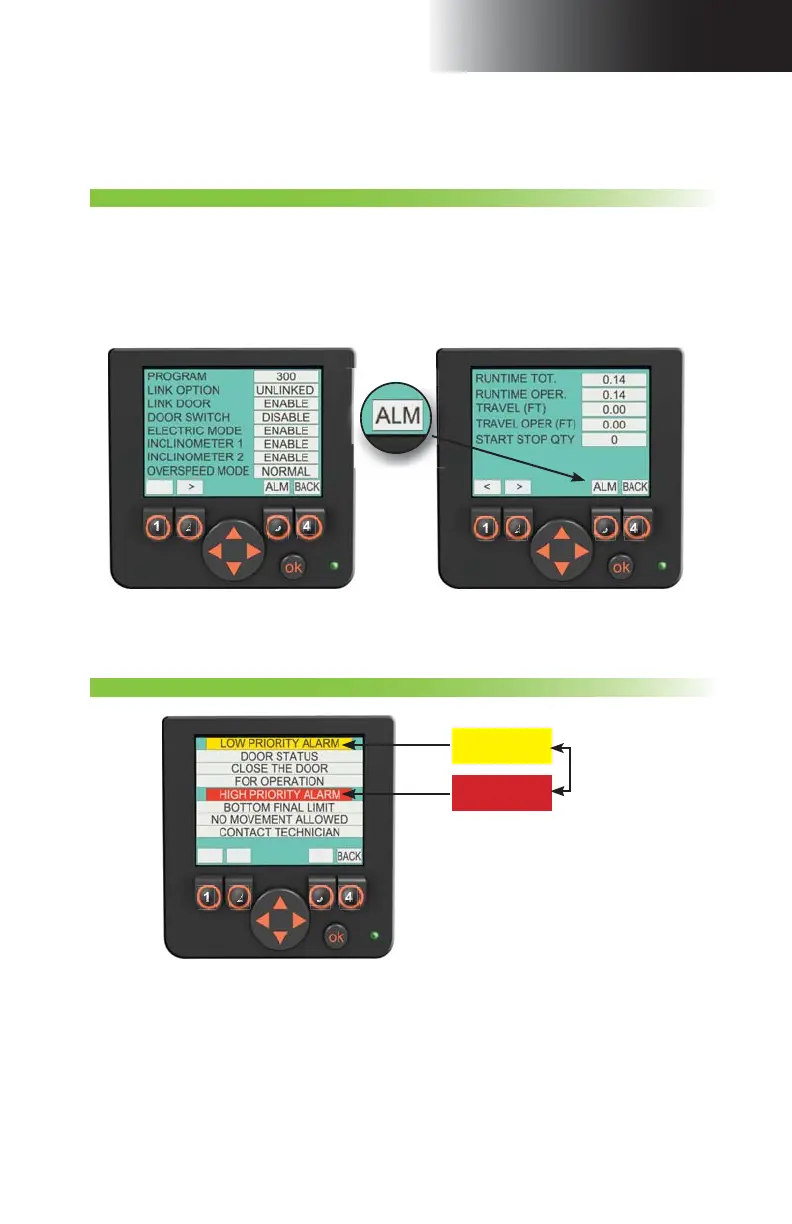
1- Press F1 on the main menu screen (button 1 on the main menu screen display example
in fi g. 5.6, p. 76).
2- Change display pages with the option buttons (buttons 1 and 2 in fi g. 5.8).
3- Press the
BACK button (button 4 in fi g. 5.8) to return to the main menu page.
This two-page section displays general information about the current confi guration of the
unit and the installation.
Note: Numbers on the above option buttons are displayed as an example only. Actual messages displayed may diff er
from picture.
Screen 1 of Status Info Screen 2 of Status Info
1
2
3
4
1
2
3
4
This section displays events detected by the control panel that could compromise the safe
operation of the unit and its components. If there is more than one alert, the screen will
display the pages alternately.
Once an event is detected, the
ALM rectangle (fi g. 5.8) will blink to signal an alert. This
section may also be reached at all times by pressing on the
ALM button (button 3 in fi g. 5.8).
Press the
BACK button (button 4 in the example in fi g. 5.8) to return to the main menu screen.
F2 – Alerts
Access level: Operator
Note: Numbers on the above option buttons are displayed as an example only. Actual messages displayed may diff er
from picture.
1
2
3
4
Low priority
alerts (in yellow)
High priority
alerts (in red)
Two alert levels



 To Next Page