49
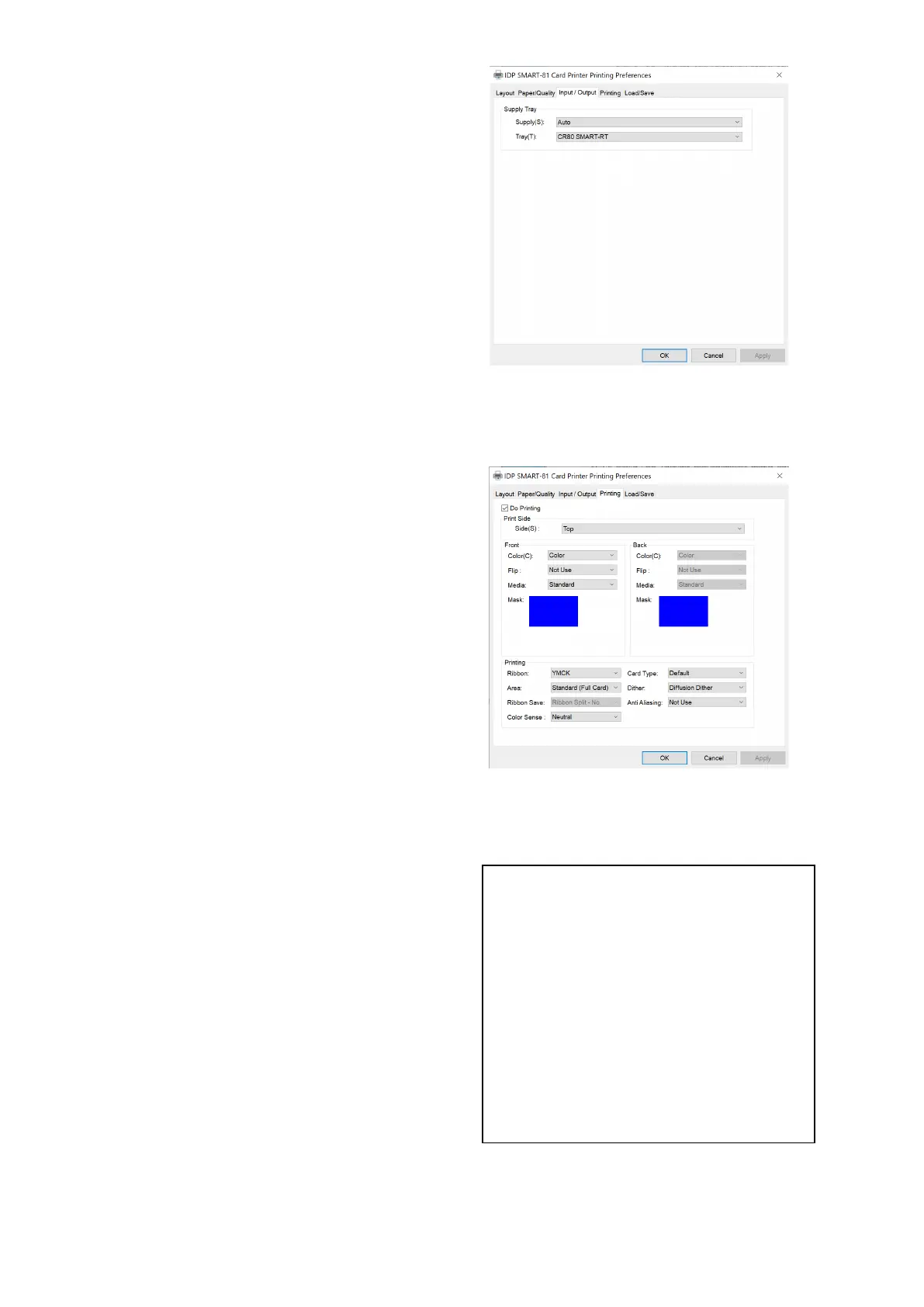
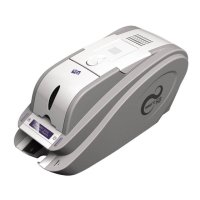
You can select “Auto” if SMART-81
has 1 input hopper. Please select the
hopper if it has a multi hopper.
SMART-81 supports CR-80 card only.
Figure 47 Input / Output Setting
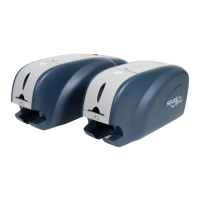
Printing
Print: you can select printing or not.
Side: Please select one
both sides printing. (It is possible only
when you have a flipper)
[ Front / Back ]
Color:
You can select color or mono print.
Flip: You can flip an image.
Media / Mask: You can indicate the area
to print by using a predefined mask or
user defined mask (white card, smartcard,
Magnetic stripe card, etc.) on front or
back side.
Printing ]
:
It shows the type of installed ribbon.
You don’t need to select this option as
SMART-81 recognizes ribbon
automatically with RF tag.
ard Type: Set printing mode.
Set whether to print an area without
images.
There are 3 possible selections,
Threshold, Random, and Diffusion
Dither. It is performed with K and KO
ribbon only. (Please select “Diffusion
Dither” for high quality)
Figure 48 Printing Setting
User defined mask uses BITMAP file
(1012 X 636 pixels).
Blue (RGB(0,0,255)): Print and
Overlay
Sky Blue (RGB(0,255,255)): Overlay
only
Pink (RGB(255,0,255)): Print only
Yellow (RGB(255,255,0)): Florescent


 To Next Page