52
RDX A8 User and Service Guide — Version 1.0
Slot UI Test
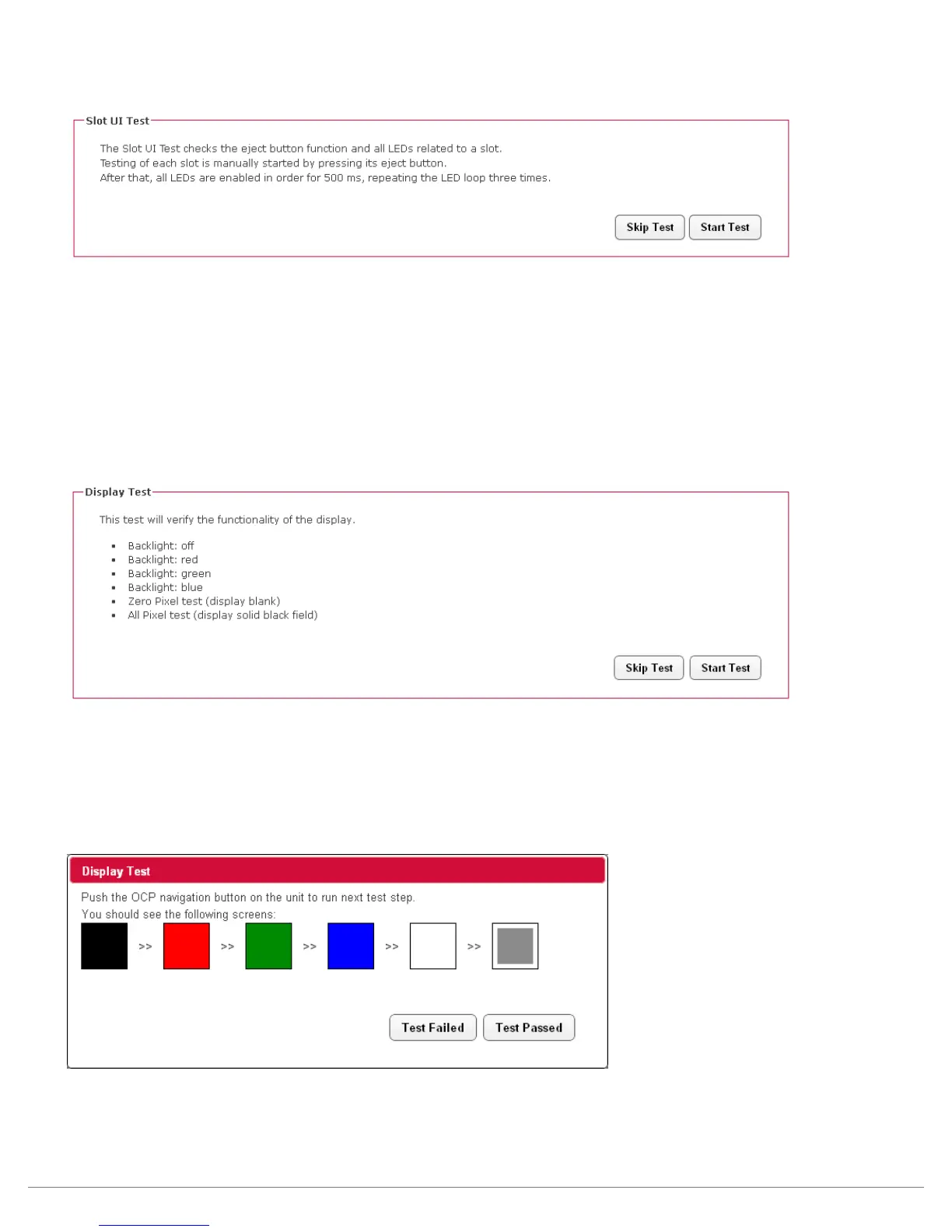
To execute the “Slot UI Test” select the “Start Test” button. It which will request the operator to push
each individual slot eject button and observe the LED behavior. The LED will blink three times green
then three times amber. Note that when the RDX A8 is in the slot UI test mode any inserted cartridge
will not be ejected by the associated button push during the test. Once all eight positions have been
verified confirm completion of a successful test by selecting “Test Passed” button which will create a
“Slot UI Test passed” status.
Display Test
To execute the “Display Test” select the “Start Test” button. The local operator will then be asked to
push the OCP navigation button and observe the display. Each navigation button push will step the unit
through a different display action. The first four steps will change the display backlight from white, to
red, to green, to blue verifying proper operation of the RGB backlight. The next two steps will first clear
all display pixels (the observer should see no dots) then set all pixels black (the observer should see no
missing black dots in the field).
Once all six display conditions have been verified confirm completion of a successful test by selecting
“Test Passed” button which will create a “Display Test passed” status.


 To Next Page