SKYZER TECHNOLOGIES PAGE 47 OF 97
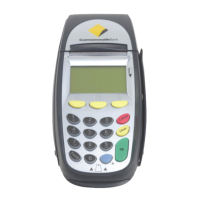
INGENICO 5100 PAYMARK VERSION 6.0 OPERATING GUIDE Version 1.3
4 OPERATION OF TERMINAL
4.1 MERCHANT LOGON
To initiate a Merchant logon, follow the steps below:
Press ENTER key until SUPERVISOR menu is shown on the display
Press SAV key to select INIT
2.0
1 Merchant
1 Merchant1 Merchant
1 Merchant
1
11
1
2 Merchant
2 Merchant2 Merchant
2 Merchant
2
22
2
3 Merchant
3 Merchant3 Merchant
3 Merchant
3
33
3
4 ALL MERCHANTS
4 ALL MERCHANTS4 ALL MERCHANTS
4 ALL MERCHANTS
Only applicable with Multi-Merchant setup.
Select the corresponding number on the terminal to select the Merchant followed by
ENTER.
Press CLEAR or CANCEL to select a different merchant.
3.0
PROCESSING NOW
PROCESSING NOWPROCESSING NOW
PROCESSING NOW
PROCESSING NOW will be displayed
4.0
ACCEPTED
ACCEPTEDACCEPTED
ACCEPTED
ACCEPTED will be displayed when the terminal has made the connection with
Paymark
NOTE: When set up as a multi-merchant device, the terminal will first prompt for
the selection of the particular merchant.
4.1.1 Pending Reversal
Prior to removing a terminal from a merchant’s site, or reprogramming it with a
new merchant ID, it is important to perform a logon to ensure there are no
pending reversals stored on the terminal.
To clear any pending reversals stored on the terminal, simply initiate a
merchant logon.
Stored pending reversals must be cleared from the terminal in order that all
stored transaction data can be processed through the host.
Until stored pending reversals are cleared, it will not be possible to access the
merchant configuration menu and new merchant details will not be accepted
by the terminal.







 To Next Page
