76
01/13424999386
EasyConnect+
15 CongurationsoftwareEasyConnect(fromrmware01.01.02)
15.3 ConnectingwiththeEasyConnectcontrolpanel,startingtheSoftwareand
automaticstartingoftheInfointerface
15.1 GeneralinformationabouttheEasyConnectcongurationsoftware
The EasyConnectcongurationsoftwareenablestheeasy,subsequentcongurationofvariousfunctionsviaa
congurationinterface.
UsingaserviceportconnectingcableandtheEasyConnectcongurationsoftware,youcanread,changeand
expand functions as well as analyse any errors that may occur via the service port interface on the EasyConnect
board.
Note: Thisdescriptionofthecongurationsoftwareappliesonlytothestandardlicense.
15.2 System requirements
• Microsoft Windows 7 or higher. Windows 10 recommended.
• PC with the MS .NET Framework 3.5 or higher runtime environment.
• At least 50 MB space on the hard drive
• One free USB port, 1.1 or higher
• PDF reader
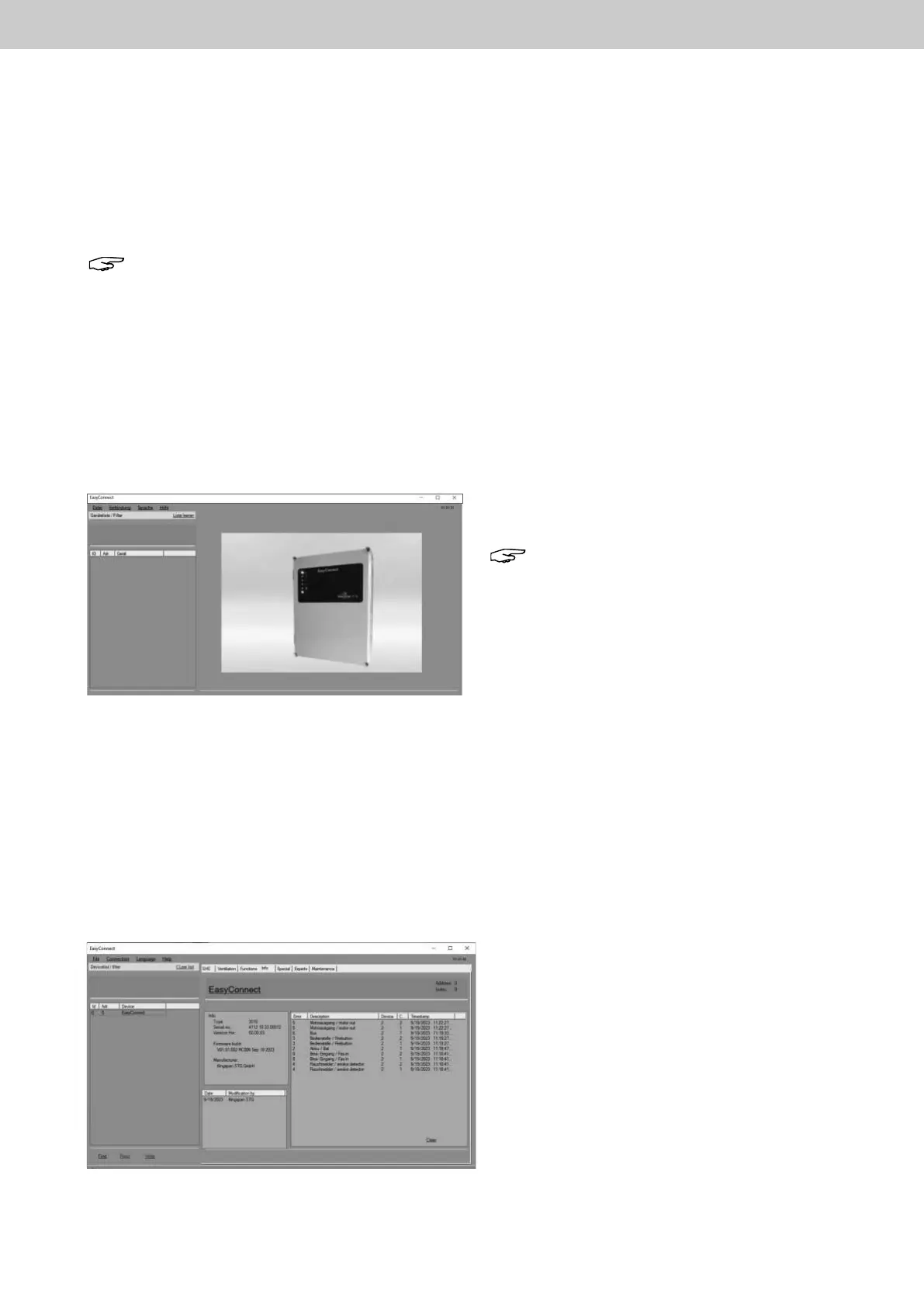
Fig.:EasyConnectcongurationsoftwarestartscreen(withoutthe
service port connecting cable connected.
Fig.: Info interface (when the service port cable is connected)
► First insert the USB adapter of the service-port
connecting cable into the PC.
Note: When the USB adapter of the service
port connection line is connected to the PC for the
rsttime,adriverisinstalledrst.Waitforinstal-
lation process. Action steps may be required depen-
ding on the system.
► Now connect the PC to the RWA control centre.
Do so by inserting the RJ 12 plug of the service
port connecting cable into the RJ 12 socket on the
control centre board.
► The control centre requires power from the mains
or a charged battery.
► Start theEasyConnectcongurationsoftwareon
the PC / laptop.
The Infointerface starts automatically.
The connected control centre appears in the device
list with the address and name (EasyConnect).
The Find button can also be used to display the con-
nected control panel.
By pressing the Read button in the device list, the
existingcongurationscanbereadout.
Click on the Write button to apply changed parame-
tersandcongurationdata.
The Info area displays information about the RWA
control centre such as serial no. or the software
version.
The
eldDate/Modicationbydisplayswhohas
made the last changes to the EasyConnect.
15.4 Infointerface


 To Next Page