7.COMMAND CENTER ADMINISTRATOR MODE
Setting up User Management 277
7 COMMAND CENTER ADMINISTRATOR MODE
Exporting user information and counters
The user information can be exported as a CSV file for use in other equipment.
Before exporting the user information data, confirm that there is no print job, no scan job, and no fax job. The user
information data cannot be exported if there are any jobs that have been processed. If exporting the user information
data takes a long time, restore the data after the equipment turns into the Sleep/Auto Shut Off mode. It may take a long
time if there is too much user information or the data including user names or domain names that are too long.
1
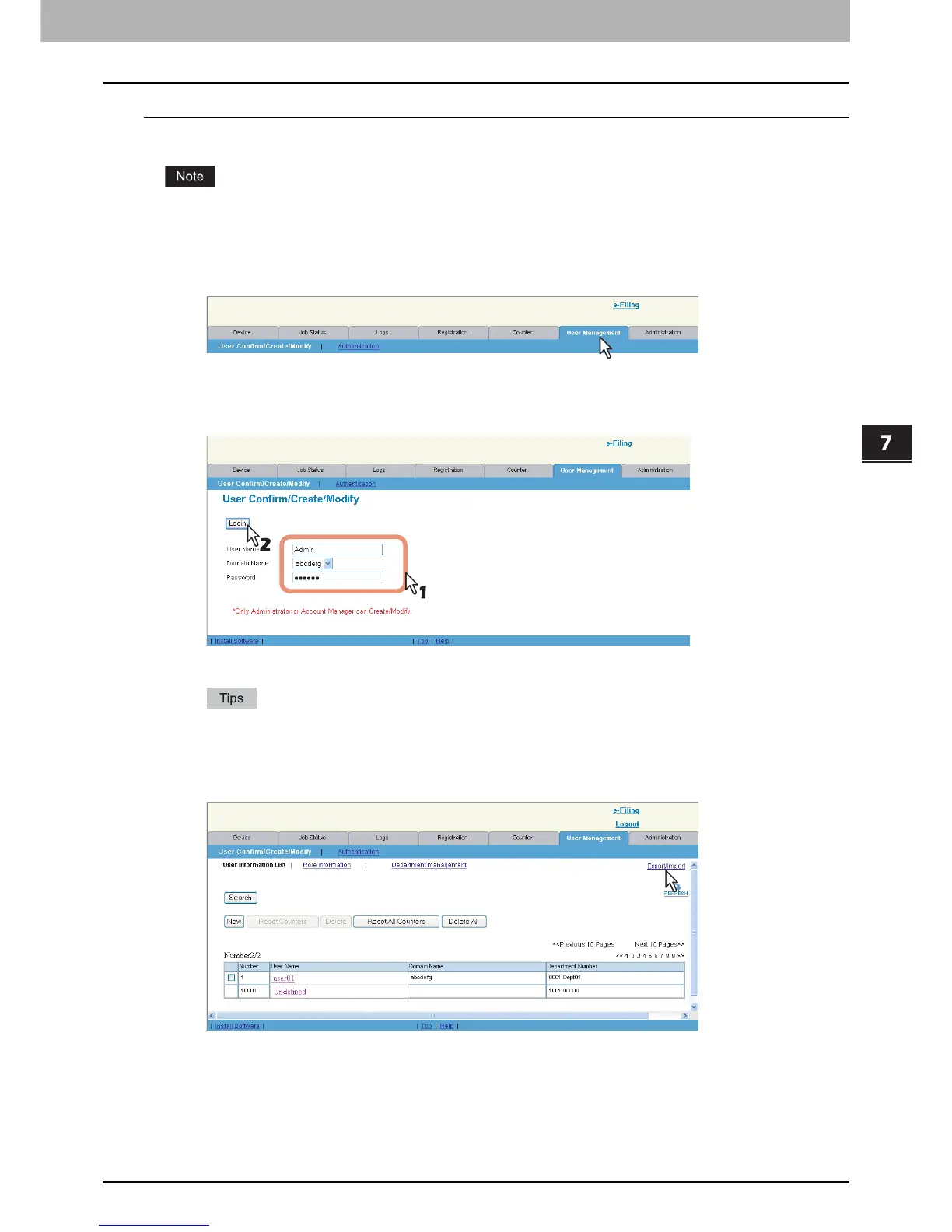
Click the [User Management] tab.
The login page is displayed.
2
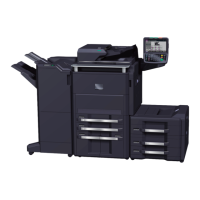
Enter “Admin” in the [User Name] box, enter the administrator password in the
[Password] box, and click [Login].
The User Information List submenu page is displayed.
Users can also log in using a user name, domain name (required only when Windows Domain
Authentication is enabled), and password that have been set as Account Manager in User Information.
You do not have to select the [Domain Name] box when you log in as the Administrator.
3
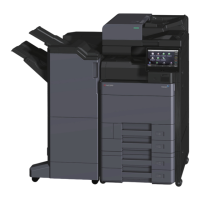
Click the [Export/Import] link at the upper right of the page.
The Export/Import window appears.








 To Next Page