7.COMMAND CENTER ADMINISTRATOR MODE
Setting up User Management 279
7 COMMAND CENTER ADMINISTRATOR MODE
6
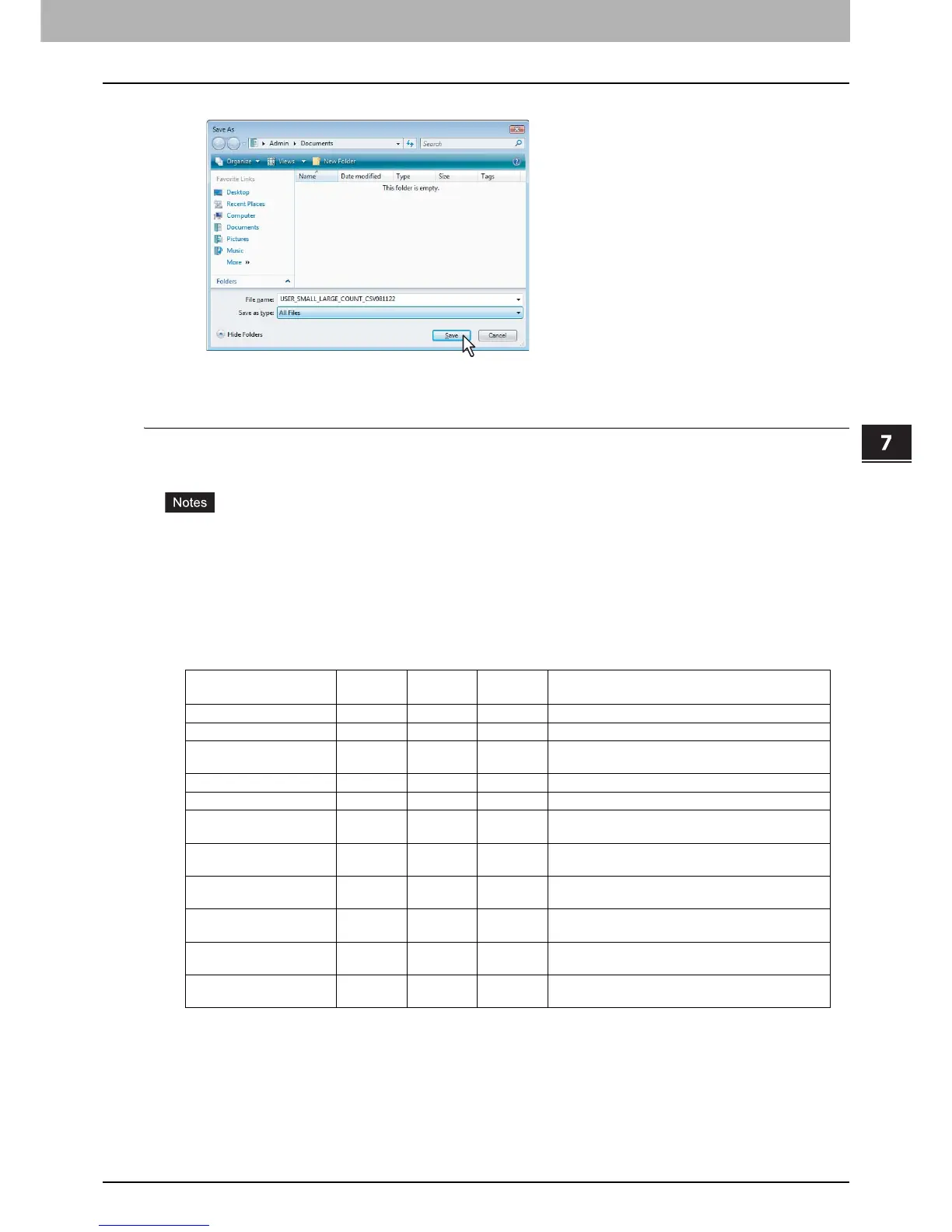
Select the file location and select [All Files] in the [Save as type] box. Then click [Save].
The CSV file that contains the user information data is saved in the selected location.
Importing user information
You can import user information from a file that has been exported from another device such as same series. The
imported file must be a comma delimited CSV file and created in a suitable format for the user information data.
When the user information data is imported, the old data will be cleared and overwritten with the new data.
Before importing the user information data, confirm that there is no print job, no scan job, and no fax job. The user
information data cannot be imported if there are any jobs that have been processed. If importing the user
information data takes a long time, restore the data after the equipment turns into the Sleep/Auto Shut Off mode. It
may take a long time if there is too much user information or the data including user names or domain names that
are too long.
Before importing the CSV file, confirm that all required data for each item is entered in the CSV file. The required
items vary depending on the authentication type.
* Yes = Required, No = Not Required
Be sure that any of the user ID and the user name (information entered in the "UserId" and "Username" fields
above) is not overlapped in a CSV file to be imported. If they are overlapped, the correct user information will not
be registered even if the CSV file was imported.
When a user sends a print job while importing user information, an alert message will be displayed to say that the
equipment cannot receive the print job. When this equipment receives a fax while importing user information, this
equipment cannot start receiving the fax, so that it continues ringing.
Items
Windows
Domain
LDAP Local Supplements
UserId Yes Yes Yes
Username Yes Yes Yes
Password
No No Yes
The value must be deleted for Windows Domain or
LDAP.
Domainname Yes No No The value must be deleted for LDAP or Local.
Department Code Yes Yes Yes
Access Manager
No No No
When the value is blank, the value is set to “0”.
0 = Disable, 1 = Enable
Rolebase
No No No
When the value is blank, the value is set to “0”.
0 = Disable, 1 = Enable
Set limitation of full color
No No No
When the value is blank or invalid value is entered,
the value is set to [OFF].
Maximum reached for Full
Color output
No No No
Set Limitation of Black
No No No
When the value is blank or invalid value is entered,
the value is set to [OFF].
Maximum reached for
Black output
No No No








 To Next Page