93/178
Handset Settings
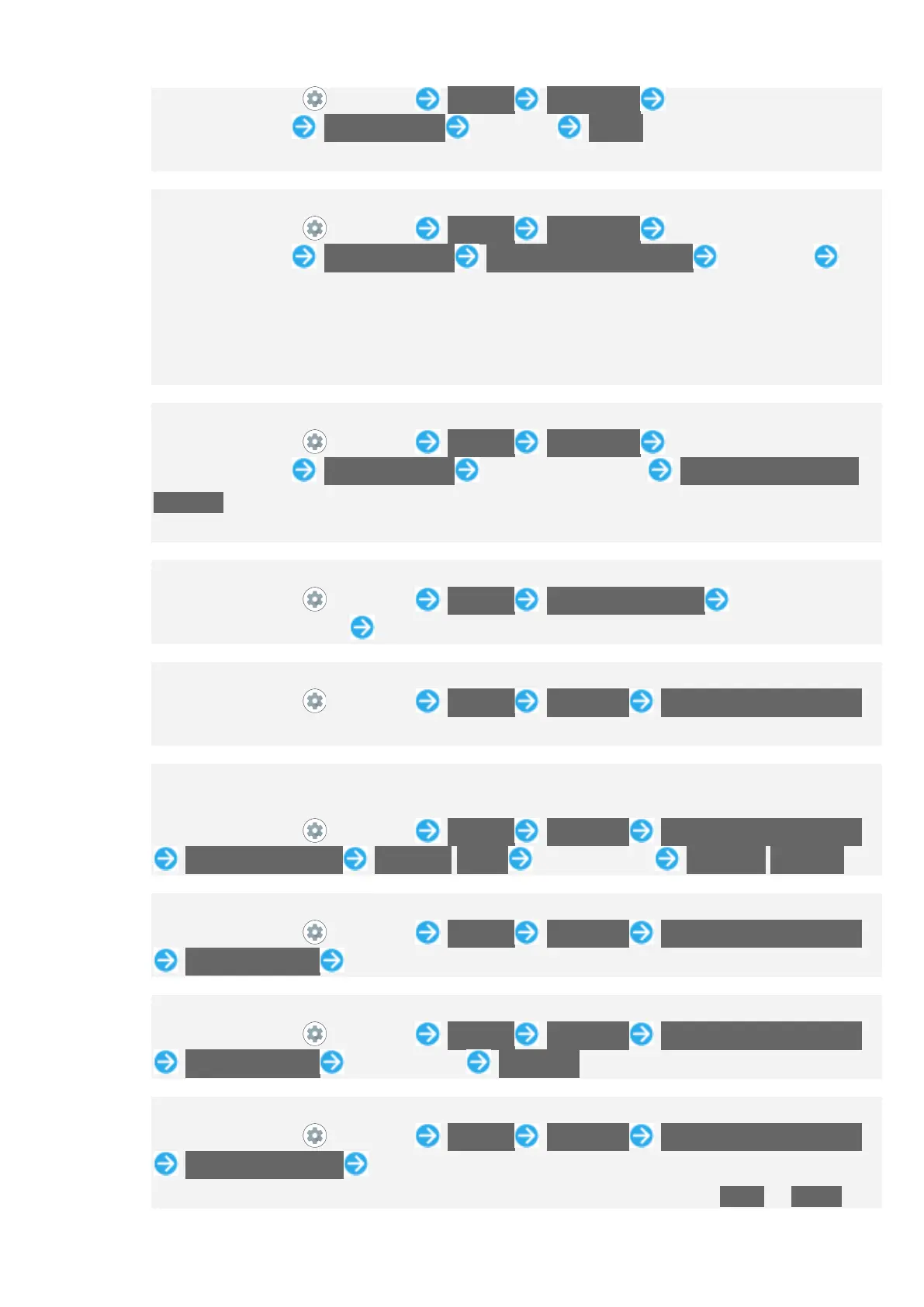
In Home Screen, (Settings) Security Smart Lock Enter pattern / lock no.
(PIN) / password Trusted places Tap place Delete
If confirmation appears, follow onscreen prompts.
Setting Screen to Unlock by Using Trusted Device
In Home Screen, (Settings) Security Smart Lock Enter pattern / lock no.
(PIN) / password Trusted devices ADD TRUSTED DEVICE Tap device
Follow onscreen prompts
Set pattern / lock no. (PIN) / password for unlocking screen beforehand.
Turn "Bluetooth" On and pair with a Bluetooth
®
device beforehand.
If confirmation appears, follow onscreen prompts.
Deleting Devices Added as Trusted Devices
In Home Screen, (Settings) Security Smart Lock Enter pattern / lock no.
(PIN) / password Trusted devices Tap name of device REMOVE TRUSTED
DEVICE
If confirmation appears, follow onscreen prompts.
Setting Whether to Enable Device Administration Applications
In Home Screen, (Settings) Security Device admin apps Tap device
admin application name Follow onscreen prompts
Checking Type of Storage for Credentials
In Home Screen, (Settings) Security Advanced Encryption & credentials
The type of credentials storage is shown below "Storage type."
Setting Whether to Allow Applications Access to Trusted Certificates and Other
Credentials
In Home Screen, (Settings) Security Advanced Encryption & credentials
Trusted credentials SYSTEM/USER Tap certificate DISABLE/ENABLE
Viewing Details of Credentials Installed by User
In Home Screen, (Settings) Security Advanced Encryption & credentials
User credentials Tap certificate
Deleting Credentials Installed by User
In Home Screen, (Settings) Security Advanced Encryption & credentials
User credentials Tap certificate REMOVE
Installing Encrypted Certificates
In Home Screen, (Settings) Security Advanced Encryption & credentials
Install from storage Follow onscreen prompts
If method for unlocking screen before change is setting other than None or Swipe,


 To Next Page