94/178
Handset Settings
first unlock screen.
Credentials may be required when configuring a Wi-Fi network. How to obtain
credentials varies by the issuer.
Deleting All Credentials and Resetting Credential Storage Password
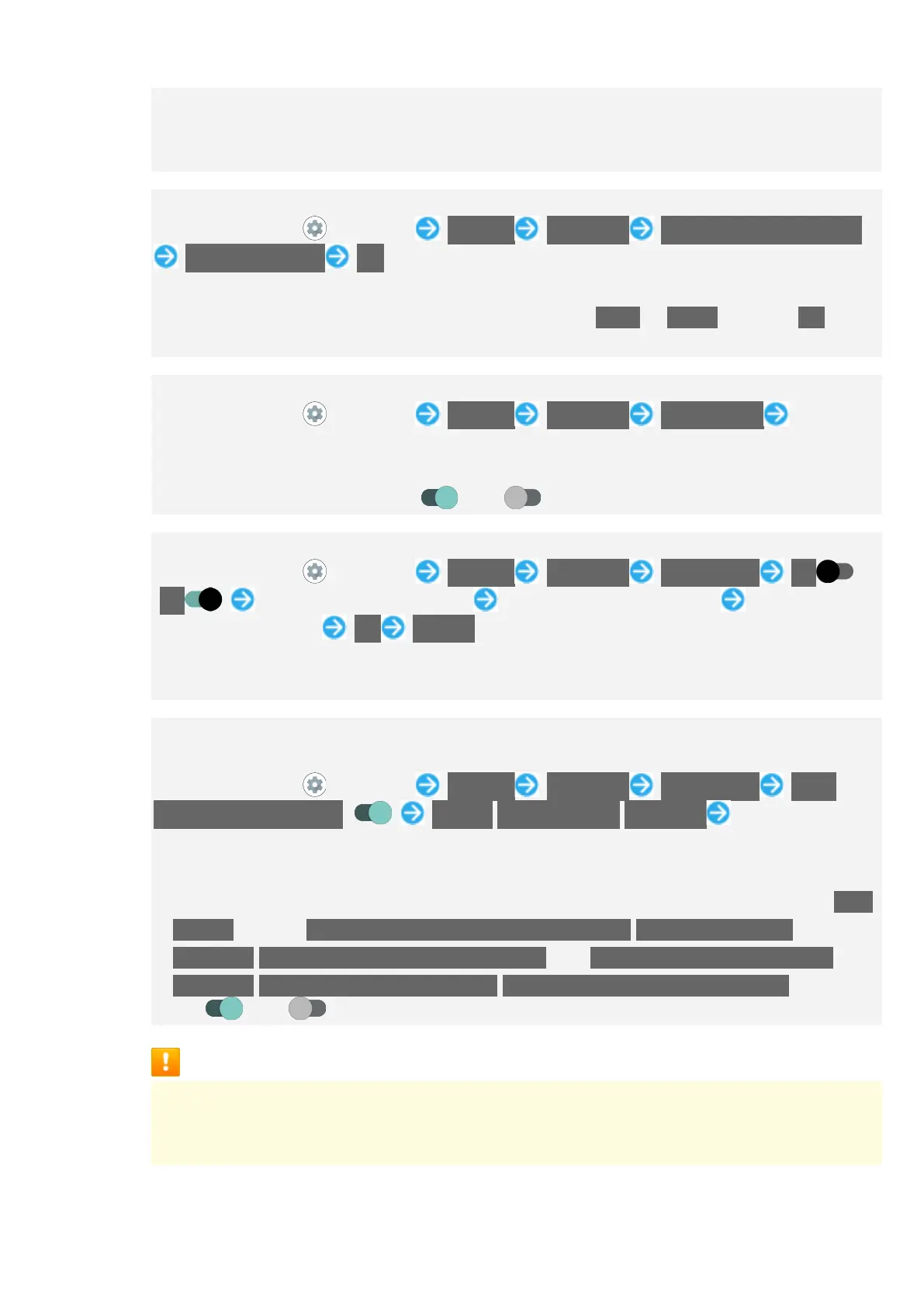
In Home Screen, (Settings) Security Advanced Encryption & credentials
Clear credentials OK
Clearing credential storage also deletes all VPN settings.
If method for unlocking screen is setting other than None or Swipe, first Tap OK and
unlock screen.
Setting Whether to Show/Hide Trusted Agents
In Home Screen, (Settings) Security Advanced Trust agents Tap agent
name
Set pattern / lock no. (PIN) / password for unlocking screen beforehand.
Tap agent name to toggle on ( )/off ( ).
Setting Screen of Only Specified Application to Be Kept in View
In Home Screen, (Settings) Security Advanced App pinning Off
(On ) Activate application to pin Drag bottom of Display up Tap icon of
application in history Pin GOT IT
To unpin, wait while Dragging bottom of Display up.
If confirmation appears, follow onscreen prompts.
Requiring Screen to Be Unlocked after Screen of Only Specified Application No
Longer Kept in View
In Home Screen, (Settings) Security Advanced App pinning Lock
device when unpinning ( ) Pattern/Lock No. (PIN)/Password Set pattern / lock
no. (PIN) / password
Set "App pinning" to On beforehand.
If pattern / lock no. (PIN) / password for unlocking screen is set beforehand, Tap App
pinning to show Ask for unlock pattern before unpinning/Ask for PIN before
unpinning/Ask for password before unpinning. Tap Ask for unlock pattern before
unpinning/Ask for PIN before unpinning/Ask for password before unpinning to toggle
on ( )/off ( ).
Screen Lock Cautions
Make sure to make a note of and not forget pattern / lock no. (PIN) / password set for
unlocking screen. If you forget the code, visit your nearest SoftBank Shop for recovery.
Note that saved files and settings will be lost.


 To Next Page