243
Controls in detail
Driving systems
왘 Move gear selector lever to position R
(reverse gear).
The COMAND display will show the
area behind the vehicle with guide
lines to help you reverse into a park-
ing place.
i If you activate a different function on the
driver’s COMAND controls while reverse park-
ing or parallel parking, the image from the
back-up camera is interrupted.
To reactivate the camera, take the vehicle out
of reverse gear and then re-engage reverse
gear again.
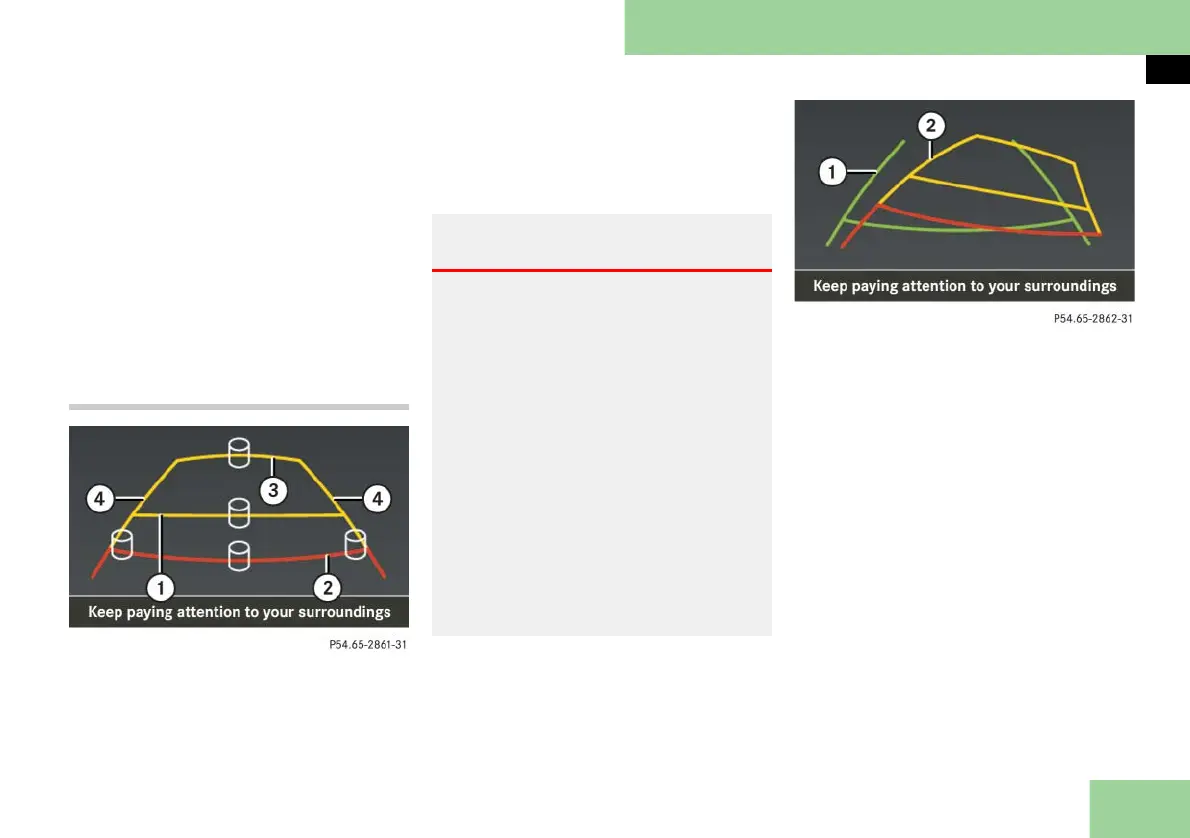
Reverse parking (back-in parking)
1 First yellow guide line
2 Red guide line
3 Second yellow guide line
4 Guide line for vehicle width
This function helps you when you are re-
versing in a straight line or backing in at
any angle. The guide line for vehicle
width 4 shows the width necessary for
the vehicle.
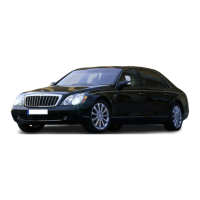
1 Guide line for straight driving
2 Guide line for cornering
The guide line for straight driving 1
shows you the space necessary for your
vehicle.
When you turn the steering wheel, the
room required by the vehicle for revers-
ing with the corresponding wheel angle
is shown with yellow guide lines 2.
Backing in straight
왘 Switch on the COMAND.
왘 Move gear selector lever to position R
(reverse gear).
You will see the guide line for reverse
parking on the COMAND display.
Warning! G
Please note that objects which do not
touch the ground, such as the bumper of a
vehicle parked behind you, a trailer hitch,
or the back of a truck, may appear to be
further away than they actually are. In this
case, you should not use the guide lines to
judge distance as the use of the guide lines
to judge distance increases the risk of im-
pacting the objects.
Even when the object you approach is di-
rectly on the ground (and nothing on the
object extends above the ground beyond
the object’s contours directly touching the
ground) and no objects that do not touch
the ground, such as the bumper of a vehi-
cle parked behind you, a trailer hitch, or
the back of a truck are in the path, do not
approach the object on the ground any
closer than red guide line 2.
컄컄



 To Next Page