Version 1.10 Page 100 of 203
4.3.2 COMPARE
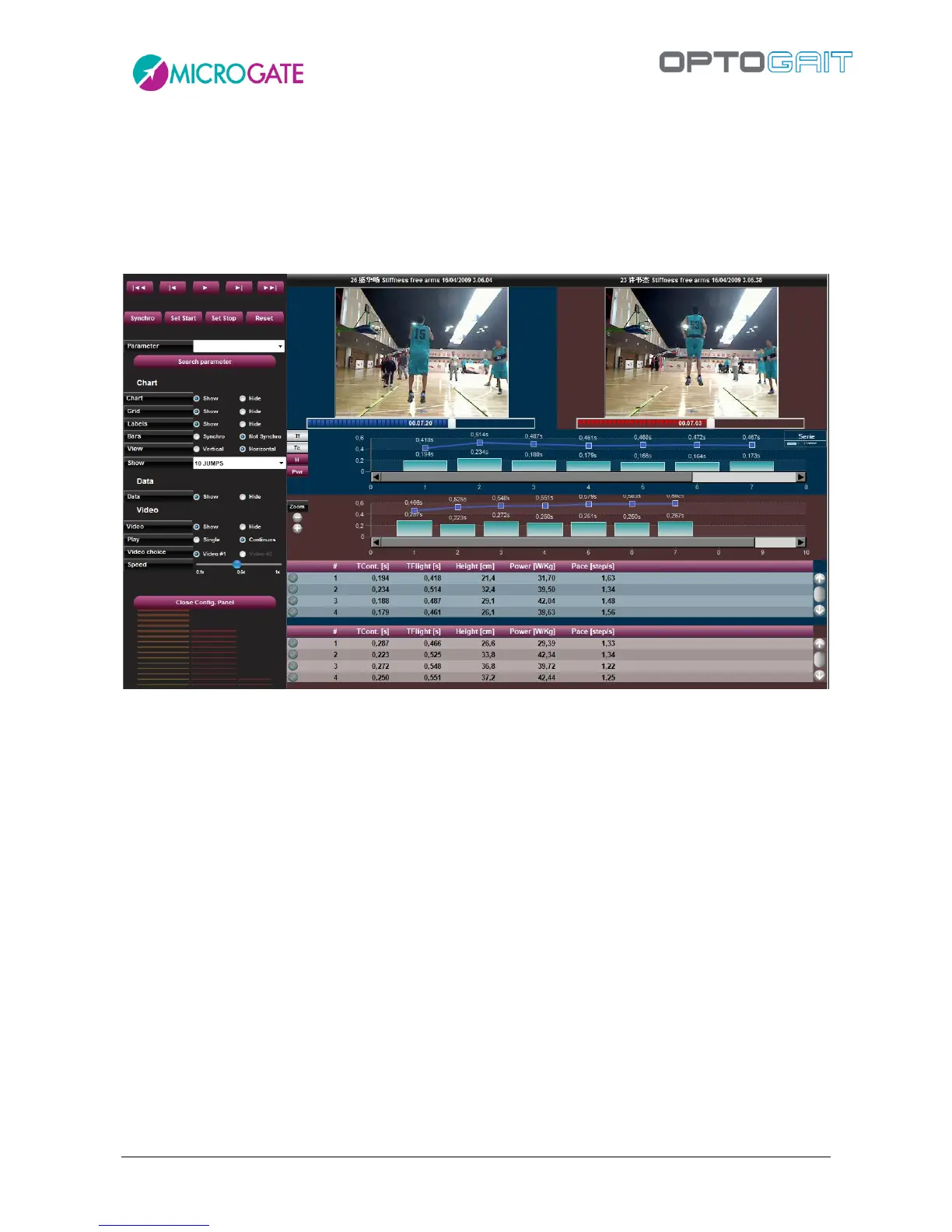
In this section two selected tests are compared. The display structure is similar to the one presented
in the previous section. Due to lack of space it is not possible to simulate the bars with the LEDs,
which is possible when viewing a single test.
To compare two tests, bring them together in the TEST ANALYSIS table and press <Compare>.
Figure 84 – Compare
Pressing <Play> on the command panel at the top, the two tests (in this example ‘Blue Test’ and
‘Red Test’ because of the color of the two sliders below the video) will start running, allowing visual
comparison.
The <Configure> button opens an options panel very similar to the one in the previous section
(therefore only differences will be described).
The Search Parameter button allows you to spot a common point (e.g. the first take-off from the
ground, called First T.Flight) of the two tests.
Besides the above-described commands <Set Start>, <Set Stop>, and <Reset>, there is also the
<Synchro> command. Press this button to set the point on which the two tests should be
synchronized.
For example, search for the First T.Flight with the command <Search Parameter> and press
<Synchro>. Move the cursor of both tests slightly backward and press <Set Start>. Move it slightly
forward (after the yellow Synchro marker) and press <Set Stop>.
A range to be analyzed has been set and the two tests will be synchronized on the point of the
yellow marker (i.e., when the two athletes begin the test).


 To Next Page