Version 1.10 Page 113 of 203
The images (analyzed still frames) saved using the command ‘Save images in report’ are located in
the subdirectory Image and have the following similar format:
VideoX_DD_MM_YYYY_HH_MM_SS_ZZZZZZZZ-ZZZZ-ZZZZ-ZZZZ-ZZZZZZZZZZZ.EEE
If there is an error when loading the database, OptoJump Next notifies it at program startup,
suggesting to look for the database or to continue. In the latter case, OptoJump Next creates a new
empty database.
The software makes it possible to handle more databases (one at a time) for particular needs: for
example, the trainer of a team, who wants to separate the tests of one season from those of another
one (warning: in this case he will not be able to do any comparisons or analyze the history), or a
free-lance professional, who does tests for various customers, can create a database for every team
to be tested.
It is also possible to export database data in a compact format (one single file containing database,
videos, and images) to transfer them from one PC to another or to hand them to the customer to
review them with the software that can be downloaded for free from the website
www.optojump.com.
The commands used for these purposes are the following:
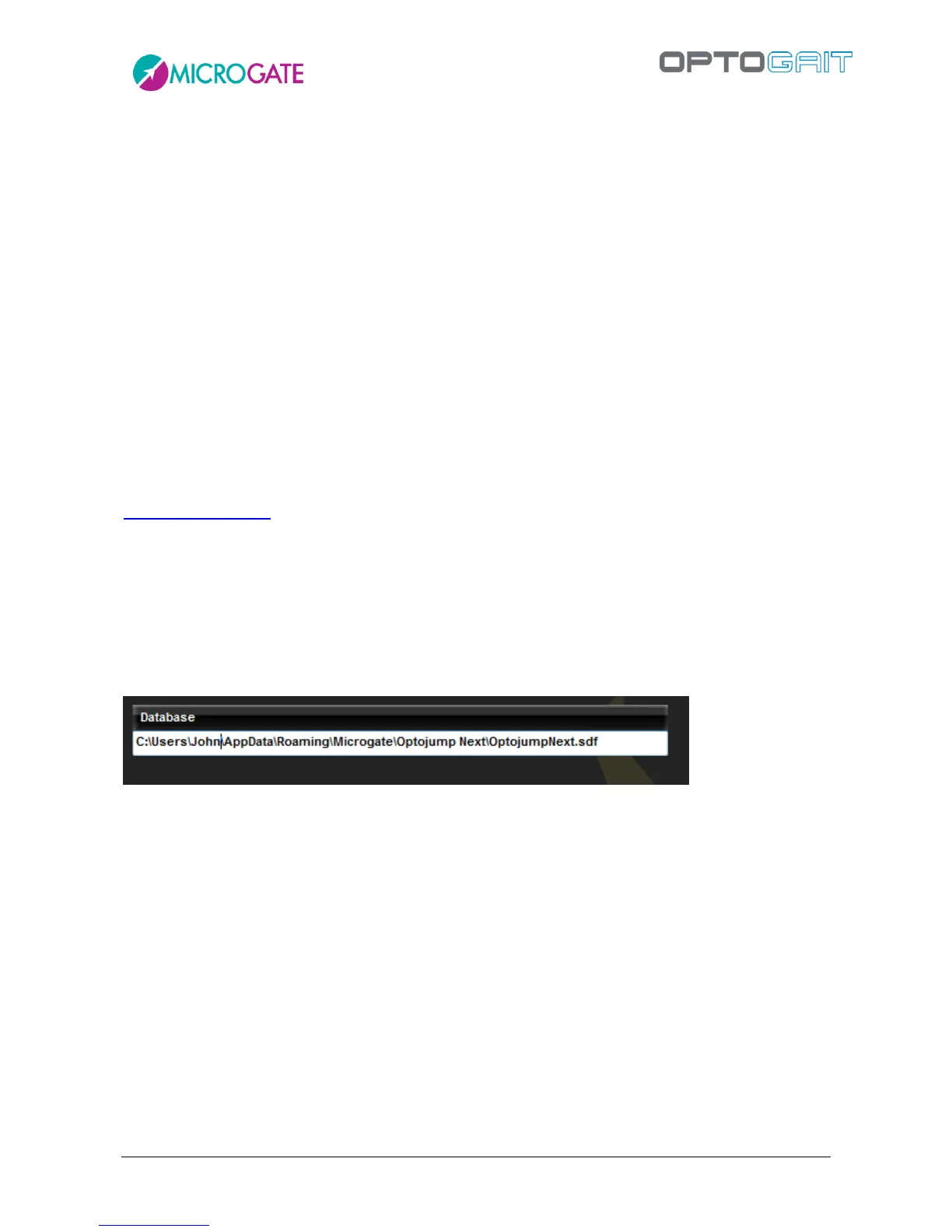
4.4.4.1 CURRENT DATABASE
The path indicates which database is used; the commands below, <New> and <Select>, allows you
to edit the directory and the file to use.
4.4.4.2 NEW
Creates an EMPTY database and sets it as current; you will be asked in which folder you want to
place it.
When you create a new empty database (or when you import an .ojn file in a new empty database)
the destination folder must be specified.
To organize the still images of a database it is useful to create an empty subdirectory (folder) for the
database.
Example:
Create a folder called MyTests on your hard disk (in the root directory or under
Documents\Microgate\OptojumpNext).
Then create a folder for each new (empty) database inside this folder. Now each database will be
stored in a separate folder with its video and image files.


 To Next Page