Version 1.10 Page 98 of 203
The buttons <Change logo> and <Change footer> allow you to customize the report adding your
logo and your personal data (respectively printed in the top right corner and on the bottom line).
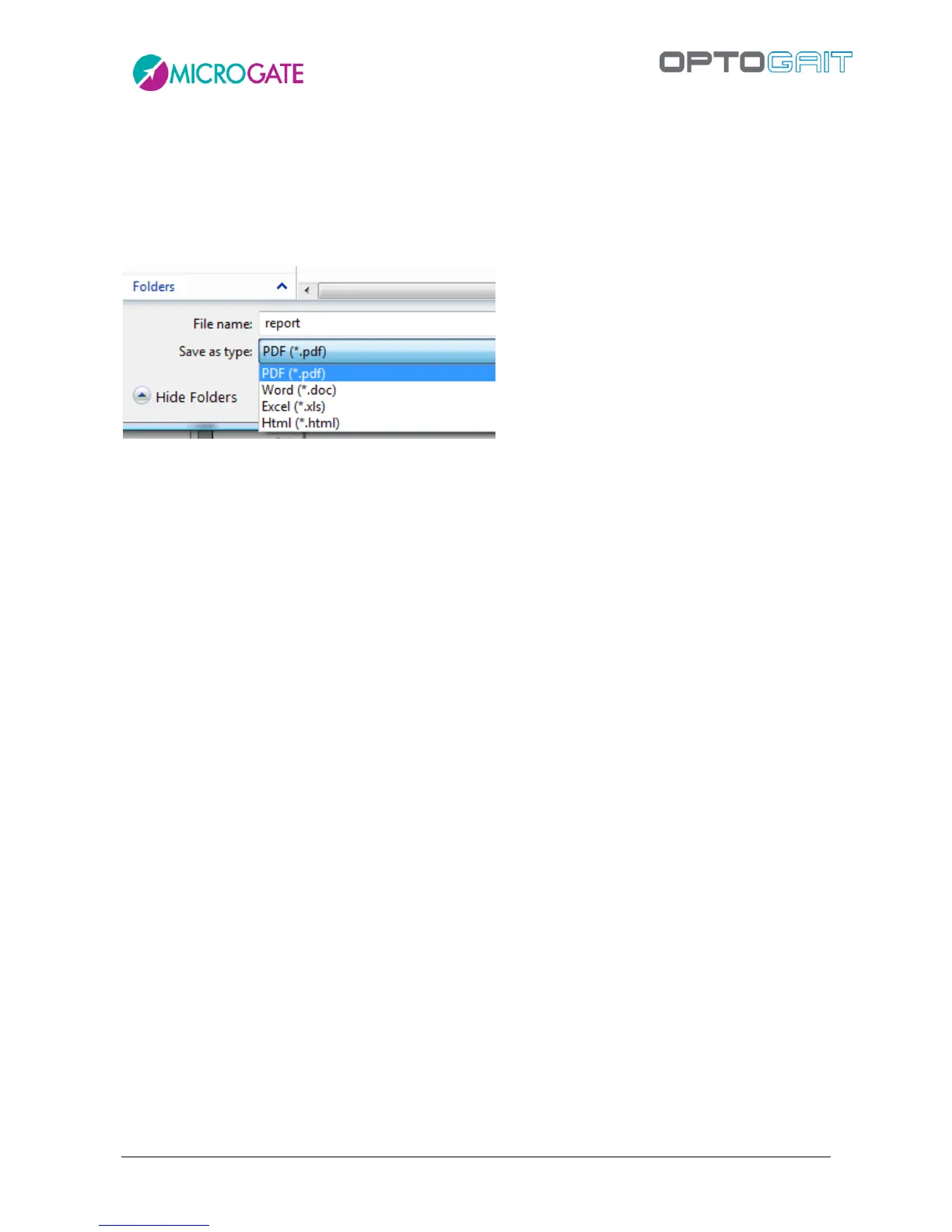
Press <Export> on the left to export the report in PDF, Excel, Word or Html format.
Choose the desired format from the drop-down menu, select the position, name the file, and then
press ‘Save’.
Figure 80 – Dialog box for saving a report
The functionality of Report creation, printing and saving are offered by the external Crystal Report
component. If this does not work correctly, we advise you to check whether you have installed
different versions or editions of this software. If you have, uninstall the old versions and re-install
the OptoJump Next packet.
4.3.1.9 SAVE ANALYSIS
This function allows you to give the current settings configuration a mnemonic name, so that it can
be recalled from the list of saved analyses for future use.
4.3.1.10 ANALYSIS NOTES
This function allows you to add a note, which will be saved with the analysis. This note (DIFFERENT
from a note added immediately after completing the test) will be printed on the bottom line of the
report in the provided section, whereas the ‘test note’ is printed on the first page with the General
Data. Warning: the analysis note is saved with the analysis; by not storing it you will lose it.
4.3.1.11 SIGNATURE
The signature works in a way similar to the notes (e.g. ‘Mario Rossi, trainer’). The signature is printed
on the bottom line of the report and saved with the analysis.
4.3.1.12 PARAMETERS
As explained in chap.4.2.2.1, secondary parameters can be customized for each test based on
specific needs.


 To Next Page