Version 1.10 Page 37 of 203
The function for associating each athlete with a photo is useful, especially for trainers and coaches
with many athletes to assess. This can be taken from a file previously saved on disk (in .jpg or .bmp
format), or taken 'on the spot' with a previously connected webcam. In the first case, click on <From
File> and select the desired photo from a folder; in the second case, click on <From Video>, wait for
the Live image to appear, frame the athlete and press <Acquire>.
4.1.1.1 ATHLETE DATA INPUT MASK
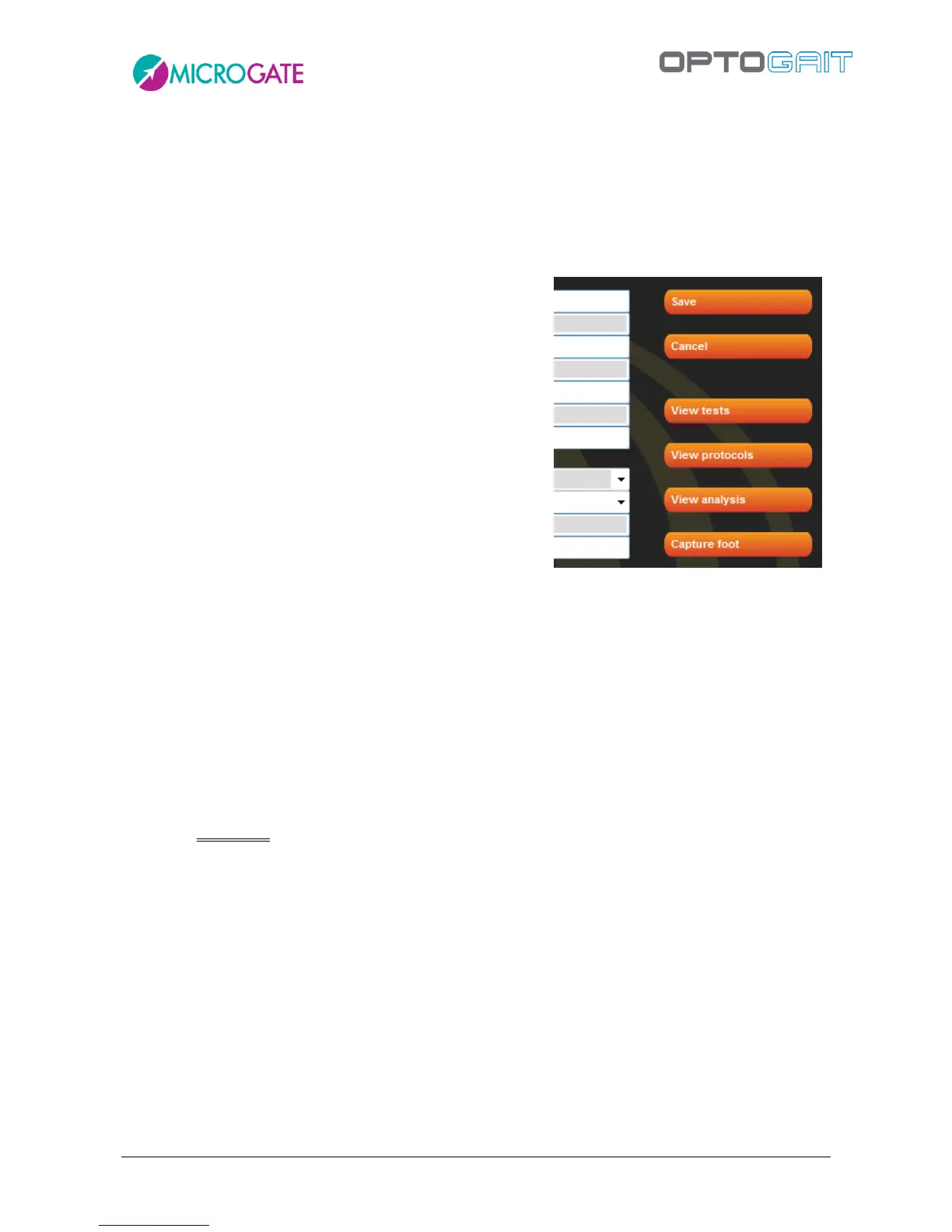
To edit the data of a stored athlete, select him/her with the
mouse and press <Edit Athlete>: in the Athlete Data mask
fields may be edited and saved (or cancelled going back to
the list).
Furthermore, three buttons allow the user to view tests,
protocols, and analyses of the current athlete (actually a
filter is created as explained in section 4.3.1)
The command <Capture foot> measures the foot in cm (i.e.
in 'number of LEDs’, which are then converted into
centimeters or inches according to the unit of
measurement used). Click the button, position one foot
inside the bars (parallel to them) and click on <Confirm>.
After a few seconds the measurement is displayed and can be confirmed or repeated.
The measurement (essential for the treadmill tests) is useful only with the 1 cm OptoJump Next
version, as the resolution of the 3 cm version is too low to give a reliable value (e.g. depending on
how the foot is placed, the measurement can vary from 15 to 18 cm). The value is saved in the
database associated with the athlete and is displayed in the mask; the editable field 'foot' is only for
personal data and can be used to write the measurement in any unit (e.g. 41 EUR, 7 ½ US, 8 UK,
etc.).
In the athletes list the following commands are available. To eliminate him/her, press <Delete
Athlete> (WARNING: When deleting an athlete all his/her tests, protocols, and analyses will be
deleted without any possibility to restore them).
To insert an athlete into a group, select from the list, press <Add to a group>, select the group to
insert him/her in (possibly using the right arrow to select a dependent subgroup) and press <Add to
a group> again. Press <Back> to return to the athletes’ list.
For the management of groups and other ways of associating with groups, we suggest you read the
next section.
By pressing <Export>, the athletes’ personal data can be exported to a file with the extension 'xml',
which can be used with Excel (Excel XP versions 2003 and 2007) or with other programs using this
well-known exchange format.


 To Next Page