Version 1.10 Page 75 of 203
Filters Panel
Select one of the three macro-categories (Performance, Gait Analysis, Rehab) using the
corresponding buttons. With the ‘Data’ radio button, select whether single tests, protocols or
analyses should be viewed..
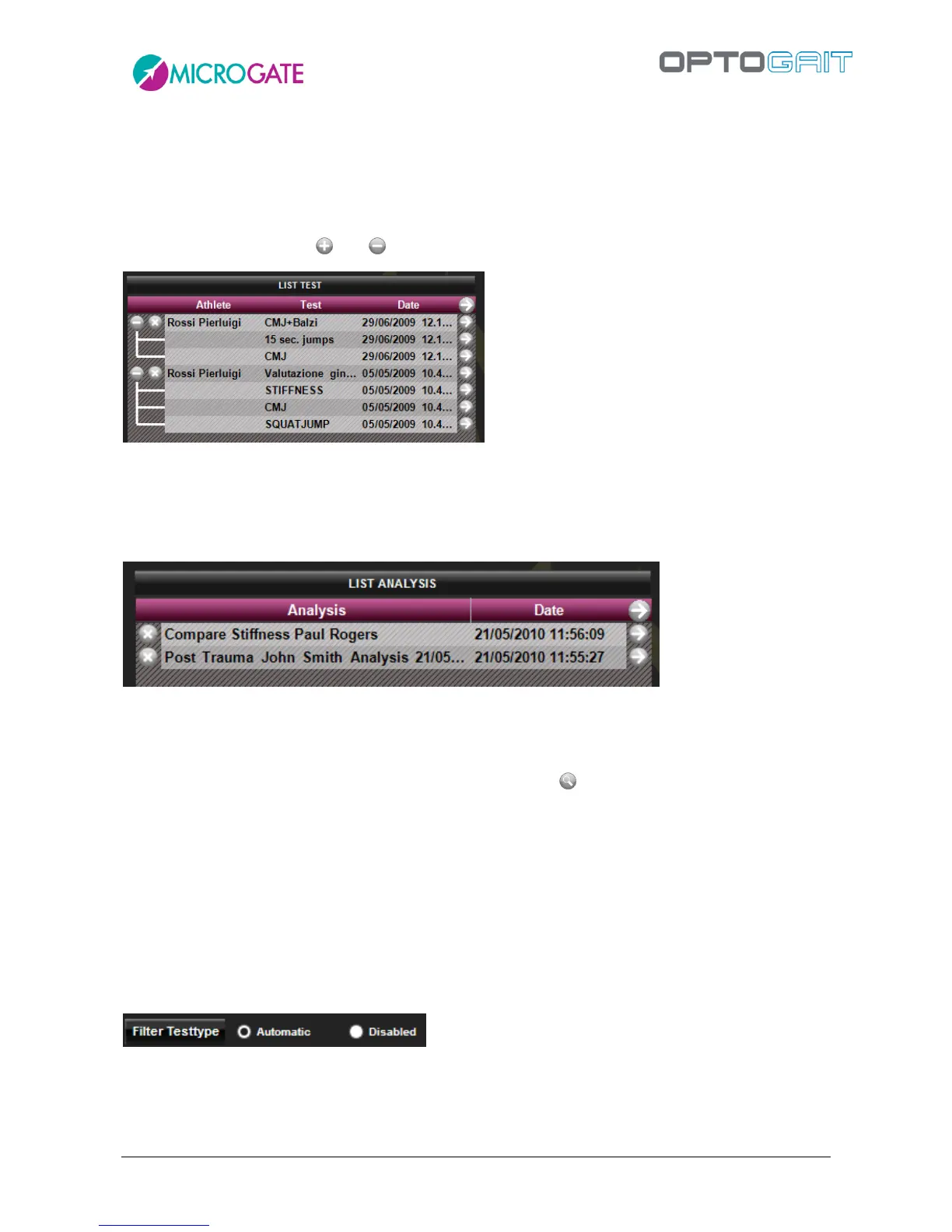
In the latter case, with the and icons expand or collapse the tests contained in the protocols.
Figure 51 – Expanded Protocols List
Choosing 'Analyses’ all saved analyses will be viewed with the saving date (which can be much later
than the execution of the analyzed tests).
Figure 52 – Saved Analyses
To look for an athlete or a test/protocol, insert data manually into the search boxes (e.g. key in
‘Rossi’ in the Athlete field or ‘CMJ’ in the Test field) or press to display a list of athletes or tests
to choose from. Similarly, it is possible to filter by data by inserting a range of data with the calendar
control.
The 'Test type filter' radio button can be used to apply an automatic filter to the test type: for
example, if 'Jumps 15 seconds' is selected for test analysis, the list on the left-hand side will only
show 'Jump Test' types and all others (gait, run, tapping, etc.) will be hidden. This makes it easier to
select other tests of the same type for comparison or history purposes. If, on the other hand, you
do not want to use this automatic filter (for example, when selecting a variety of tests to export),
set the filter to 'Disabled'.
To view all the tests and reset the various filters, press <Delete filter>.


 To Next Page