Version 1.10 Page 82 of 203
The <Set Start>, <Set Stop> buttons are for defining the start and end respectively of the part of
interest. Place the cursor at the start and finish points of the desired movie clip and press <Set Start>
and then <Set Stop>. Thus a part of the movie clip is isolated, deleting the uninteresting ‘dead’
periods.
Press <Reset> to cancel the ‘Start’ and ‘Stop’ references and restore them to their initial values.
Double-clicking anywhere on the timeline, the positioning time can be entered. The value must be
in milliseconds (i.e. for example 1906 to reach 19”.06)
With <Search Parameters> it is possible to look for a parameter selected from the ‘Parameter’ drop-
down menu; e.g. select ‘first flight time’ and press Parameter Search: you will see the film clip and
the slider go forward to the frame corresponding to the athlete’s first take-off from the ground. By
using ‘Next T.Flight’, you will go forward to the next corresponding event. This function is very useful
when comparing two tests.
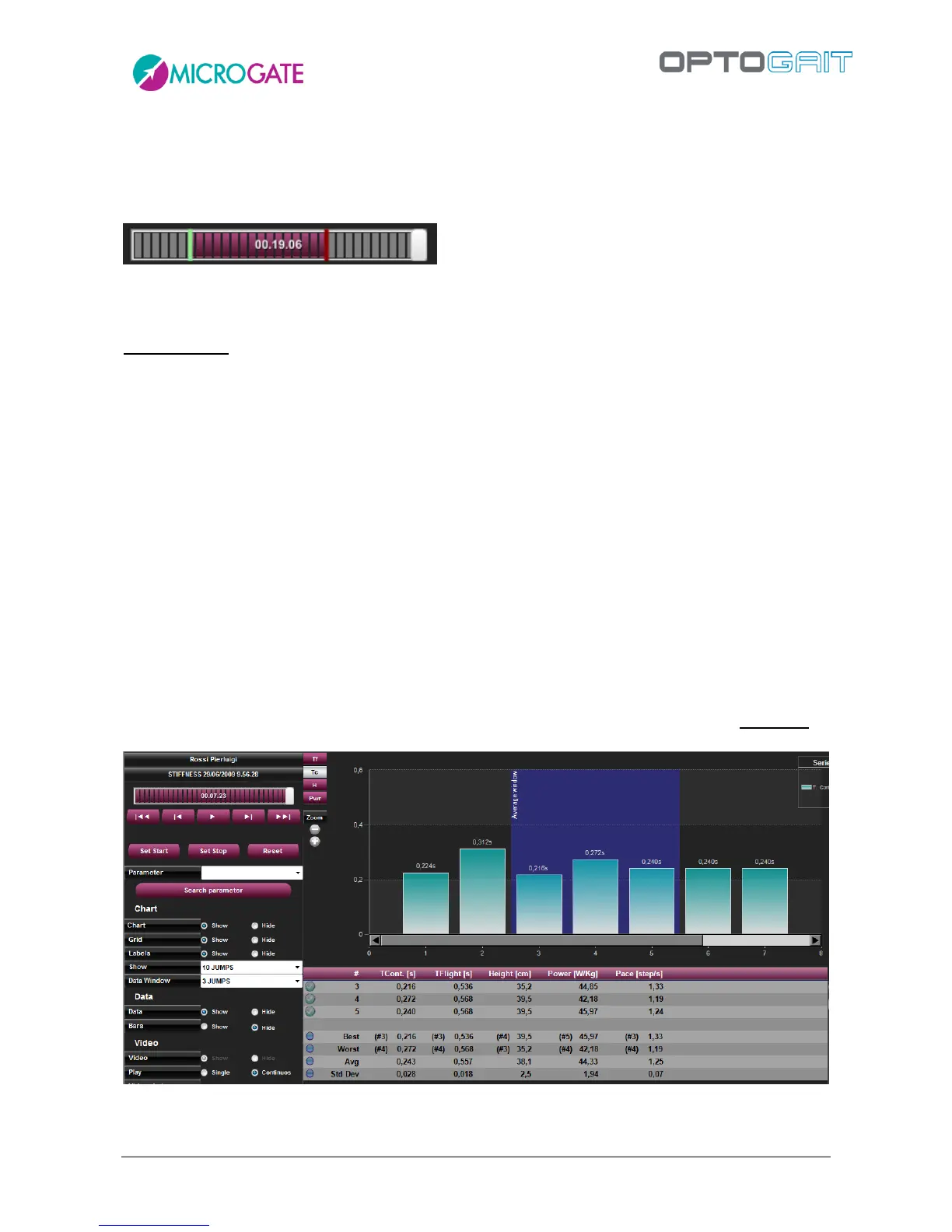
The display of test data can be configured by the user:
Chart
o Chart: shows/hides the chart
o Grid: shows/hides the dotted lines forming a grid on the chart
o Labels: shows/hides the labels for the numerical values of the times on the chart
o View: shows all the data acquired or only certain data; in this case a scrollbar allows
to move to the right and left inside the chart
o Data Window: in the table of numerical data displays only the n-number of data
based on the window in blue shown in the chart. To move the window, right-click it
with the mouse and drag it onto the chart.
Figure 61 – Display 10 events at a time and take 3 of them into consideration (blue window)


 To Next Page