75
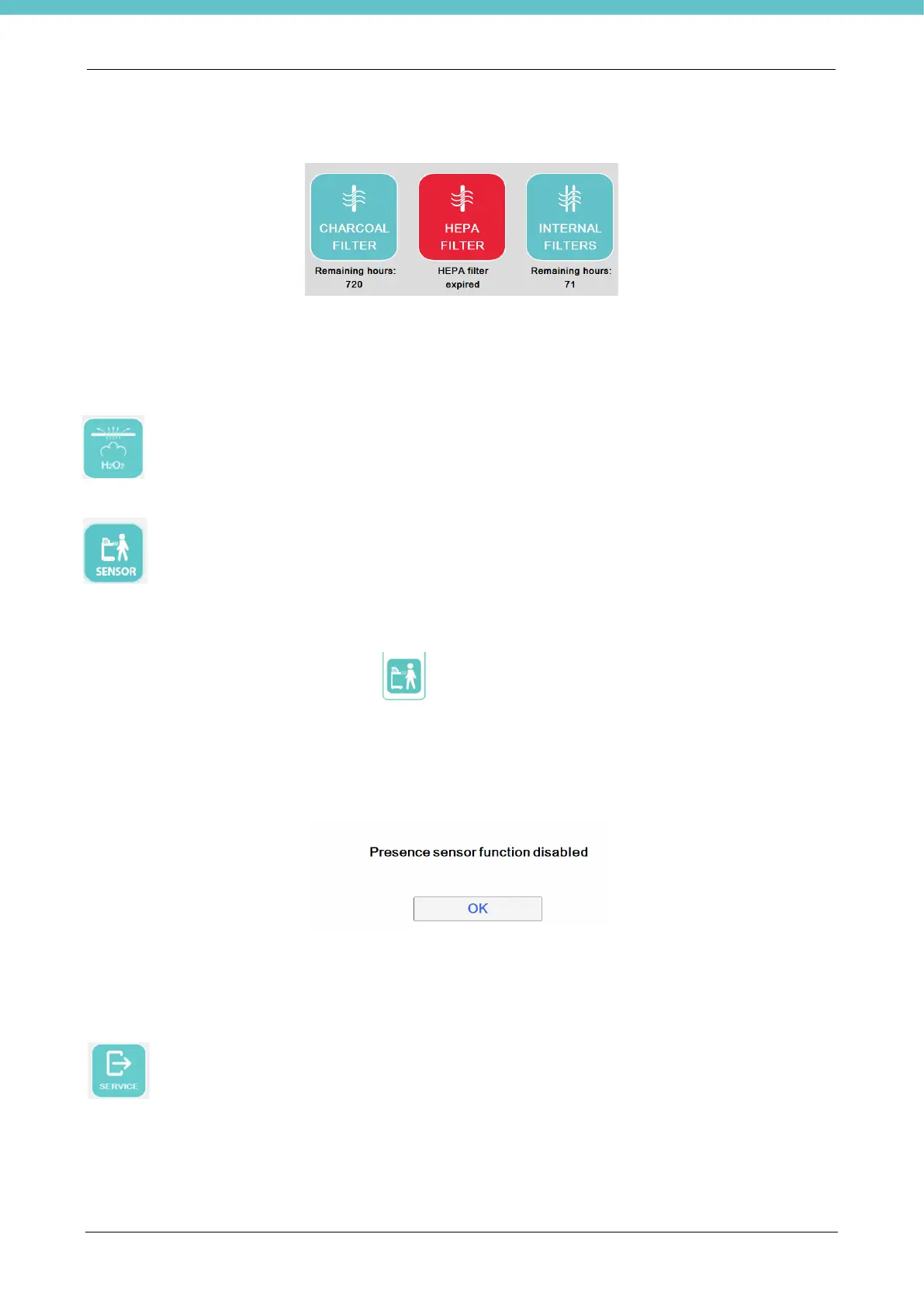
Pressing the red FILTERS button opens another page where you can see which filter has expired; in the
following example, the HEPA filter has expired.
Disabled filter icons will be grey.
In the General software settings, as explained further on in chapter 2.6.5, you may manage the filter expiration
date and reset the counters after having replaced them. If there is no filter, the Filters button will be grey.
This button, if present, allows you to start the decontamination cycle. Please refer to chapter 5.31.
If the VIROCLEAN instrument is not available (as it is an optional part), the button is not enabled by
default.
Operator presence sensor. This icon can be:
- Green: function enabled, operator presence sensor on.
- Grey: function enabled, operator presence sensor off. DEFAULT setting.
- Hidden: function disabled.
To enable/disable this function, you must enter the General software settings as explained further on in chapter
2.6.5.
When the function is enabled, you may switch the sensor on/off for pressing the dedicated button on the
membrane keyboard, as described above .
When the sensor is on and it perceives the presence of an operator, ventilation switches on automatically. In
the General software settings you may also associate automatic switching on of the lights to that of ventilation
by means of this sensor.
If the sensor is active with ventilation and lights on, pressing the key on the membrane keyboard to switch off
ventilation or the lights will automatically switch off the sensor and return to working in manual mode. The
following pop-up will appear on the screen as a warning:
When the sensor is active, ventilation and the lights will switch off after 15 minutes without operator presence
recorded. This time can be modified in the General software settings, as shown below. The counter resets
every time an operator’s presence is detected.
This button shows the user logged into the software (in this example the SERVICE user). Pressing
this button runs the logout, necessary to enter with one’s credentials, as explained below. Refer to
chapter 2.6.4 for management of the users.


 To Next Page