Status screen Displays this information
Settings
Review
The Settings Review screen provides a list of all your pump settings.
The settings are organized by where they appear in the menu for
your pump. For example, your bolus settings appear under the Insulin
Settings section, and your brightness level setting appears under the
Utilities section.
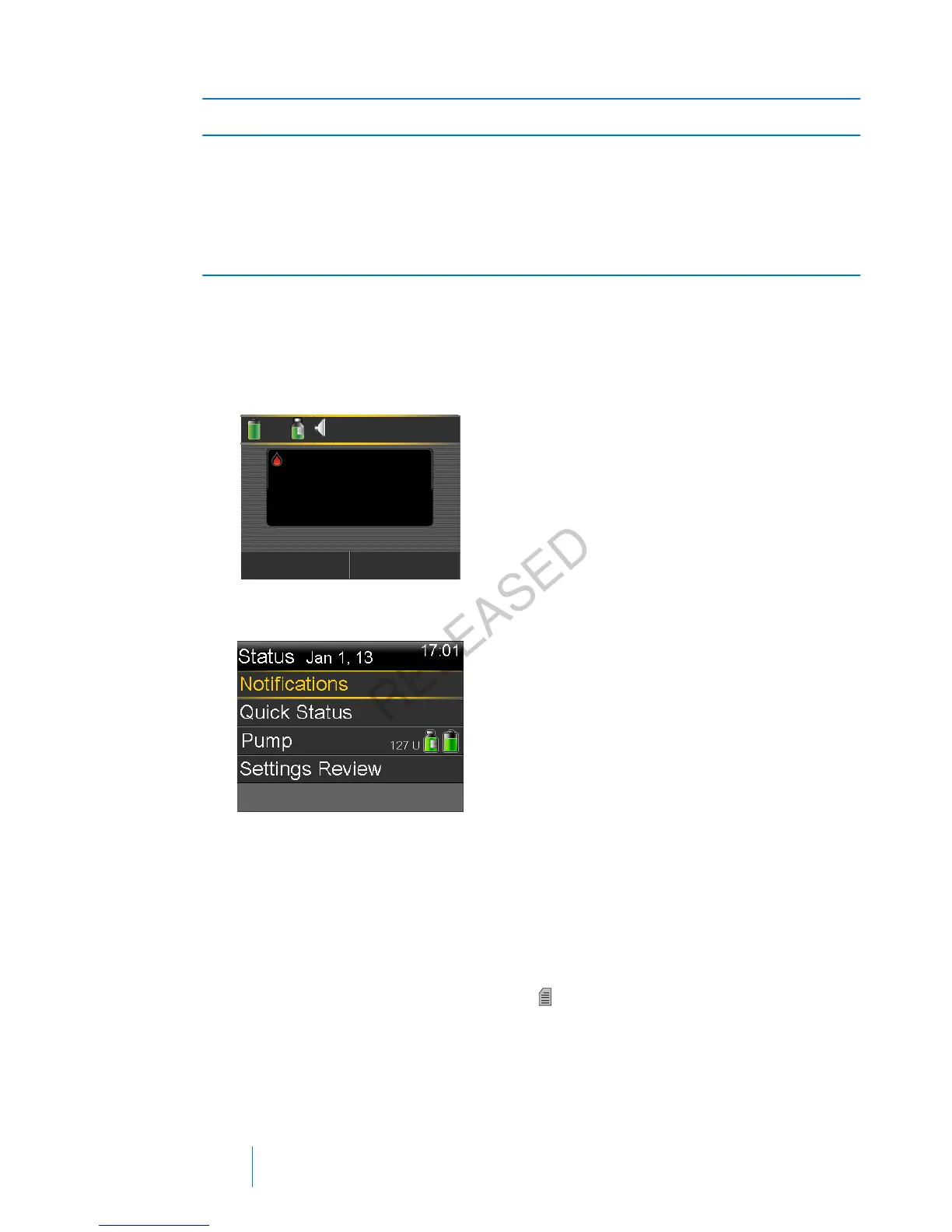
Viewing the Status screens
1. Go to the Home screen.
2. Select the status bar that appears at the top of the Home screen.
17:00
Bolus
Basal
6.1
mmol/L
Active Insulin
1.0
U
BG
The Status screen appears.
3. Select the status screen that you want to view. Refer to the table at the
beginning of this section for a description of the different status screens.
Using the Menu screen
The Menu screen is where you access the various features and functions of your
system. To display the Menu screen, press
.
32 Chapter 2
MP6025957-024 / A
RELEASED



 To Next Page