Delivering a Normal bolus with the Bolus Wizard
To deliver a Normal bolus using the Bolus Wizard:
1. For a correction bolus or a food bolus with a correction, use your BG meter to
check your blood glucose. For a food bolus only, skip this step.
2. Go to the Bolus Wizard screen.
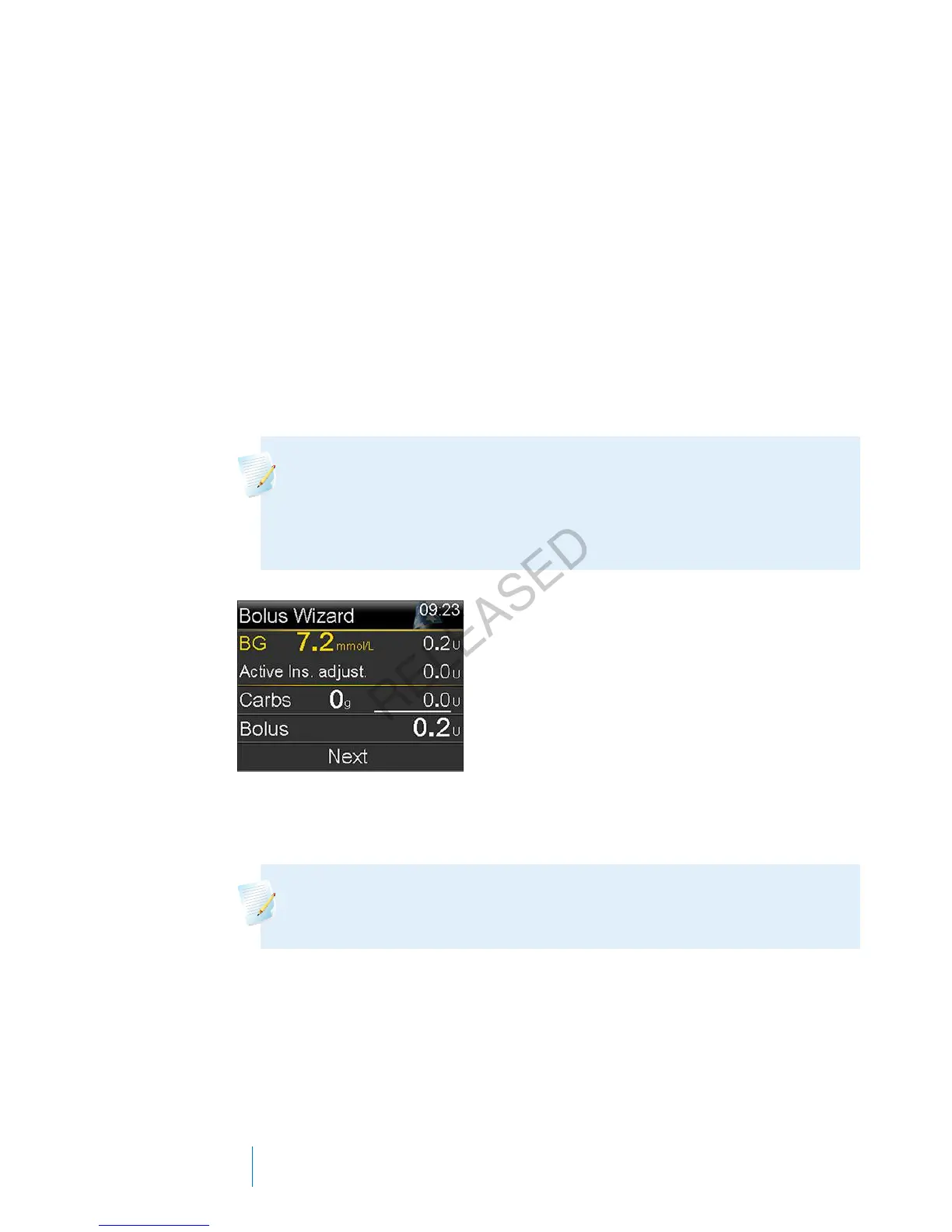
Home screen > Bolus > Bolus Wizard
The Bolus Wizard screen shows your current BG meter reading (if applicable)
and any insulin that is still active from previous boluses. For more information
about active insulin, see About active insulin, on page 72. For more information,
see About your compatible Bayer meter, on page 111.
Note: Be aware that if you already have the Bolus Wizard open prior
to wirelessly sending your BG meter reading to your pump, you
must close the Bolus Wizard and open it again, in order for that
reading to appear.
3. If you are not using a wirelessly connected compatible Bayer meter, you can
select BG to manually enter your BG meter reading.
Note: If you choose not to enter a BG value, three dashes appear
on the screen in place of the BG value.
4. For a food bolus, select Carbs to enter the carb count of your meal. For a
correction bolus where no food was eaten, leave the Carbs value at 0.
5. Your calculated bolus appears in the Bolus field.
74 Chapter 4
MP6025957-024 / A
RELEASED



 To Next Page