INSTALLATION/UPGRADE 8. 469PC PROGRAM
8-2
Installation/Upgrading the 469PC program:
1.
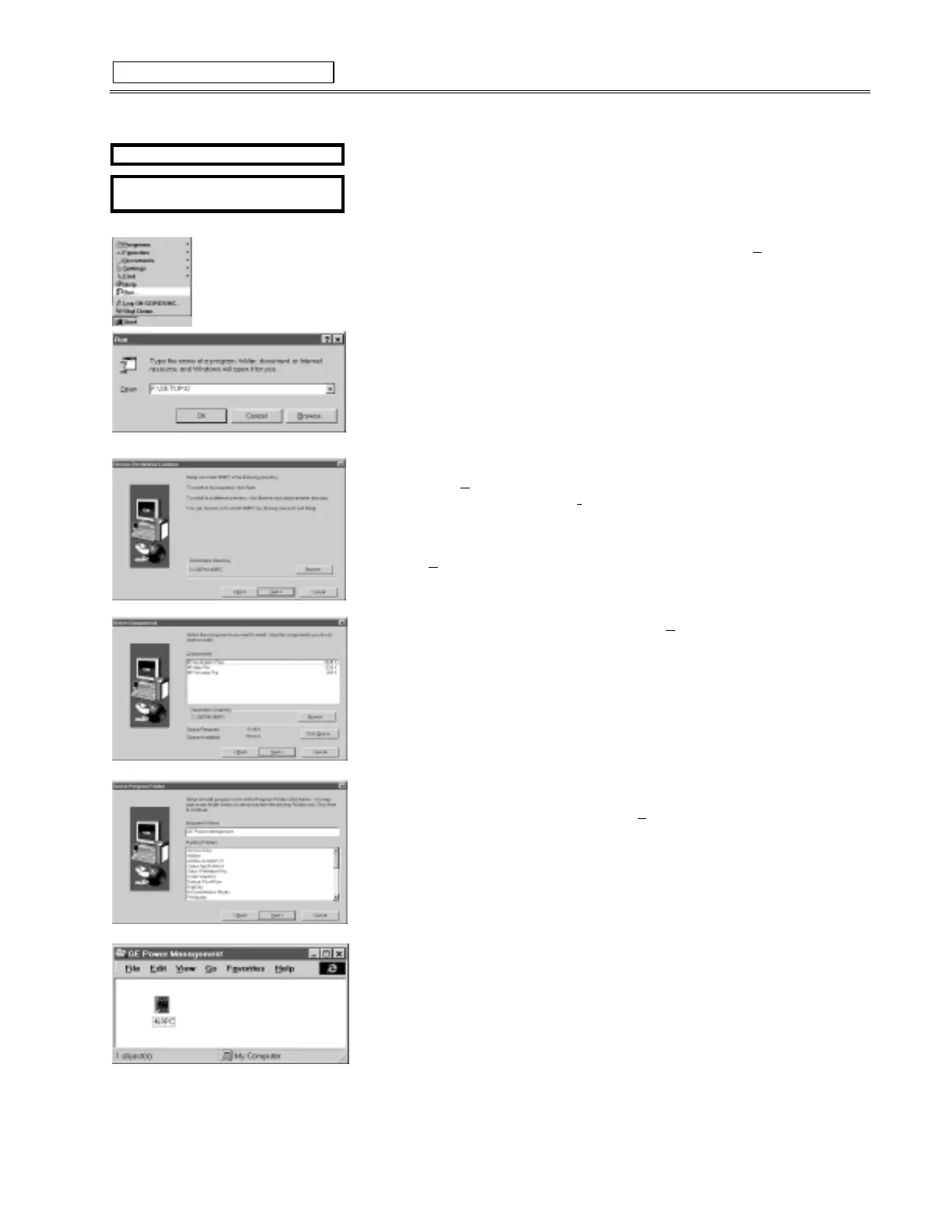
2. Under Windows 95, when the CD is inserted in the drive, it should launch automatically.
If not, or if you are running Windows 3.x, continue with step 3. Otherwise, skip to step 6.
3. From
Program Manager
(Win 3.x) or
Start Menu
(Win 95), select
Run
.
4. Type in the CD-ROM drive letter (usually D or E) and the filename as shown, e.g.
D:\SETUP32
(or
D:\SETUP16
for Windows 3.x).
5. Select
OK
to begin installation.
6. From the Product CD Main Menu that appears, select “
Install PC Software
”, then
select “
469PC
”.
7. A dialog box will prompt for confirmation. Click on
Yes
if you wish to continue with the
installation of
469PC
.
8. After a few seconds of initializing the Setup program, a Welcome screen will appear.
Click on the “
Next >
” button. If the program is not to be located in the default directory
(C:\GEPM\469PC), click on the
Browse
button to locate the path where you wish to
install the program.
9. If the program already exists and is to be upgraded, choose the path of the current
installation if not the same as the default path.
10. Select “
Next >
” to continue to the next step.
11. Choose your installation preference, Typical, Compact, or Custom. If you choose
Custom, the following screen will appear:
12. Select the option(s) you wish to install, then click “
Next >
” to continue.
13. Choose the name of the program group where 469PC is to be installed. By default this
is set to “GE Power Management”. Select “
Next >
”. When installation is complete a
group will be created in the
Program Manager
or
Explorer
if not already present
containing the 469PC icon.
14.
GE Power Management
group located in
Program Manager/Explorer
containing all
PC program icons.
Figure 8-2 INSTALLATION/UPGRADE
START WINDOWS
TM
INSERT PRODUCT CD INTO
CD-ROM DRIVE


 To Next Page