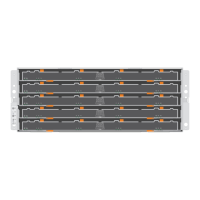
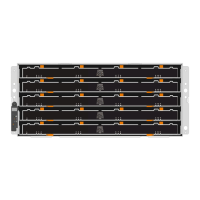
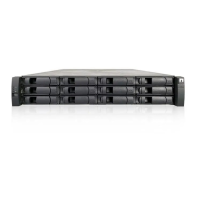
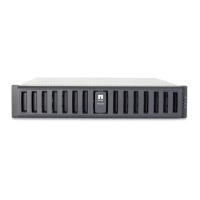
Replace drive (24-drive)
The Recovery Guru in SANtricity System Manager monitors the drives in the storage array and can
notify you of an impending drive failure or an actual drive failure. When a drive has failed, its amber
Attention LED is on. You can hot-swap a failed drive while the storage array is receiving I/O.
Steps
1. Prepare to replace drive (24-drive) on page 54
You prepare to replace a drive by checking the Recovery Guru in SANtricity System Manager and
completing any prerequisite steps. Then, you can locate the failed component.
2. Remove failed drive (24-drive) on page 55
You remove a failed drive to replace it with a new one.
3. Install new drive (24-drive) on page 56
You install a new drive to replace the failed one. Install the replacement drive as soon as possible
after removing the failed drive. Otherwise, there is a risk that the equipment might overheat.
4. Complete drive replacement (24-drive) on page 56
You complete the drive replacement to confirm that the new drive is working correctly.
Related concepts
Drives overview
on page 51
Requirements for handling drives
on page 53
Prepare to replace drive (24-drive)
You prepare to replace a drive by checking the Recovery Guru in SANtricity System Manager and
completing any prerequisite steps. Then, you can locate the failed component.
Steps
1. If the Recovery Guru in SANtricity System Manager has notified you of an
impending drive
failure
, but the drive has not yet failed, follow the instructions in the Recovery Guru to fail the
drive.
2. If needed, use SANtricity System Manager to confirm you have a suitable replacement drive.
a. Select Hardware.
b. Select the failed drive on the shelf graphic.
c. Click the drive to display its context menu, and then select View settings.
d. Confirm that the replacement drive has a capacity equal to or greater than the drive you are
replacing and that it has the features you expect.
For example, do not attempt to replace a hard disk drive (HDD) with a solid-state drive (SSD).
Similarly, if you are replacing a secure-capable drive, make sure the replacement drive is also
secure-capable.
3. If needed, use SANtricity System Manager to locate the drive within your storage array: From the
drive's context menu, select Turn on locator light.
The drive's Attention LED (amber) blinks so you can identify which drive to replace.
Note: If you are replacing a drive in a shelf that has a bezel, you must remove the bezel to see
the drive LEDs.
54
| Maintaining E5700 Hardware



 To Next Page