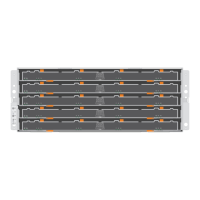
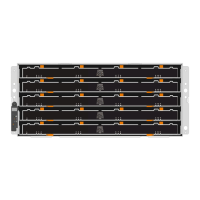
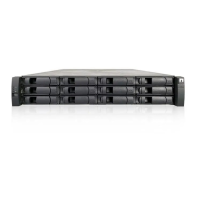
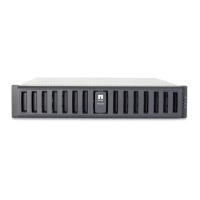
Prepare to upgrade host interface cards
You prepare to upgrade host interface cards (HICs) by backing up the storage array's configuration
database, collecting support data, and stopping host I/O operations. Then, you can power down the
controller shelf.
Before you begin
• You have scheduled a downtime maintenance window for this procedure. The power must be off
when you install HICs, so you cannot access data on the storage array until you have successfully
completed this procedure. (In a duplex configuration, this is because both controllers must have
the same HIC configuration when they are powered on.)
• You have installed SANtricity Storage Manager on a management station, so you can use the
storage array's command line interface (CLI).
Steps
1.
From the Home of SANtricity System Manager, ensure that the storage array has Optimal status.
If the status is not Optimal, use the Recovery Guru or contact technical support to resolve the
problem. Do not continue with this procedure.
2. Back up the storage array's configuration database.
If a problem occurs when you remove a controller, you can use the saved file to restore your
configuration.
a. Open the Enterprise Management Window (EMW) for SANtricity Storage Manager on your
management station.
b. Select the storage array.
c. Select Tools > Execute Script.
d. Type the following command in the text box.
save storageArray dbmDatabase sourceLocation=onboard
contentType=all file="filename";
In this command, filename is the file path and file name to which you want to save the
database. Enclose the file name in double quotation marks (" "). For example:
file="C:\Program Files\CLI\logs\dbmdata.zip"
This command does not automatically append a file extension to the saved file. You must
specify a file extension when entering the file name.
e. Select Tools > Verify and Execute.
3. Collect support data for your storage array using SANtricity System Manager.
a. Select Support > Support Center > Diagnostics.
b. Select Collect Support Data.
c. Click Collect.
The file is saved in the Downloads folder for your browser with the name support-data.7z.
Host interface cards |
95



 To Next Page