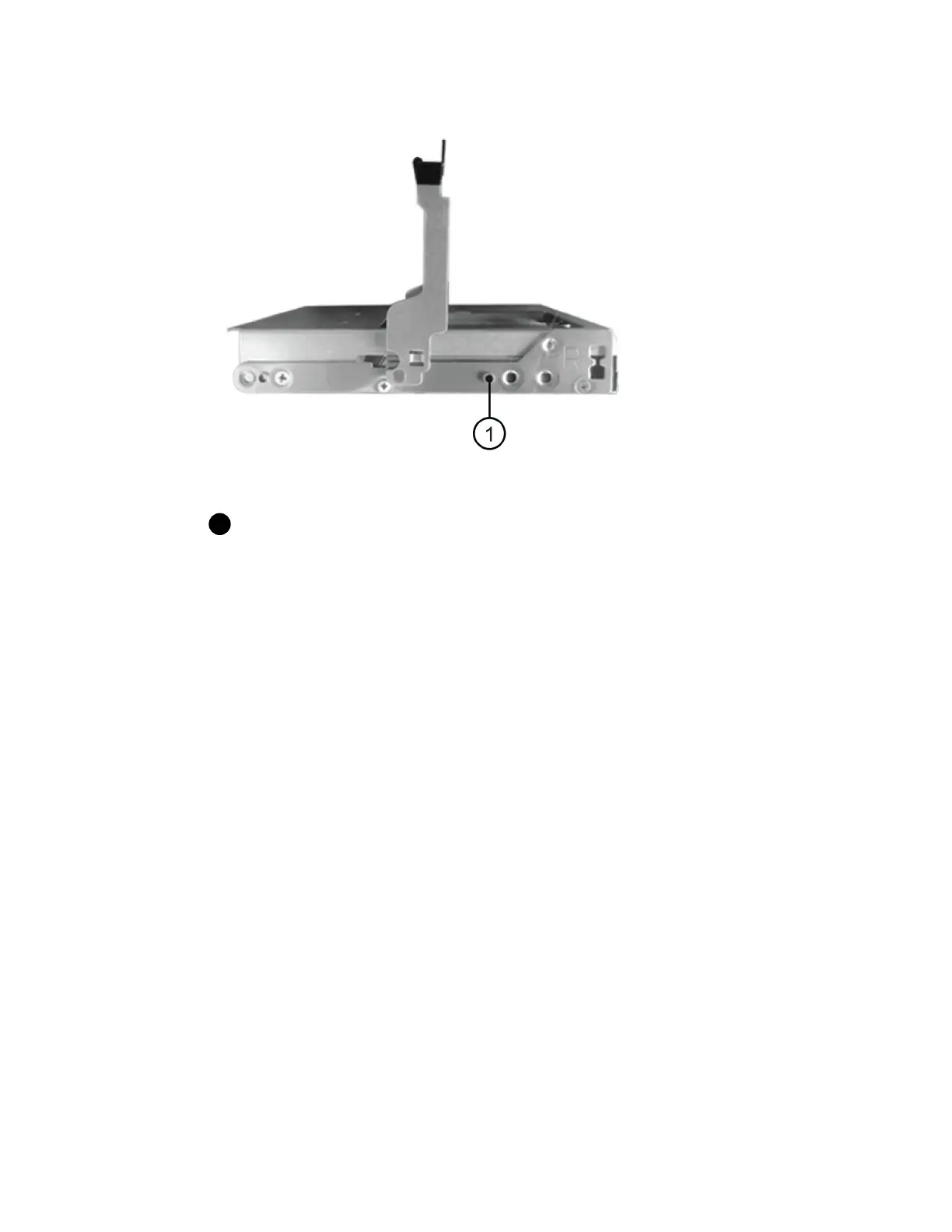
Raised button on the right side of the drive carrier
3. Lower the drive straight down, and then rotate the cam handle down until the drive snaps into
place under the orange release latch.
4. Carefully push the drive drawer back into the enclosure. Push the drawer in slowly to avoid
jarring the drawer and causing damage to the storage array.
5. Close the drive drawer by pushing both levers towards the center.
The green Activity LED for the replaced drive on the front of the drive drawer comes on when the
drive is inserted correctly.
Depending on your configuration, the controller might automatically reconstruct data to the new
drive. If the shelf uses hot spare drives, the controller might need to perform a complete
reconstruction on the hot spare before it can copy the data to the replaced drive. This
reconstruction process increases the time that is required to complete this procedure.
After you finish
Go to
Complete drive replacement (60-drive)
on page 62.
Complete drive replacement (60-drive)
You complete the drive replacement to confirm that the new drive is working correctly.
Steps
1. Check the Power LED and the Attention LED on the drive you replaced. (When you first insert a
drive, its Attention LED might be on. However, the LED should go off within a minute.)
• Power LED is on or blinking, and the Attention LED is off: Indicates that the new drive is
working correctly.
• Power LED is off: Indicates that the drive might not be installed correctly. Remove the drive,
wait 30 seconds, and then reinstall it.
62
| Maintaining E5700 Hardware



 To Next Page