6
S
MARTNA™ 10G NETWORK ACCESS (SMARTNA-X)
OVERVIEW | MANAGING SMARTNA-X
DRAFT
The web UI also provides access to all SmartNA-X configuration and management options. To access these
options, click on the system part you wish to configure. For example, clicking on the chassis (shown in blue in
Figure 1-4) shows options for network, SNMP, contact information, and other system-wide settings. Similarly,
clicking a port lets you access port configuration and information options.
See Appendix B, “Web User-Interface Reference”, page 189 for a description of all web UI options.
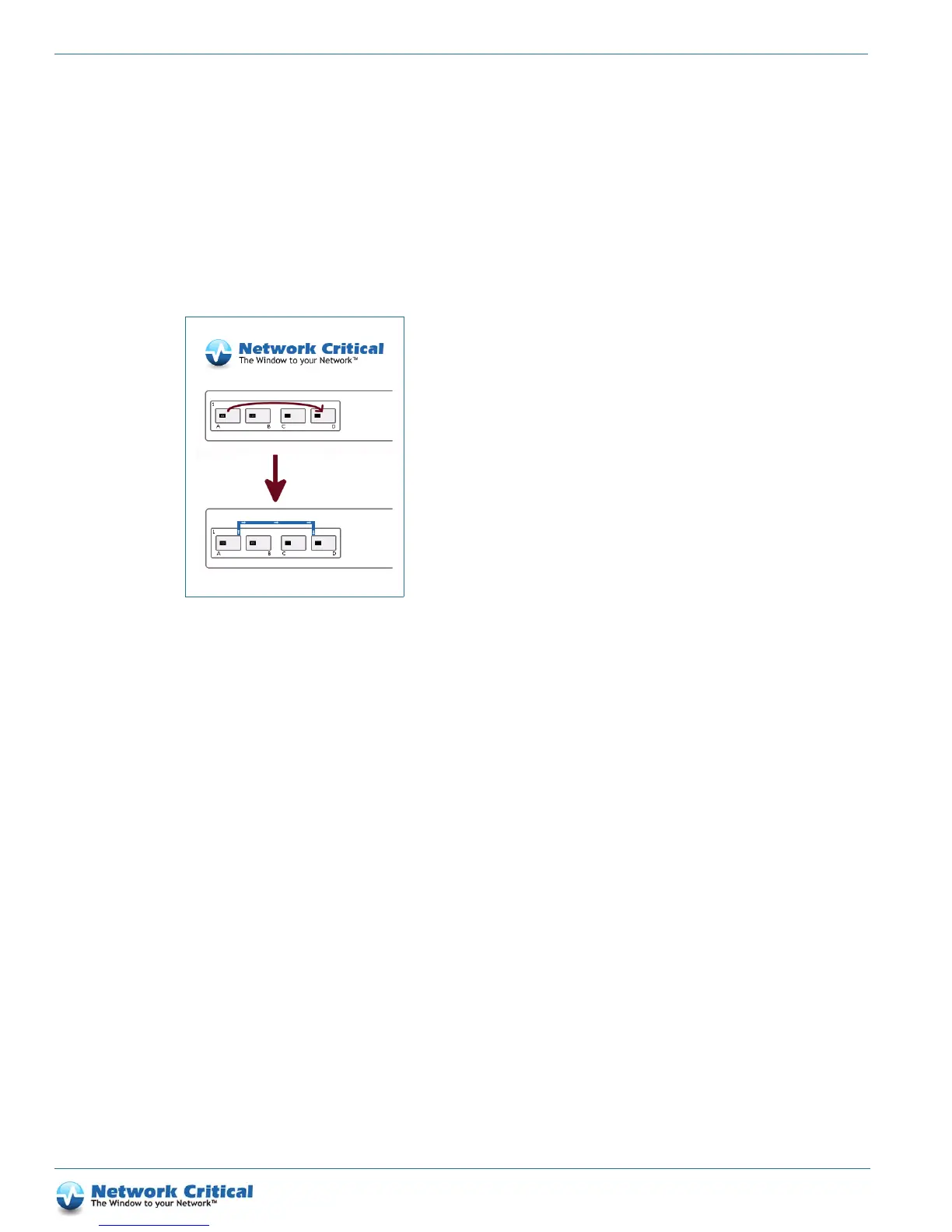
You can also use the web UI to create port mappings and add filters. To create a port mapping, you drag a line
from the source port to the destination port, as shown in Figure 1-5.
Ports are color-coded according to speed:
• Grey: Port is not UP
•Orange: 10 Mbits/s
• Yellow: 100 Mbits/s
•Green: 1 Gbits/s
• Cyan: 10 Gbits/s
Figure 1-5 Creating a port map in the web UI


 To Next Page