Submitting jobs in a central printing environment 147
2 To make sure the Océ 3165 Job SubmitIT is selected on your current driver,
click the ‘Output’ tab and select in the Printer pull down menu ‘Océ 3165
Network Copier *JSIT*’.
3 Click the ‘File’ button.
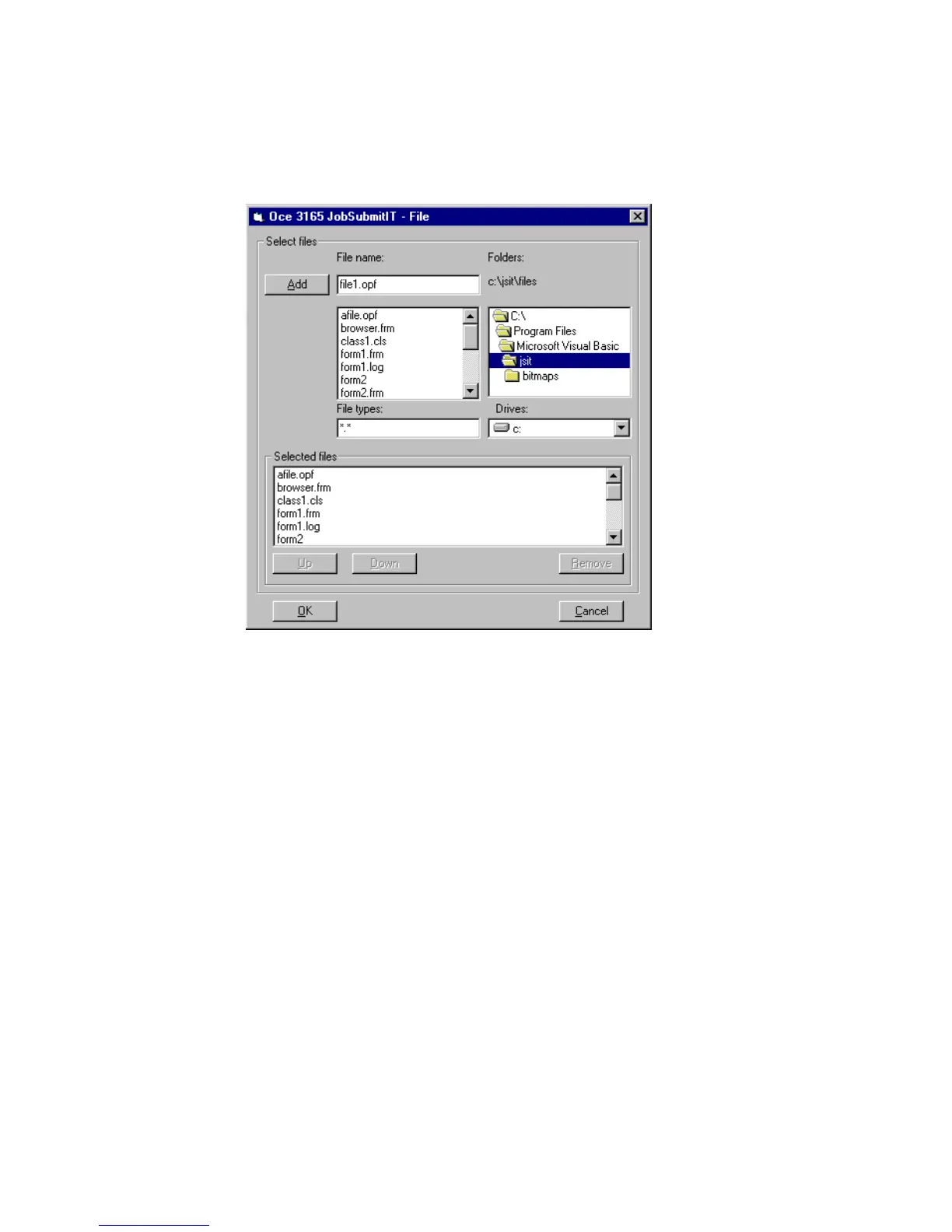
The Océ 3165 Job SubmitIT browser window appears (see figure 81).
[81] The Océ 3165 Job SubmitIT browser
4 Browse to the directory in which the print files are stored.
5 Select the file type in the File types box.
This setting is default set to ‘.opf’ if defined as default extension during
installation. To view all files select ‘*.*’.
6 Click the file to be printed and click the ‘Add’ button or double-click the file.
The selected file is now visible in the Selected files box.
7 Click the ‘OK’ button.
The file is now available in the Selected files pull down menu.



 To Next Page