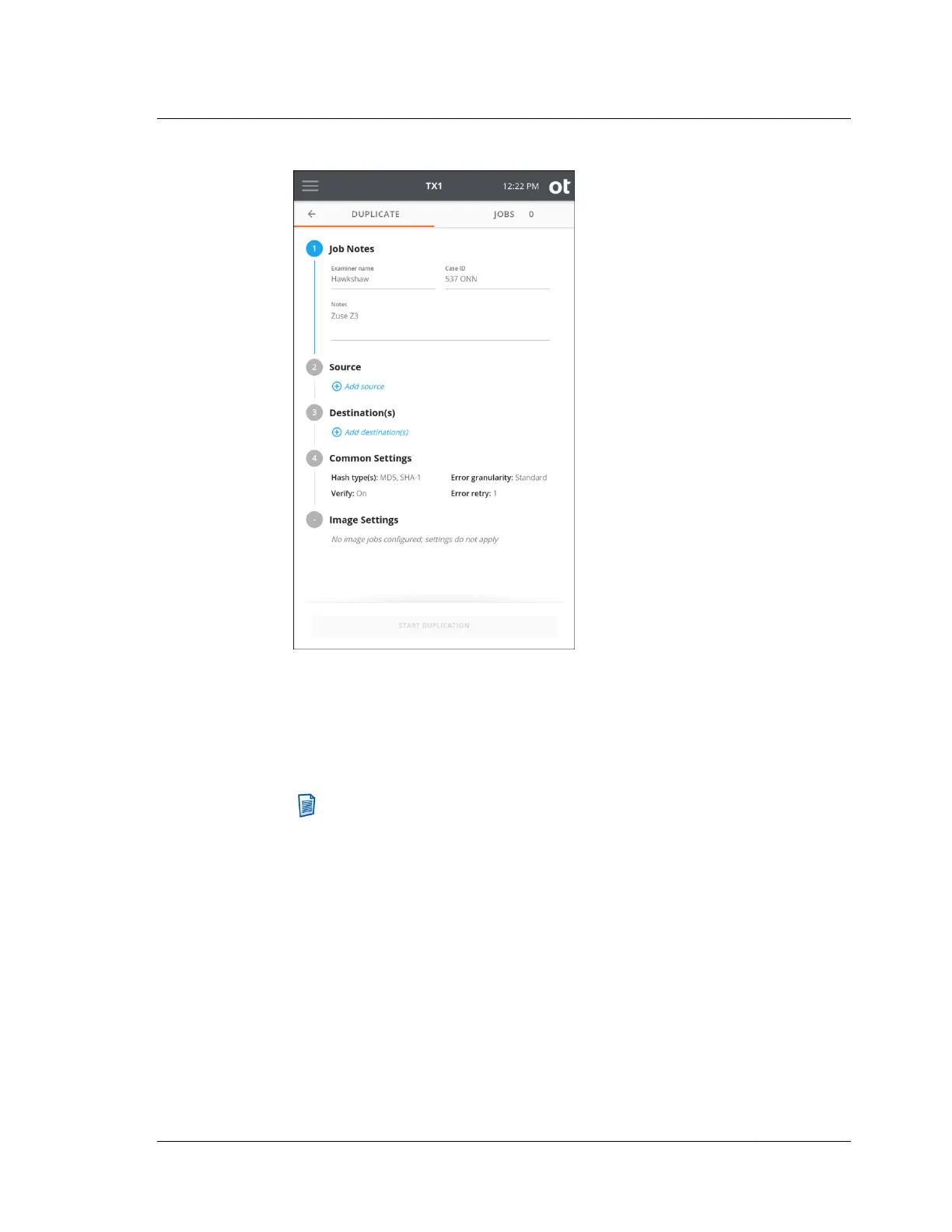
4. To change or add a source drive, tap the 2 or Source heading. From the source
list modal that is displayed, select a drive from the list. A green check confirms
your selection. Close the modal by tapping the X in the upper right corner or by
tapping outside of the modal. If a different source is desired, simply go back into
the Select a Source screen by tapping on the 2 or Source heading from the
Duplication stepper.
Note: To help users identify which source drives have already been
acquired, a green checkmark is shown in the bottom right portion of the
drive tile for any drives that have been used in a previous, successful
duplication job (clone or image). For currently active duplication jobs, a
hollow checkmark will appear which will turn green once the duplication
job has successfully completed.
Within a screen displaying a list of drives, you can tap the options icon
located on the right side of the drive tile to see more drive detail and access
any available media utilities.
4.3. Duplicating
ISTX240300-UGD-EN-1
User Guide
79



 To Next Page