129
Loading and saving preset measuring routines
When the parameters have been adjusted for a specific set of conditions, the test setup
can be saved by pressing “Save preset” while in the “Test setup” screen. A pop up
appears asking if you want to make a new file or use an existing one. Next a key board
screen will appear if the new option is selected, and the test set up can be named and it is
saved when “Ent” is pressed. To load previously created tests, press “Load preset”. Press
the test of interest. After it is highlighted in light blue, press load. To erase a test,
highlight the test and press “Erase”. The number of tests that can be saved is almost
unlimited. Use the up and down arrows to scroll through the tests if there are more than
are shown on the screen. “Exit” if done, or “Exit” if there is no action.
Copy presets parameters into a new measuring file
Insert the SD data card into the SD card port on the OS1p, and press copy while the “1p
Configuration Loader” screen is open. Presets can be stored on the SD card for future use
or transferred to a PC. A preset is different than a measuring file. A Measuring file, or
Data file, contains presets, data and saved traces. A preset file only contain parameter
presets and no data. To store the preset in a new measuring file, load the preset from the
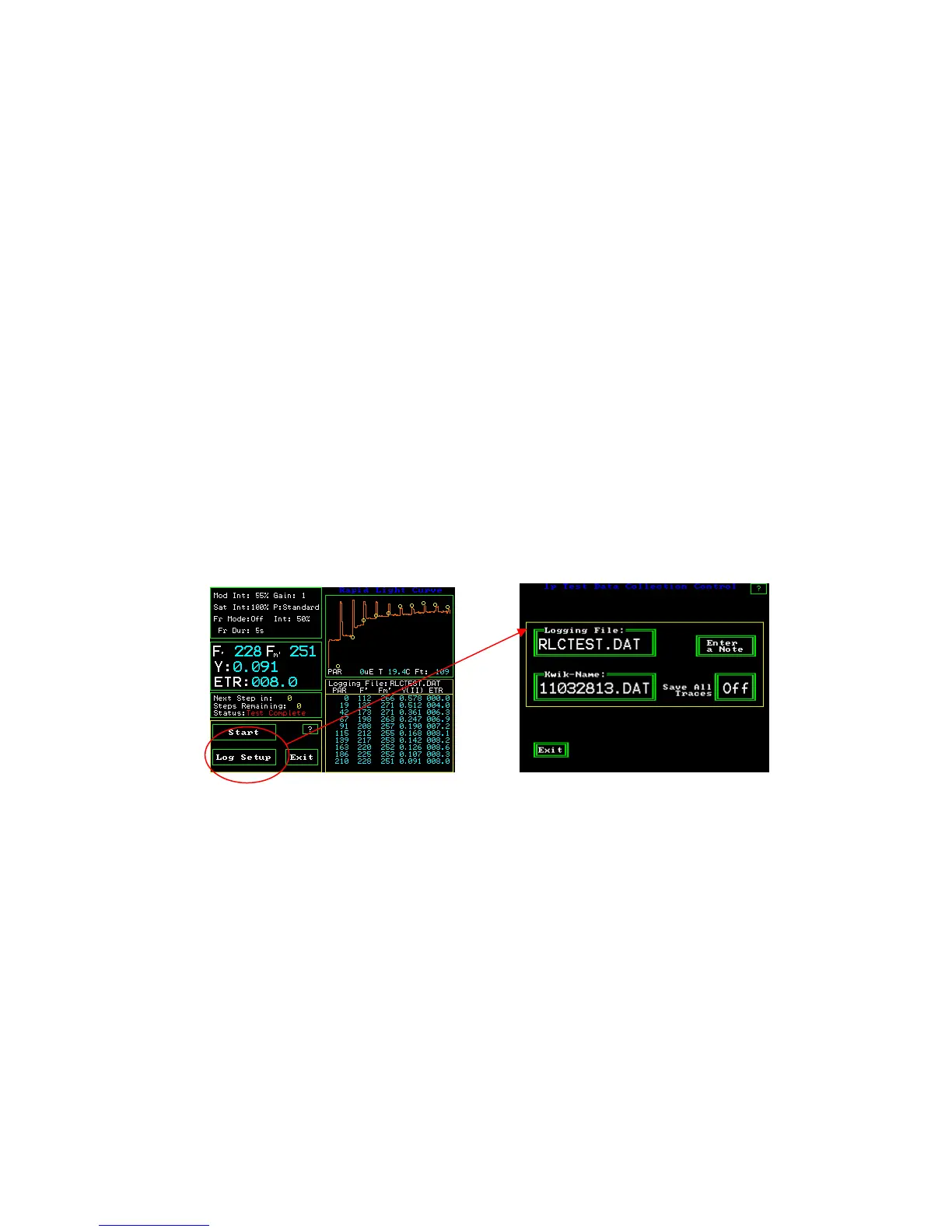
configuration loader screen or create the “Preset”. Press “log setup” from the main
measuring screen and change the “logging file name”. The presets will be logged to the
new file name.
RLC Measuring Screen RLC Log set up Screen


 To Next Page