62
Adjust screen touch sensitivity
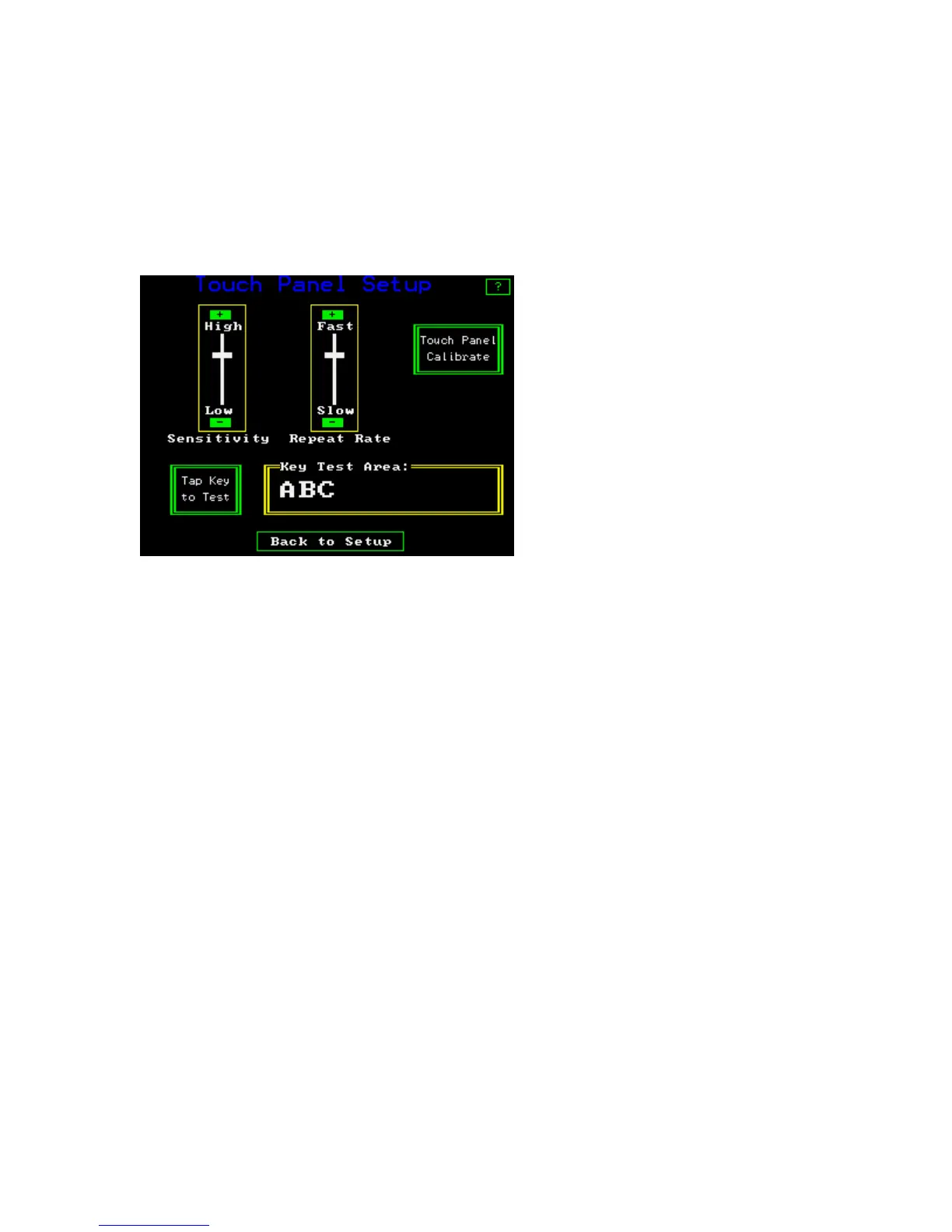
To adjust the sensitivity of the touch screen press “Touch Panel Calibrate” and an
adjustment screen will appear as pictured on the next page.
Touch screen adjustment screen
If it is necessary, to adjust the sensitivity of the touch screen, press the – or + buttons for
increased or decreased sensitivity, and the repeat rate keys for speed of response to touch.
After adjustment, tap the “Tap Key to Test” button. Letters will appear in the “Key Test
Area”. Adjust the sensitivity and the repeat rate for personal preferences. When done,
press back to Setup.
Touch Panel Calibrate
Do not make this adjustment unless necessary, it comes pre-calibrated. This feature
allows the calibration of touch sensitivity to X-Y location. The instrument will run
through a menu driven routine that requires touching the center of + signs in different
locations using a ball point pen with the ball retracted on the screen. If the ball is not
retracted, ink marks will appear on the screen and they can be hard to remove. When
done, press “Exit”.


 To Next Page