141
Entering a note with a measurement
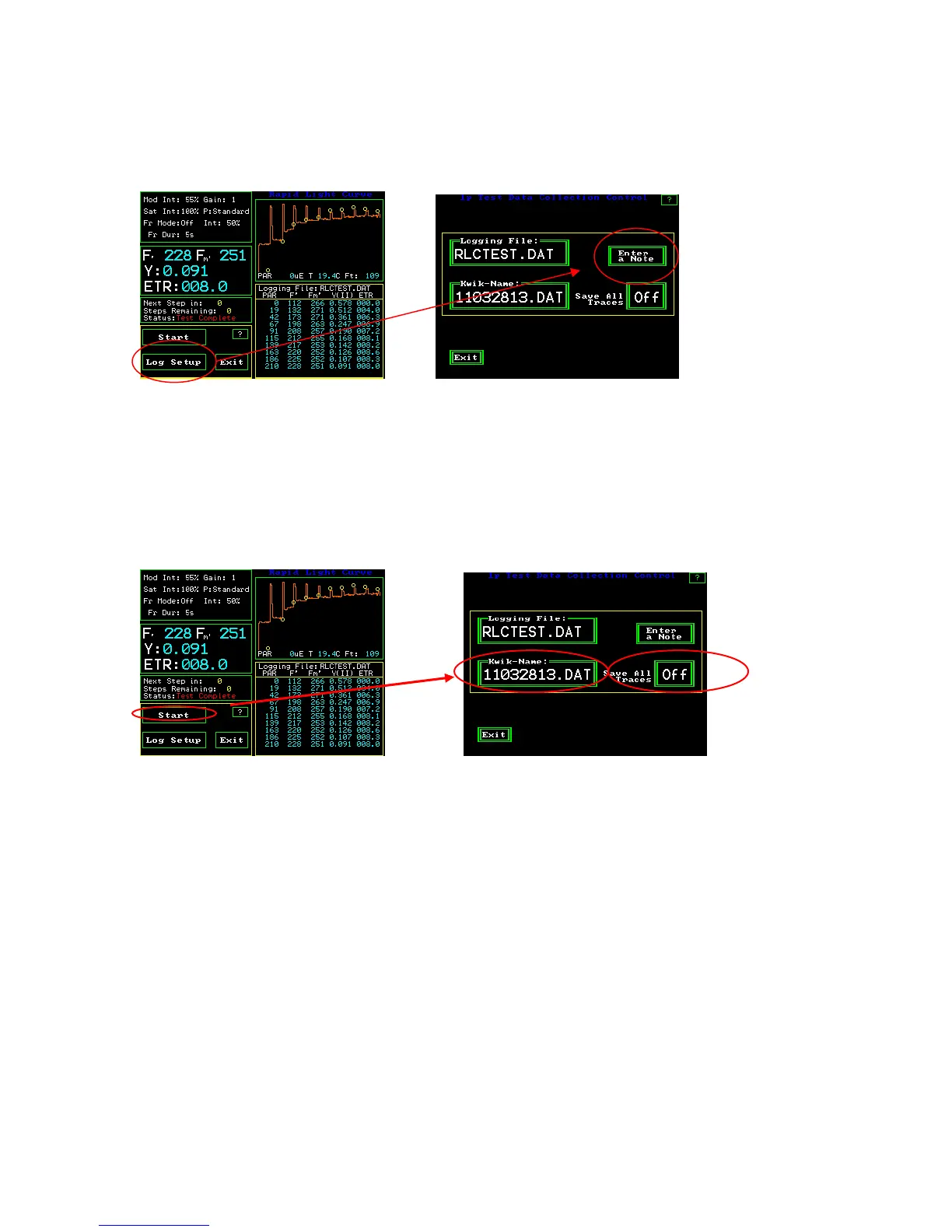
RLC Measuring Screen RLC Log set up screen
It is now possible to enter a note with any RLC. To enter a note, press the “Log Setup”:
button. Next, press “Enter a Note”. A touch keyboard will appear, and one can enter up to
a 38 characters note with each measurement.
Other RLC function buttons
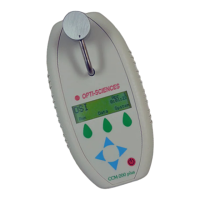
Y(II) Measuring Screen RLC Data Logging Screen
Kwik-Name – the “Logging File” name is the file name. “Kwik-Name” allows one to
quickly create a new file name without typing in the characters. The name is a code that
represents the year -10, the month -11, the date 29, and the hour – 15 (24 hour clock).
This is especially valuable for people making measurements in high volume that want to
change the file name for a second field or sub set. The parameters stay the same as the
existing file, and the code allows easy tracking where appropriate. Press the “Kwik-
Name” button and the Kwik name becomes the “logging file name” moving forward.
Save all Traces on the RLC Data logging screen, saves all trace with the data file. It is
not saved normally, unless it is turned on.
Start– Measurements can be made by pressing the start button on the RLC measuring
screen, or the red button at the tip of the fiber optic cable, or the black button on the
bottom of the PAR Clip.


 To Next Page