Chapter 5 Operations — Using the web control function
224 - ENGLISH
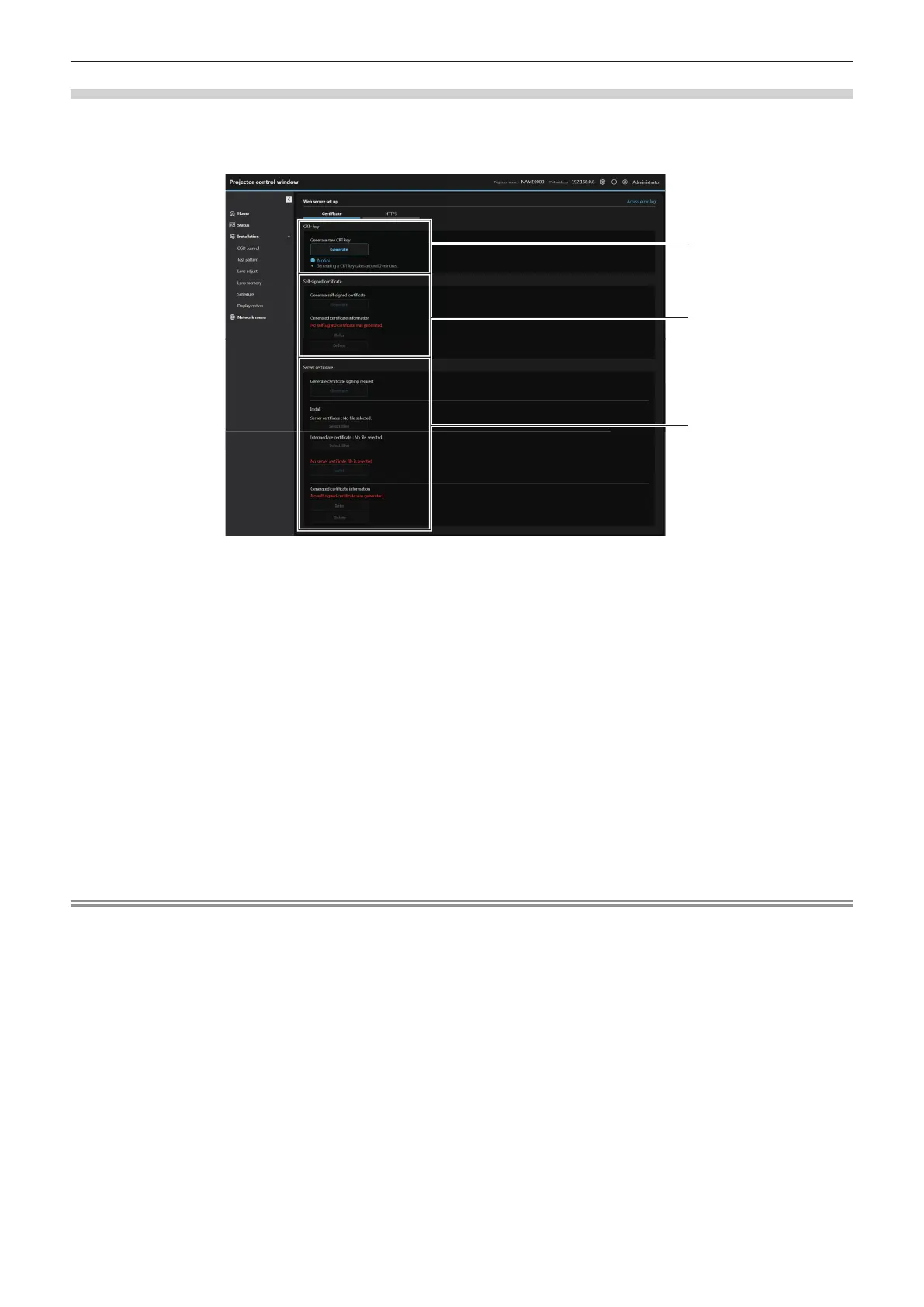
[Web secure] (Certicate)
To perform the HTTPS communication or use the control system or application software of Crestron Electronics,
Inc., it is necessary to install the certicate for authentication into the projector.
Click [Certicate].
1 [CRT- key]
Generates the CRT (Certicate) key.
The screen to generate the CRT key is displayed by clicking
[Generate].
For details, refer to “Generating the new CRT key”
(x page 225).
2 [Self-signed certicate]
[Generate self-signed certicate]:
Generates the self-signed certicate by the projector.
The screen to generate the self-signed certicate is displayed
by clicking [Generate].
For details, refer to “Generating the self-signed certicate”
(x page 229).
[Generated certicate information]:
Displays the status of the self-signed certicate.
Information of the generated self-signed certicate is displayed
by clicking [Refer].
The generated self-signed certicate can be deleted by clicking
[Delete].
For details, refer to “Conrming the information of the self-
signed certicate” (x page 229).
3 [Server certicate]
[Generate certicate signing request]:
Generates signing request (Certicate Signing Request).
The screen to generate the signing request is displayed by
clicking [Generate].
For details, refer to “Generating the signing request”
(x page 227).
[Install]:
Installs the server certicate and the intermediate certicate.
The certicate is installed into the projector by specifying the
certicate le and clicking [Install].
For details, refer to “Installing the certicate” (x page 228).
[Generated certicate information]:
Displays the status of the server certicate.
Information of the installed server certicate is displayed by
clicking [Refer].
The installed server certicate and the intermediate certicate
can be deleted by clicking [Delete].
For details, refer to “Conrming the information of the server
certicate” (x page 228).
Note
f Installation operation of the certicate may not be possible depending on the computer or web browser in use.














 To Next Page