Chapter 5 Operations — Using the web control function
ENGLISH - 239
Registering the user image
1) Click
button of the user image number to be registered.
f The le selection screen is displayed.
g Up to four user images can be registered.
g Number that user image is not registered is displayed as [No such le.], and the
button is displayed.
g Number that user image is already registered is displayed as the user image name, and the
button /
button are displayed.
2) Select the file of a user image to register, and click [Open].
f The user image name is displayed, and the registration is completed.
Note
f To register a new test pattern to the number with the user image already registered, delete the registered user image rst, and then perform
the registration again. Registration by overwriting is not possible. For the procedure to delete, refer to “Deleting the registered user image”
(x page 239).
Deleting the registered user image
1) Click the
button of the user image number to be deleted.
f The conrmation screen is displayed.
2) Click [Delete].
f Deleting of the user image is completed.
Changing the name of the user image
1) Click the
button of the user image number to change the name.
f The edit screen is displayed.
2) Enter the new name in the text box of the edit screen.
f Up to 16 single-byte alphanumeric characters can be entered.
3) Click [Save].
f Changing of the name is completed.
r Setting the color components
Selects the color components you want to display for the pattern.
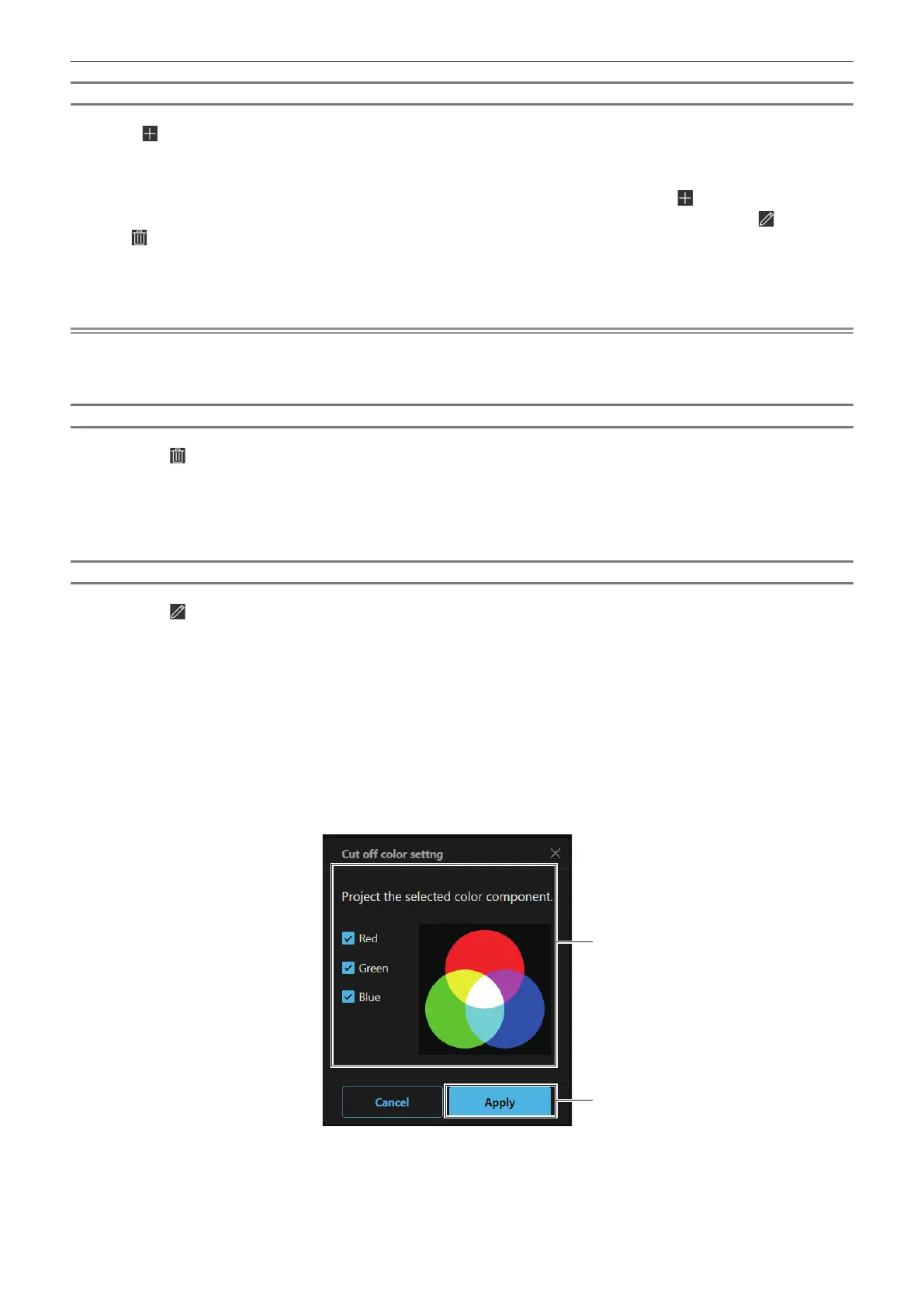
Click [Cut o color settng].
1 [Cut o color settng]
Select the color components you want to display from [Red],
[Green] and [Blue].
2 [Apply]
Enables the setting.














 To Next Page