Chapter 5 Operations — Using the web control function
242 - ENGLISH
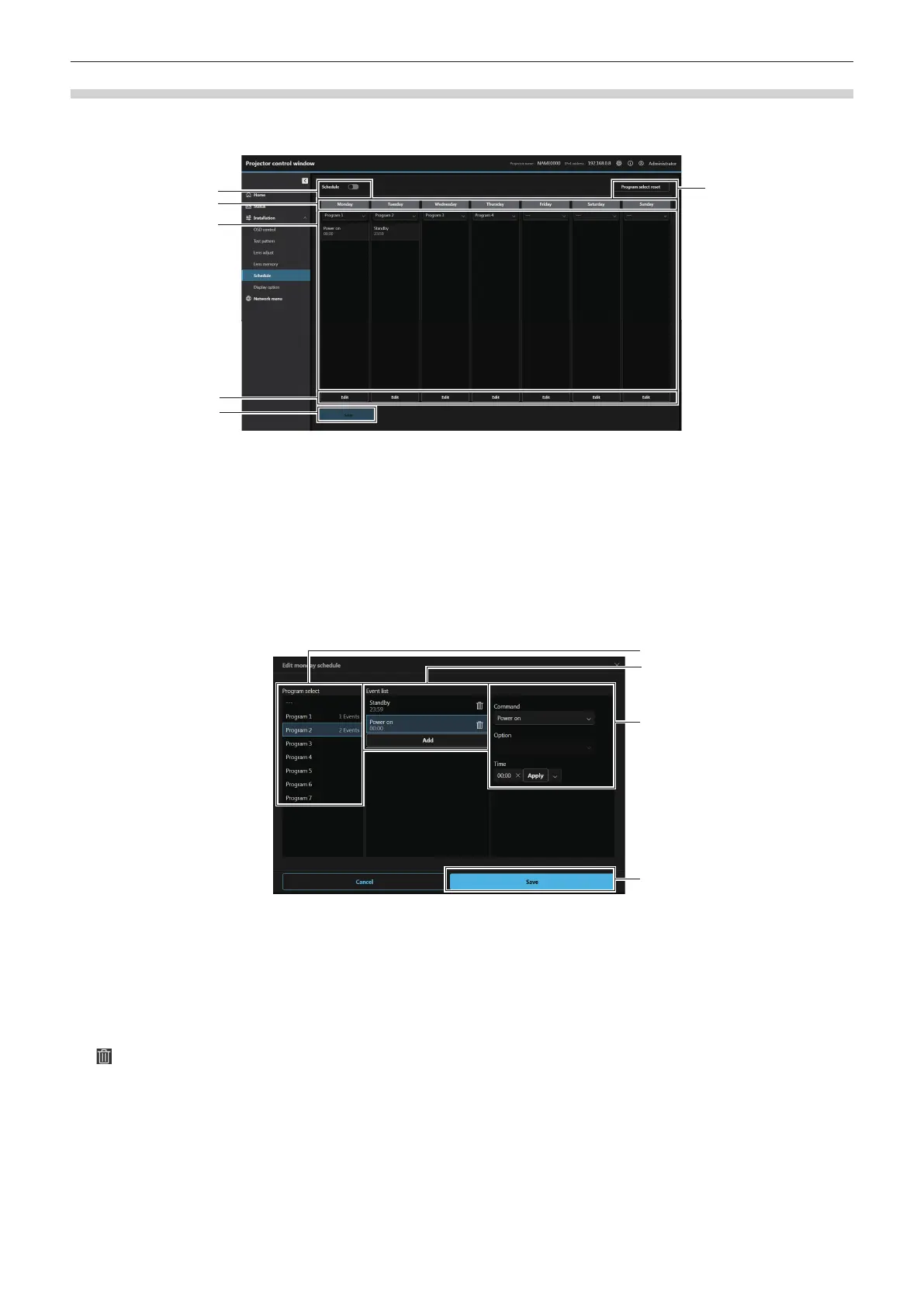
[Schedule]
Check and set the command execution schedule for each day of the week.
Click [Installation] → [Schedule].
1 [Schedule]
Enables/disables the schedule function.
2 Days of the week
3 Program
Displays the program of day of the week and the event list. You
can also change the program by selecting another program
from the drop-down list and pressing the [Save] button.
Program can be set from [Program 1] to [Program 7].
“- - -” indicates that no program has been selected.
4 [Edit]
Click to open the schedule editing screen for day of the week.
You can select and edit the program.
5 [Save]
Update the setting.
6 [Program select reset]
Initializes the program selection for all days of the week.
r Schedule editing screen
1 [Program select]
Select the program to edit.
2 [Event list]
Displays the event list of the selected program.
If there is no event in the program, select the desired program
number and click [Copy] to copy the event list.
[Add]
Add an event to the program.
Up to 16 commands can be set per program.
button
Delete the event from the program.
3 Event editing
Set the command for the event and execution time.
[Command]
Set the commands.
For details of the commands, refer to [PROJECTOR
SETUP] menu → [SCHEDULE] → “How to set a program”
(x page 171).
[Option]
Set [Option] according to the command.
[Time]
Set the execution time for the command.
Enter the time in the text box in one-minute increments and
click [Apply]. You can also press the arrow button and select
from the drop-down list [00:00] to [23:30] in increments of 30
minutes.
4 [Save]
Update the setting.














 To Next Page