to +2 EV) and 7 photos (-3 EV to +3 EV). When one of these options has been selected, the soft shutter
button of the HUD displays the Bracketing icon inside a white circle.
Selecting the Timer mode opens three options: 3 seconds, 5 seconds and 10 seconds. When one of
these options has been selected, the soft shutter button of the HUD displays 3 secs, 5 secs or 10 secs
inside a white circle, depending on the option which has been chosen.
Selecting the Panorama mode opens three options: Vertical, Horizontal and 360. When one of these
options has been selected, the soft shutter button of the HUD displays the corresponding icon inside
a grey (ANAFI USA landed) or white (ANAFI USA flying) circle.
The Panorama mode is the only photography mode which requires the drone to be flying before you
can activate the shutter. Refer to the “Creating Panoramas” section of this guide for more information.
Selecting the Timelapse mode opens six options: 5 secs, 10 secs, 15 secs, 30 secs, 60 secs, and
120 secs. When one of these options has been selected, the soft shutter button of the HUD displays a
Timelapse icon.
Selecting the GPS Lapse opens six options: 5m, 10m, 20m, 50m, 100m, and 200m. When one of these
options has been selected, the soft shutter button of the HUD displays a GPS Lapse icon.
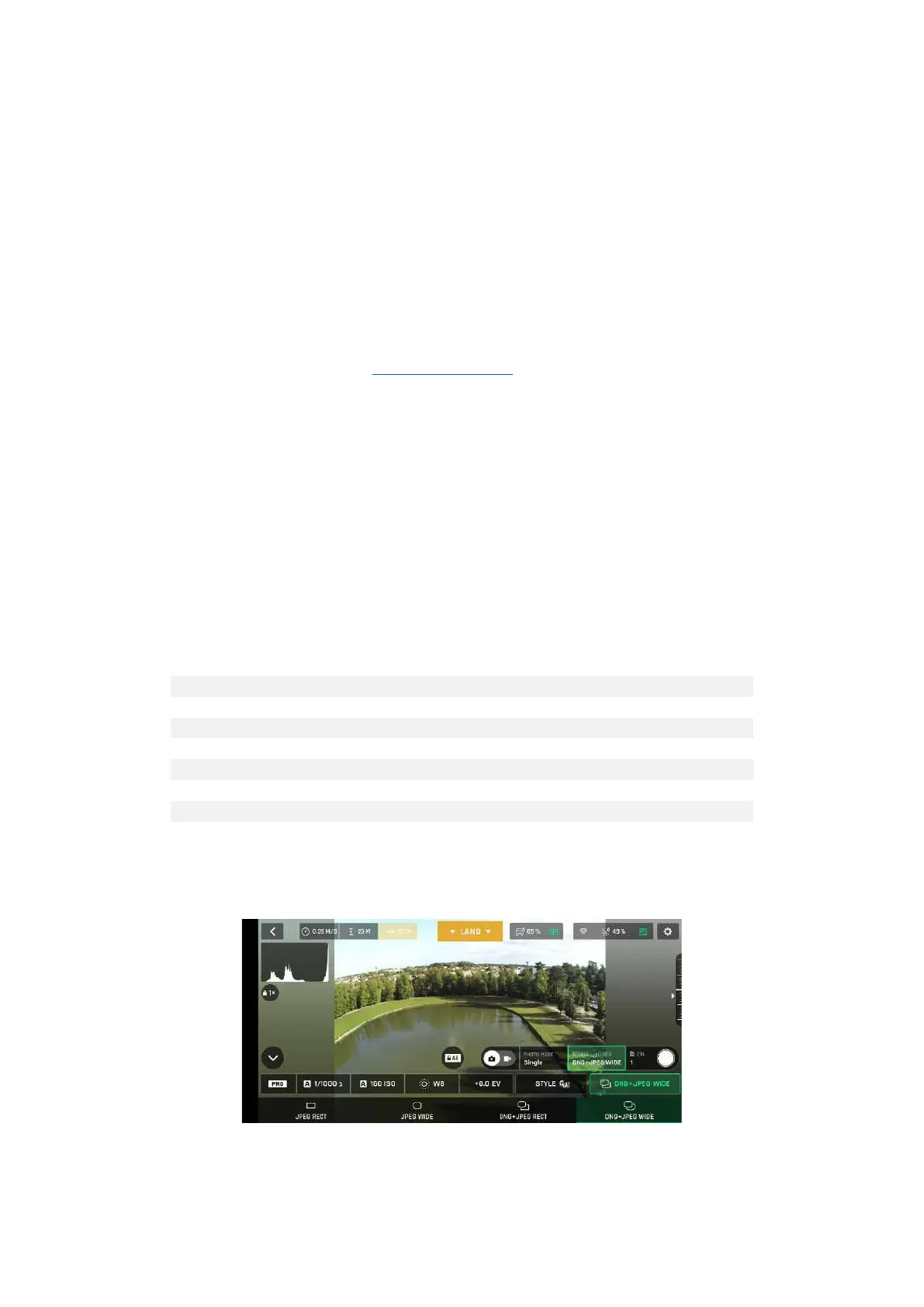
Second, select a photo format from the corresponding box of the HUD.
Tap the photo settings box to call the photo settings boxes.
Tap the last box on the right of the screen to access the available photo formats.
Tap a format (JPEG RECT, or JPEG WIDE if available, or DNG+JPEG if available) to select it.
Tap the photo settings box again to close the sub-boxes and confirm your choice.
Android photo formats: DNG+JPEG WIDE



 To Next Page