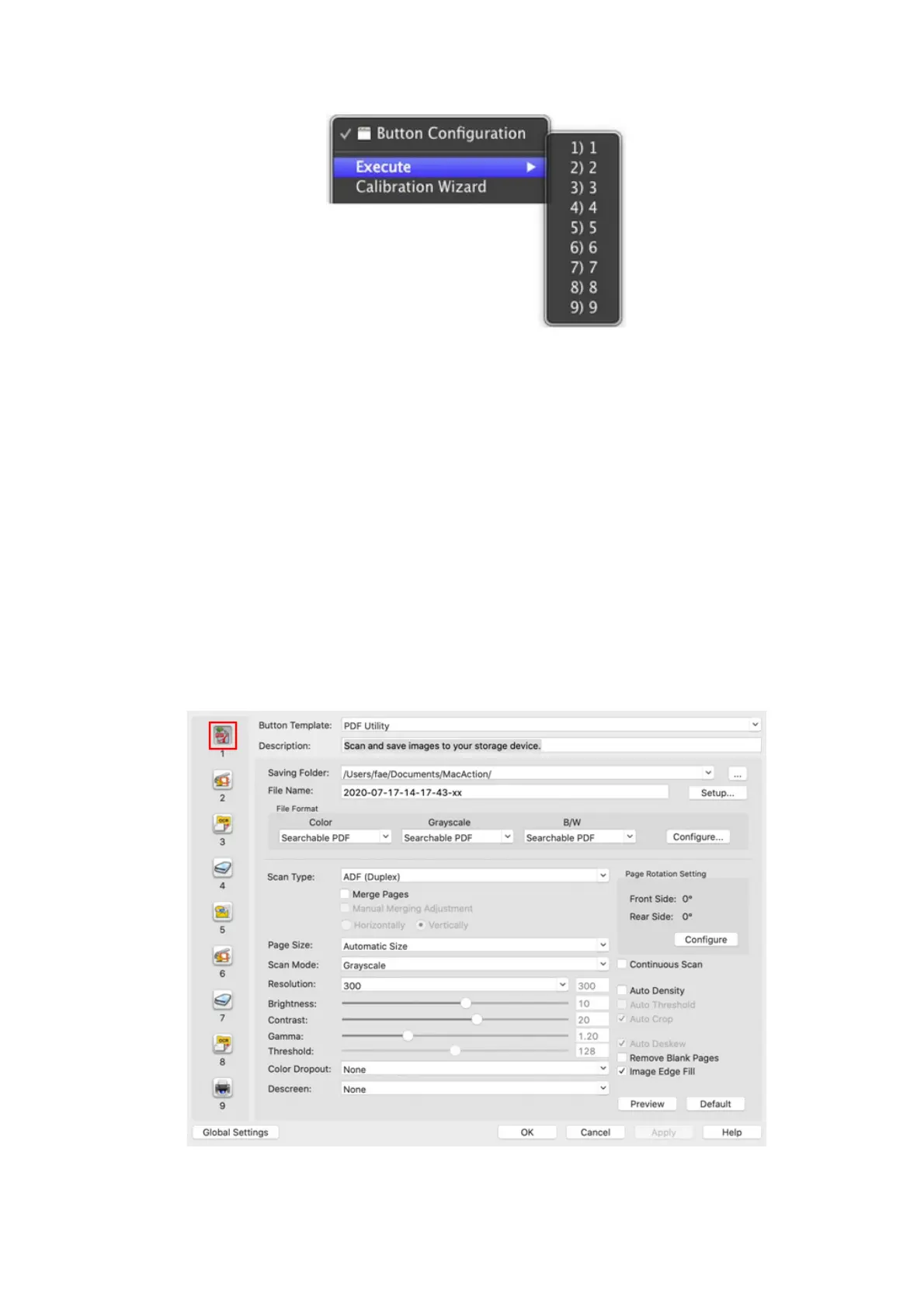
22
4. Click the desired button function item in the pop-up menu.
The scanner starts to scan immediately and carry out the corresponding action
according to settings you have set up in the Button Configuration window.
Scanning from the Icon in the Left Side of the MacAction II
Window
You can perform scanning task by double-clicking the icon in the left side of the
MacAction II window. Follow the steps described below:
1. Place the document or images onto the scanner.
2. Check current button settings by viewing the Button Configuration window. If
needed, you may also modify settings to meet your current needs.
3. Double-clicking the desired icon in the left side of the MacAction II window.
The scanner starts to scan immediately and carry out the corresponding action
according to settings you have set up in the Button Configuration window.









 To Next Page