TWAIN Help42
All rights are reserved.
3.1
Step by Step Procedures
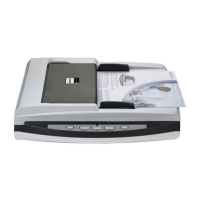
Load the documents, headfirst and face down, toward the center of the ADF
paper chute and all the way into the ADF until touching the bottom.
For single-sided scans, load the documents face down so that the side to be
scanned faces towards the paper chute.
For double-sided scans, load the desired page order of documents face down
so that the side to be scanned faces toward the paper chute.
Click the Windows Start button to launch
In the TWAIN window that opens, select
you want to scan single-sided documents, or
If the preview is not automatically performed, you may tick
want preview automatically starts next time when you open this TWAIN
, especially those on the
scan, you can tailor settings
individually for front and rear sides of the documents. Click
adjust the scanning settings of document front side and then click
button to adjust the scanning settings of document rear side.
You can enable the function of
scan images of both front and rear sides in one image. After the function of
is enabled, you can make the selection of
generate both front and rear image data horizontally in a joined image (the









 To Next Page