DocAction II2
All rights are reserved.
1
Introduction
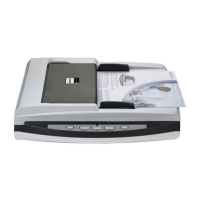
This program, seamlessly integrating the operation of your scanner with your
computer, provides a quick and convenient way to perform various functions. With
DocAction II, you don't need to adjust settings every time you scan. Simply press
any button on the scanner's front panel or click any scan profile of DocAction II on
the screen. The scanner starts to scan your paper documents and transfer them to
your assigned destination
This help file will familiarize you with the program's user interface and related
This help assumes the user is familiar with Microsoft Windows OS. If this
is not the case, we suggest you learn more about Microsoft Windows by referring
to your Microsoft Windows manual before using your scanner. The screen shots in
this help file were made with Windows 7
2
Program Window Overview
To launch the program, you can do one of the following:
shortcut from the Windows
8.1 users: Point your mouse cursor to the upper or lower right corner of your
downwards arrow button in the lower left corner of the screen. The
will be shown. Move your cursor to the right edge of the screen to scroll right until
icon in the system tray, and select









 To Next Page
