28
CHAPTER IV. TROUBLESHOOTING
If you encounter problems with your scanner, please review the installation and
scanning instructions contained in this guide.
SCANNER CONNECTION
The first step to take when troubleshooting connection problems with your scanner
is to check all physical connections. The icon
, located on the Dock indicates if the
scanner software is properly launched and the scanner and computer are
communicating with each other.
Appearance Status
The program has been successfully launched and the scanner
is connected with the computer, ready to scan images.
No Display
You have chosen to terminate the program, no matter the
scanner is connected or disconnected with the computer.
CLEARING PAPER JAMS
If a paper jam in the ADF happens, please perform the following steps:
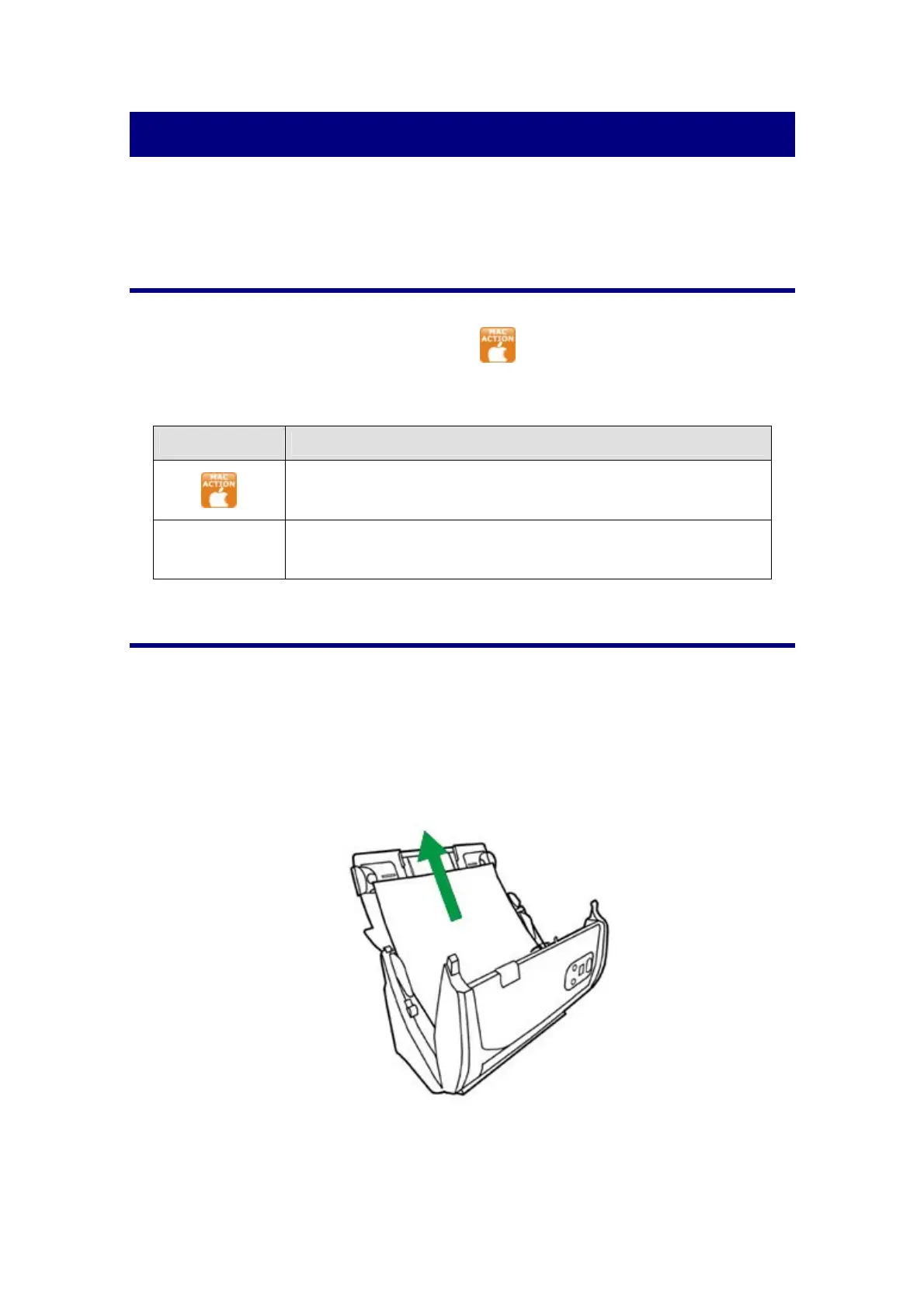
1. Remove any unjammed documents still loaded into the ADF.
2. Open the ADF cover by pulling the cover open lever.
3. Gently but firmly pull the jammed documents out of the ADF. Try to avoid
creasing or wrinkling the documents.









 To Next Page