26
CALIBRATING THE SCANNER
Attention
Please uninstall the extended paper width sliders
before you start the calibration.
Calibrate the scanner if colors appear in areas that should be white, or colors of the
scanned image and the original vary a lot. This allows you to adjust and compensate
for variations that can occur in the optical component over time by its nature.
The following describes how to calibrate the scanner:
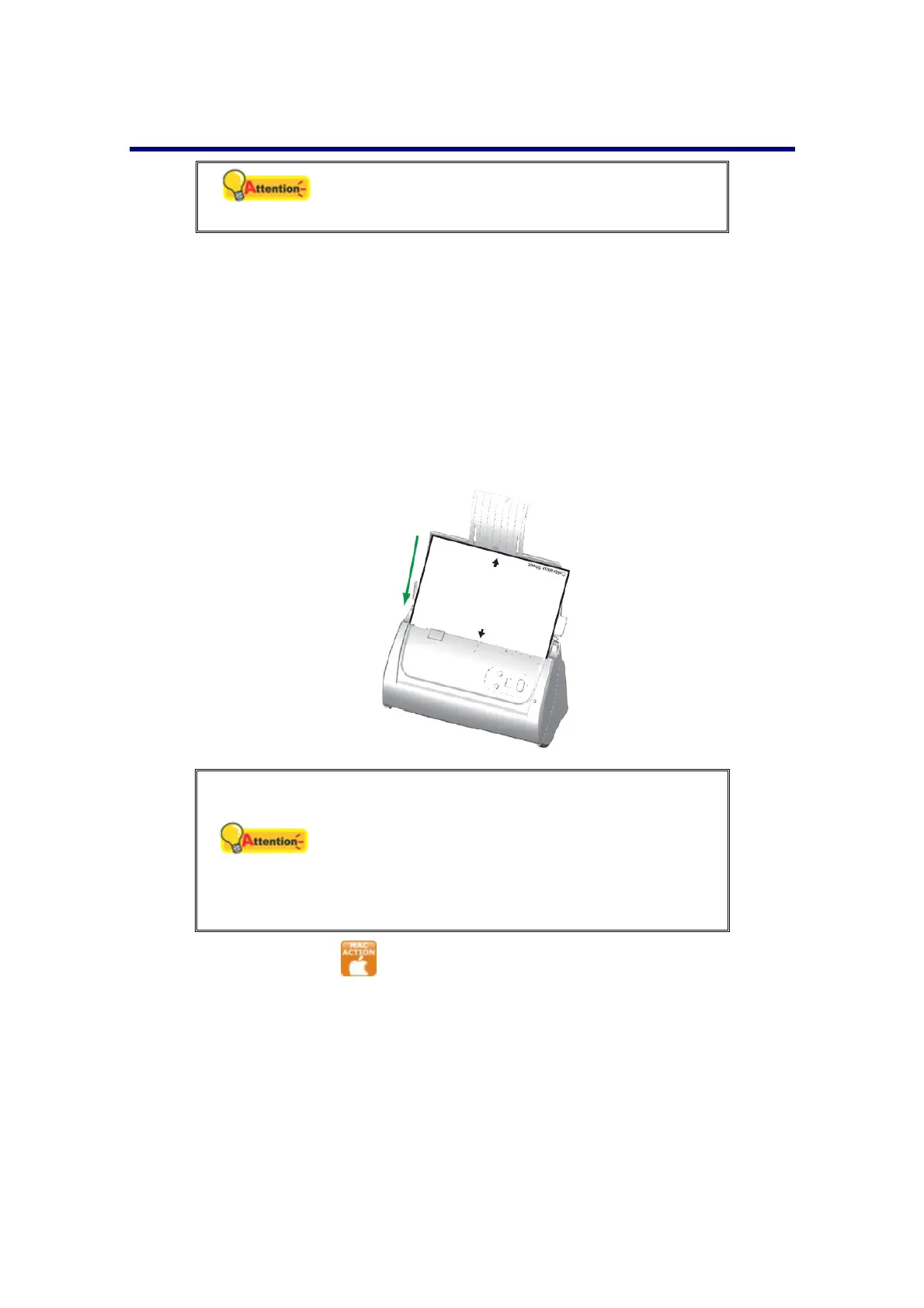
1. The Calibration Sheet, marked with an arrow on either edge at both sides, is
used specially for ADF Scanning calibration.
2. Insert the special calibration sheet into the ADF of the scanner, with an arrow
toward the scanner buttons.
Attention
Please insert the special calibration sheet
included with the scanner. Alternatively you may
also use any plain white sheet of paper sized in
Letter/A4 instead; however, the calibration effect
may be less good than the special calibration
sheet.
3. Right-click the icon in the Dock, and then choose Calibration_Wizard in
the pop-up menu that opens.
4. Click on the Start button to begin the calibration process.
5. The scanner pulls the calibration sheet through the scanner, which completes
this scanner calibration. After the calibration is complete, click OK.









 To Next Page