Button Configuration Window Overview 19
All rights are reserved.
The options available in the drop-down menu depends on the OCR
application programs that you may have installed in your Mac OS.
Action has been programmed to support the following famous OCR
applications in the industry to give you the convenience of single-touch
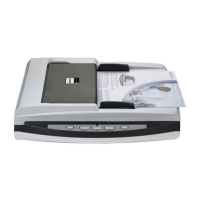
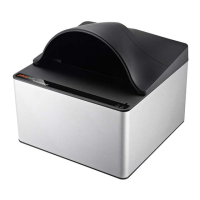
The availability of the programs may vary depending on the scanner model
Major OCR settings of the selected OCR application are displayed at the
opens a configuration window where you
may check or modify the OCR settings (e.g., the file format to save the
OCR result, recognition language, etc.) as desired.
Clicking this button opens the
determine where and in what file name format the scanned documents or
Manual Merging Adjustment
(This function may or may not be available
depending on the scanner model you purchase.)
(This function may or may not be available depending on the
scanner model you purchase.)
(This function may or may not be available depending on the
scanner model you purchase.)
(This function may or may not be available depending on the
scanner model you purchase.)
(This function may or may not be available depending on the
scanner model you purchase.)
(This function may or may not be available









 To Next Page