SECTION 3
OPERATING PRINTER
52
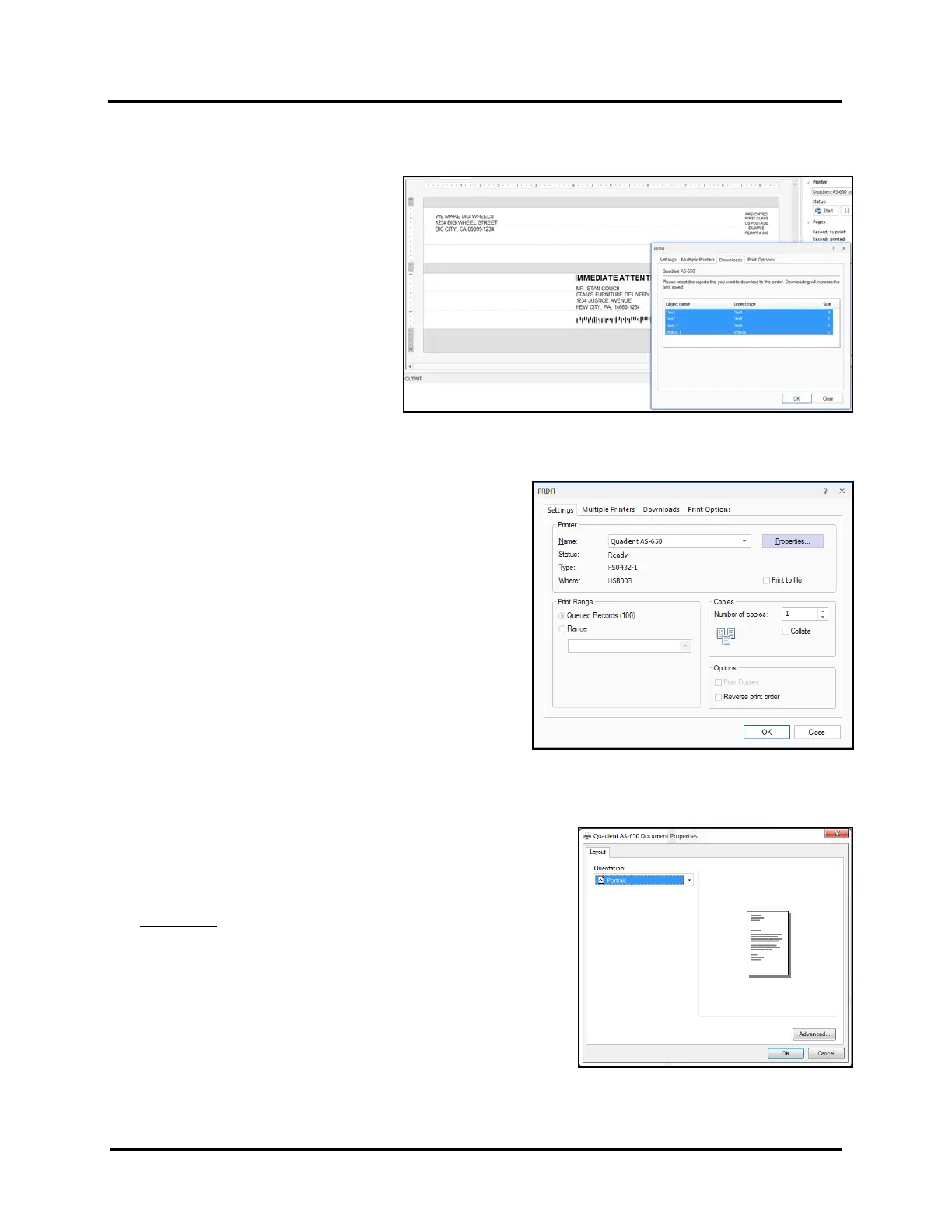
10. Click on the “Downloads” Tab and select any “objects” (elements) that you want FlexMail to download to the
printer. Hold down the Control (Ctrl) key and click to select multiple “objects”.
In this example, three “Text” objects
and “Indicia 1” were selected.
All four of these objects will now be
downloaded to the printer once and
recalled with each record, instead of
being resent with each record.
TIP: Downloading objects (elements)
can significantly reduce the amount of
data being sent per record. In some
cases this can help to avoid possible
pauses created by printer waiting for
data and processing data. This may
improve throughput (print speed).
11. Click on the “Settings” Tab and make sure the AS-650
printer is selected.
You can also select the following features from this
window.
Print Range – The range of records you would like to print.
Number of Copies – How many copies of each record you
would like printed.
Reverse print order – When selected the last record will
print first.
Properties – Click button to access and adjust Printer
Preferences such as Print inverted, Resolution (print
quality), Beltspeed and Feed Delay.
TIP: Clicking OK will send job to printer.
12. Click on the “Properties” button to access and adjust Printer
Preferences.
Make sure “Portrait” is selected for the “Orientation”.
Orientation: Portrait, Landscape
Provides 90 degree image rotation
TIP: Clicking OK will send job to printer.
13. Click on the “Advanced ” button to open the “Advanced Options” window.



 To Next Page