SECTION 3
OPERATING PRINTER
51
6. To Save your Project and Layout, click on the “FILE” button and then click on “Save”.
Type a name for your Project and then click on the Save button.
TIP: You can also save the Project as a “FlexMail Template” that can be used to format future Projects.
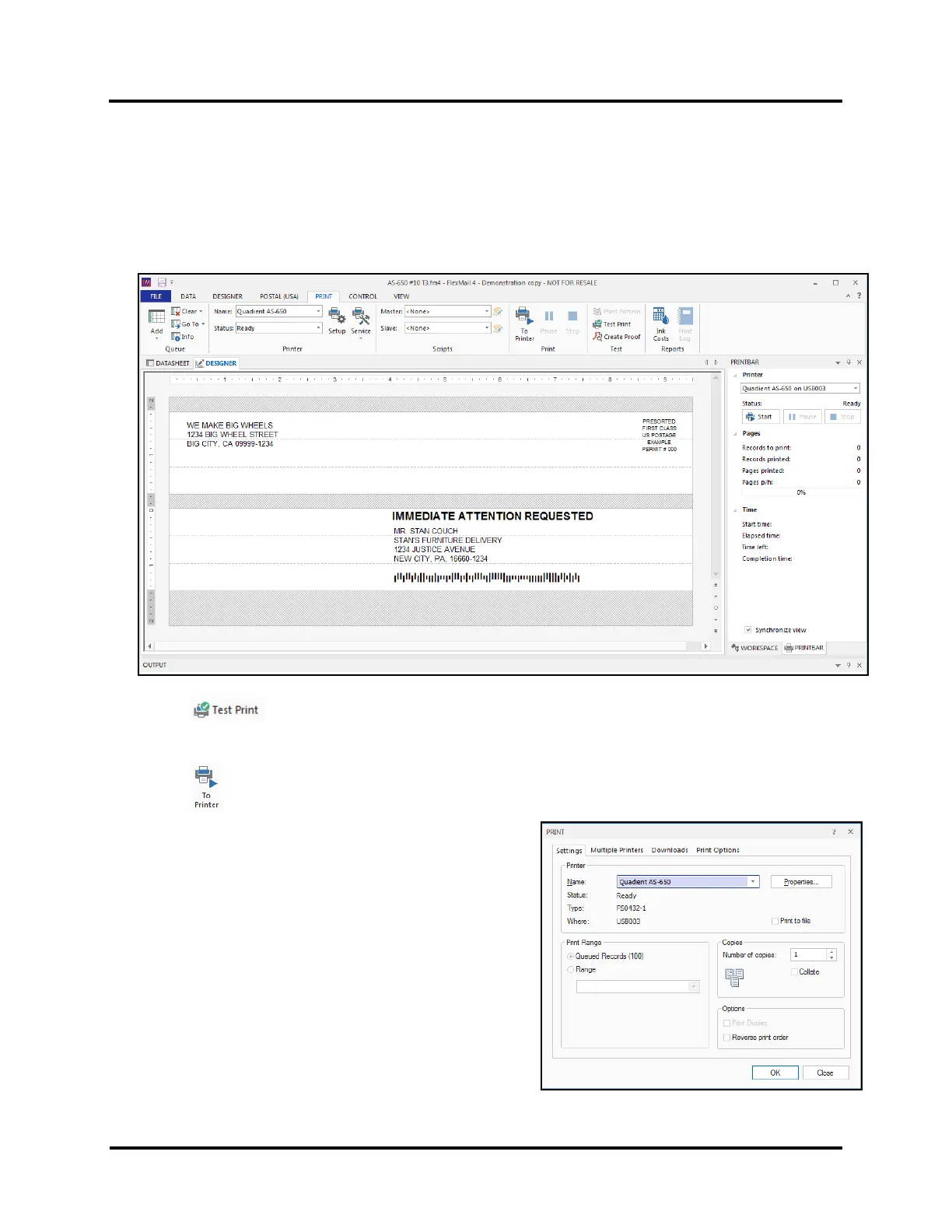
7. Click on the "PRINT" Tab to access printing features.
TIP: You can use the radio buttons (arrows), located at the bottom-right side of the Layout, to toggle through
the records in the linked data file, to see how they will be displayed/printed.
8. Click on (Test Print) button to immediately send the current record, in the Layout, to the Printer.
This provides a quick test to verify that the Project and Layout were setup properly and will print as you
expect.
9. Click on (To Printer) button to open the “PRINT” dialog box.
From the “PRINT” dialog box you can access “Settings”,
“Downloads” and other FlexMail features that will not be
covered in this document.



 To Next Page