SECTION 3
OPERATING PRINTER
51
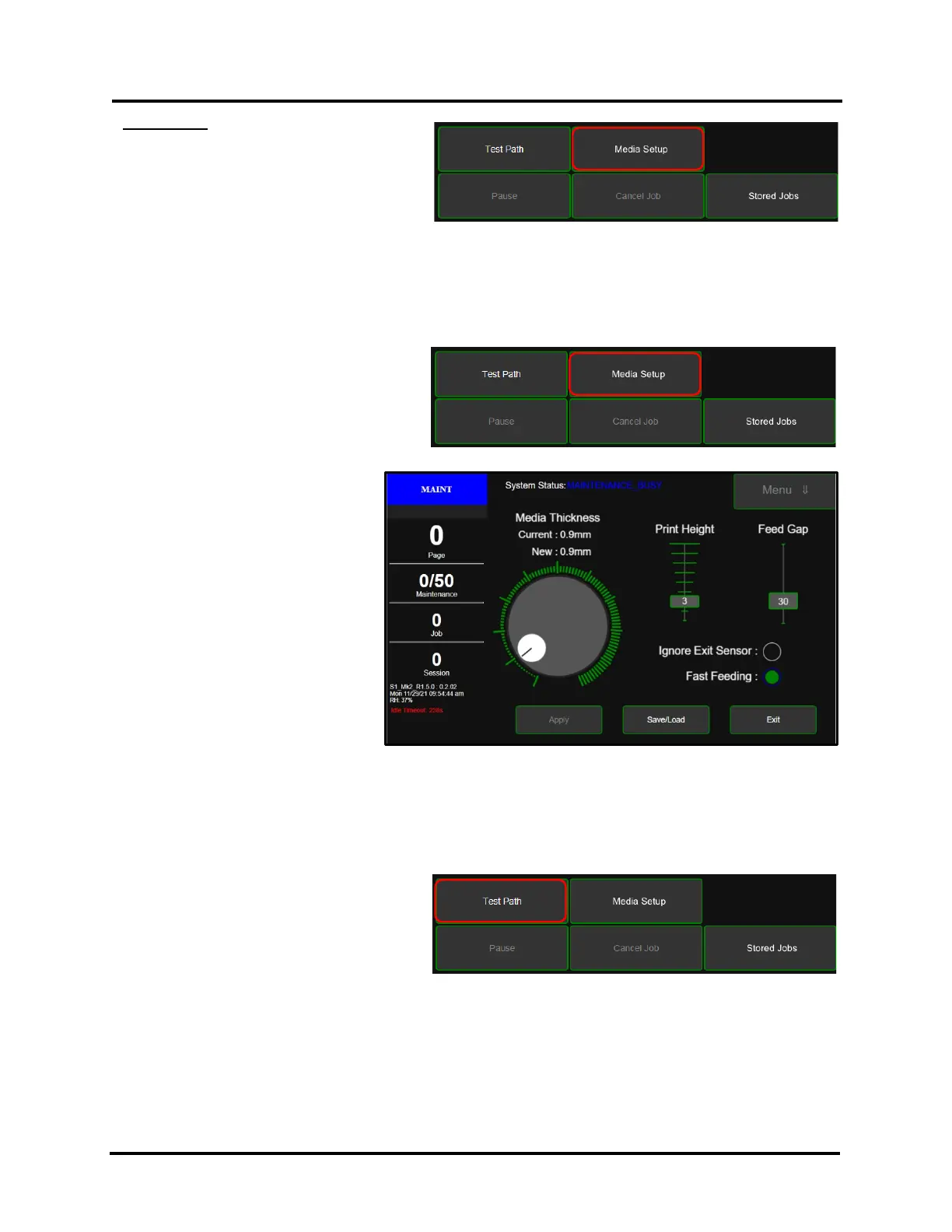
Media Setup - Tap to open the “Media Setup”
Menu.
In this menu you can set Media Thickness and
Print Height. Select Ignore Exit Sensor,
Select Fast Feeding and Feed Gap options.
You can also Save and Load (recall) settings.
Media Thickness - Moves the Clamshell up/down (0.1mm to 10mm) to accommodate media thickness.
See section titled “Adjust Media Thickness”, within the “Operating Printer” section, for aid in making an
appropriate media thickness selection.
To adjust and set the Media Thickness:
1. Tap the Media Setup button to open
the Media Setup screen.
2. Under Media Thickness you will find
the Current media thickess setting and
the Dial used to adjust the media
thickness.
3. To move the Dial, press and
drag the Selector (small white
circle) around the circular scale
to obtain the desired (New)
Media Thickness value.
Selected value will be shown
next to New.
NOTE: After making any
changes to items on this screen,
the Apply button will turn RED
and the Exit button will change
to a Cancel button, giving you
the ability to cancel any
changes you have made and
close the screen.
4. If New value is correct, tap the Apply button (currently RED) to confirm the change. The Clamshell will
move up or down to the New thickness setting. During this time the Selector and New value will also turn
RED. Once the Clamshell reaches the New thickness setting the Selector will turn WHITE again and the
Apply button will turn GREEN again. In addition, the Current and New values will now match.
5. Tap the Exit button to exit the Media Setup screen.
6. You can test for proper setup using the
“Test Path” button.
Adjust as necessary.



 To Next Page