SECTION 3
OPERATING PRINTER
57
Stored Jobs
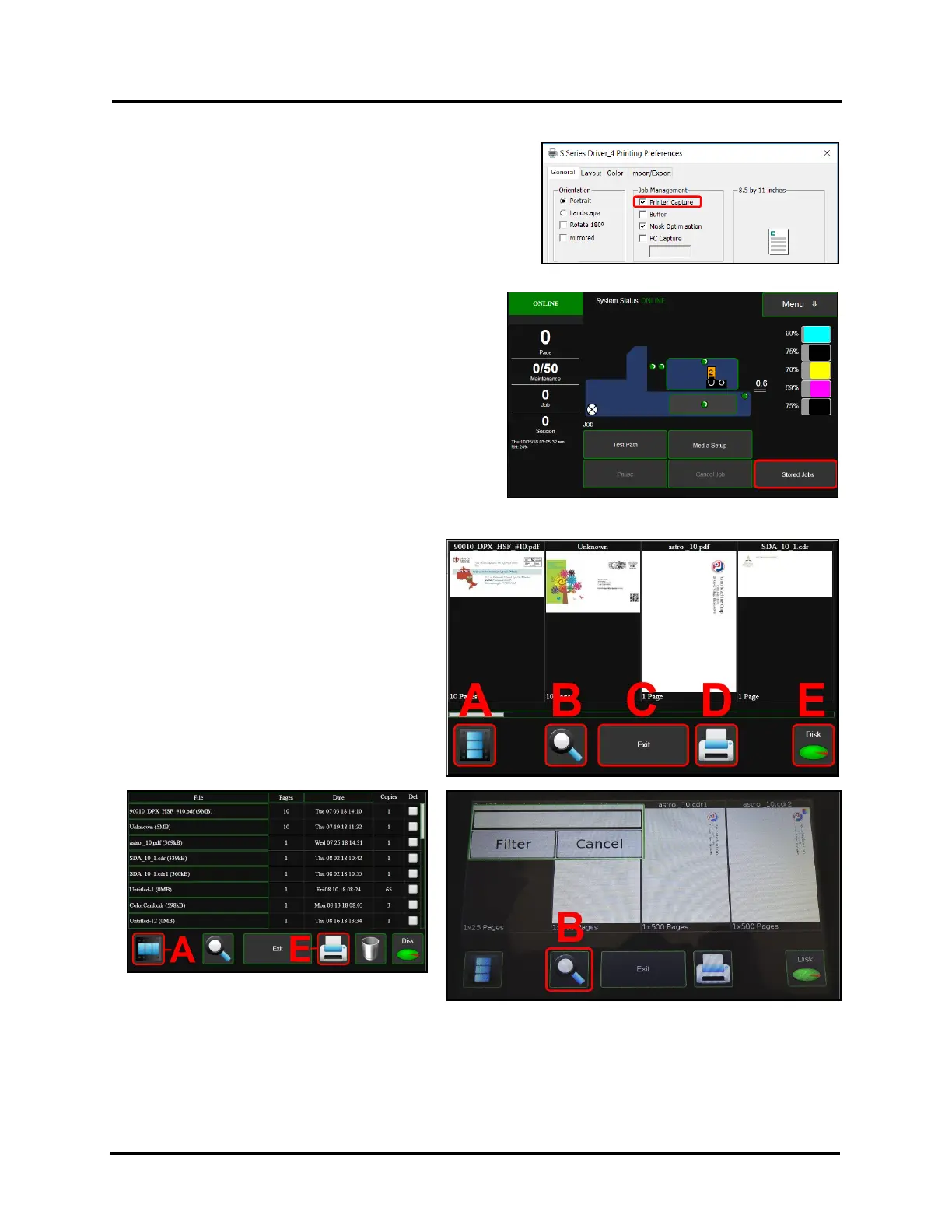
Print jobs are saved to the Printer's Job Library by selecting the
Printer Capture option under Job Management on the General
Tab of the Printer Driver.
Tip: Don’t forget to uncheck the “Printer Capture” feature when
sending jobs that you don’t want stored on the printer.
You can access jobs saved in the Printer's Job Library
using the Stored Jobs button on the Job Menu.
NOTE: If no jobs are saved on the Printer, this button will
be inactive.
Using Stored Jobs (Print Job Library)
To view the Printer's Job Library, tap Stored Jobs on the Jobs Touchscreen. The Jobs Library opens.
Use the View button [A] to change the Library
view from Icon to List.
Use the Search icon [B] to search for a
particular print job.
The Exit button [C] returns you to the Jobs
(Status) screen.
The Printer icon [D] prints the selected job.
The Trashcan icon [E] (List view only) deletes
selected job(s) (checked in the Delete column
in the Jobs List) from the Library.
The Disk icon [F] displays the available space
left in the Printer's Job Library memory.
Tap within Search Box to display keyboard.
Provide search value and then Tap “Filter” button to
display items that meet your search value.



 To Next Page