SECTION 4
SOFTWARE SETUP INFORMATION
86
Setting Up a Job in Bulk Mailer
®
Printer Driver Limitation: The developer of Bulk Mailer commonly develops printer drivers for use with their
software product. However, in the case of the MACH 5 printer, they have not developed a driver for this model.
Therefore, you will need to use the features within the “S Series Driver” to control print quality, orientation, etc.
The following are descriptions of how-to setup and print from Bulk Mailer on #10 envelopes.
#10 Envelope, Feeding Long-Edge First (Flap First)
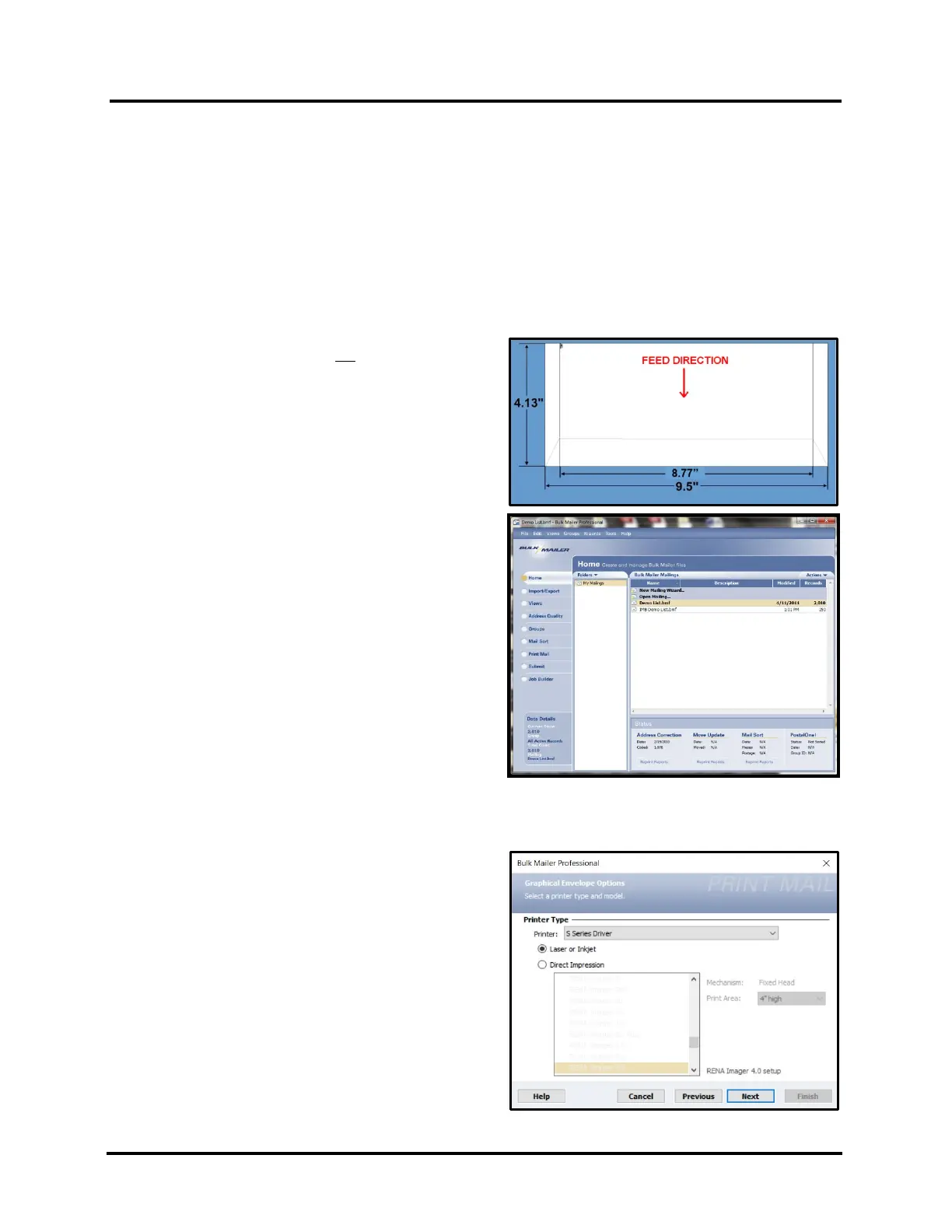
NOTE: Keep in mind that you will not be able to print the
full width of a #10 envelope when feeding it long edge first.
You are limited to 8.77 inches, which is the maximum print
width of the Memjet Printhead. If you need to print the full
area of a #10 envelope, it will need to be fed short edge first.
For details, see “#10 Envelope, Feeding Short-Edge First”.
1. Open Bulk Mailer.
2. From the “Home” tab, select (double click) on the
“mailing” of your choice.
3. Select the “Print Mail” tab (left side of screen).
4. From the “Print Mail” screen, double-click on the “Print Mail Wizard” which will guide you through the
template (layout) setup process.
5. When the Welcome screen appears click on Next.
6. The “Print Mail Template Type” window will open.
Select “Envelopes – Graphical Output” and
Click on Next.
7. The “Graphical Envelopes Options” window will
open.
Select the “S Series Driver” from the Printer pull-
down list.
Then select “Laser or Inkjet”
Click on Next



 To Next Page