SECTION 4
SOFTWARE SETUP INFORMATION
84
SECTION 4 – Software Setup Information
General Software Setup Info
Do NOT exceed the Min or Max media specifications of the printer:
• Minimum paper size printer can feed: 3" wide x 4" height (length).
• Maximum paper size printer can feed: 10.5" wide x 17" height (length).
• Maximum print area for the printer: 8.77" wide x 40" height (length).
NOTE: The printer driver and firmware will accept up to a 40” height (length), but the Rear Media Support
Guide/Sled is not designed to support media of this length.
Software/Driver Setup for media that is 3” to 8.77” wide:
Select a matching “Media Size” from the pull-down list within the driver or use the “Custom Sizes” (Custom Media
Size) button, within the driver, to set the paper width and height (length) to the dimensions of the media. Then set
the paper size, within your software, to the same selection/dimensions set within the driver.
Examples:
8.5" x 11" document: Select “Letter” or set a Custom Media Size of 8.5" wide by 11" height (length), in software
and S Series Driver. Set top, bottom, left and right margins to minimum values, or any margin you require. Set
Portrait orientation in software and driver.
# 10 envelope (4.13” W x 9.5” L) feeding short edge first: Select “Env. Com10 4 1/8 x 9 1/2 in – Portrait”, in
software and driver. Set top, bottom, left and right margins to minimum values, or any margin you require. Set
Landscape orientation in software and Portrait orientation driver.
Software/Driver Setup for media that is 8.78” to 10.5” wide:
Select a matching “Media Size” from the pull-down list within the S Series Driver or use the “Custom Sizes”
(Custom Media Size) button, in the driver, to set the paper width to 8.77” (max print width) and the paper height
(length) to the actual length of your media. Then set the paper size, within your software, to the same
selection/dimensions set within the driver.
Examples:
10" x 13" document: Set a Custom Media Size of 8.77" W by 13" H (length) in driver and software. Set top,
bottom, left and right margins to minimum values, or any margin you require. Set Portrait orientation in driver and
software.
# 10 envelope (9.5” W x 4.13” L) feeding long-edge first: Select “Env. Com10 4 1/8 x 9 1/2 in – Landscape”, in the
software and driver. Set top, bottom, left and right margins to minimum values, or any margins you require. Set
Landscape orientation in the software and Portrait orientation in the driver.
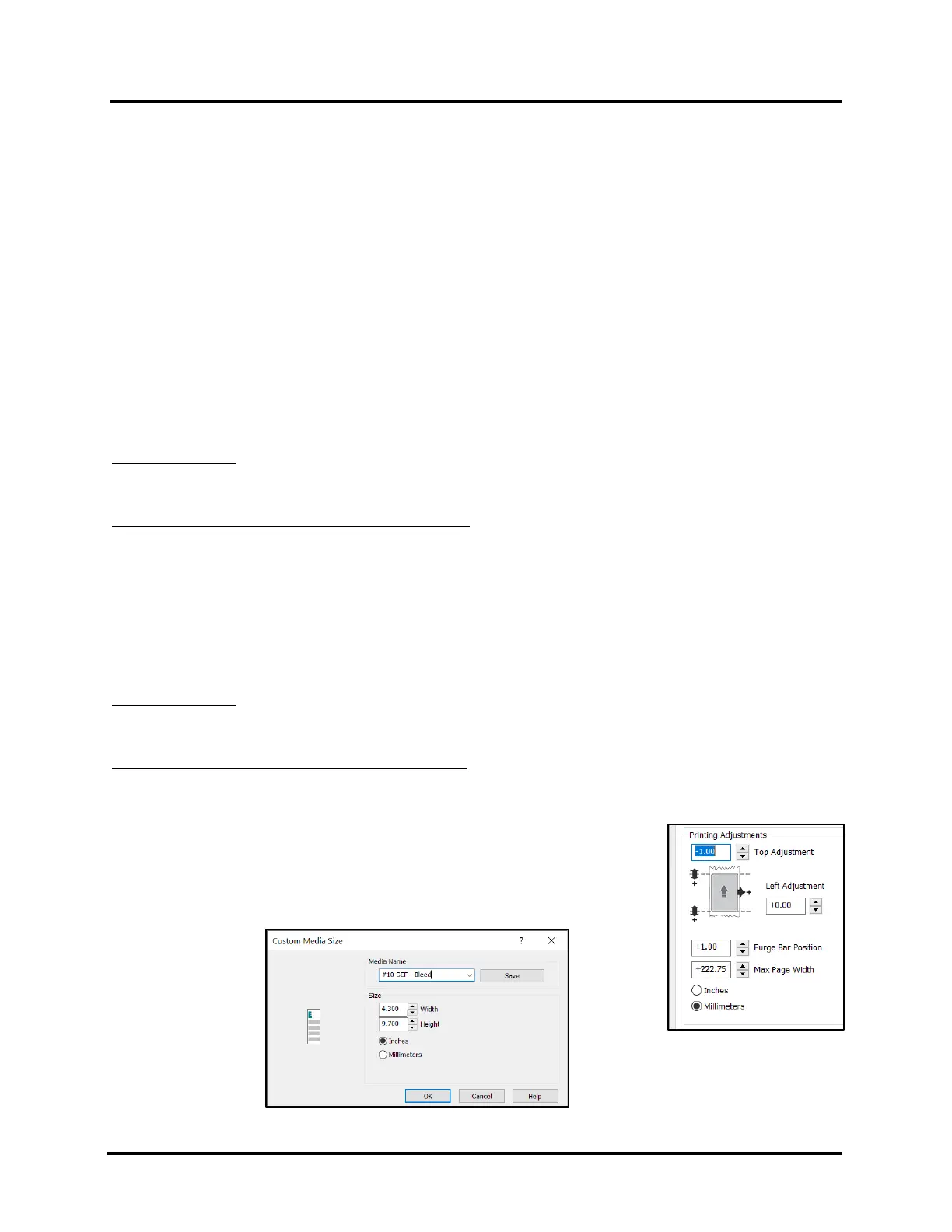
If you plan to print a “full bleed” image, make sure the PDF file (artwork) is
slightly larger than the media you plan to print onto.
Be sure to create a Custom Media Size, in the driver, to accommodate the bleed area.
You will also need to use the driver Layout feature (Top Adjustment) to move the
image off the top of the media (set to a negative value) and set the “Purge Bar
Position” to a larger positive value to allow the image to bleed off the trailing edge.



 To Next Page